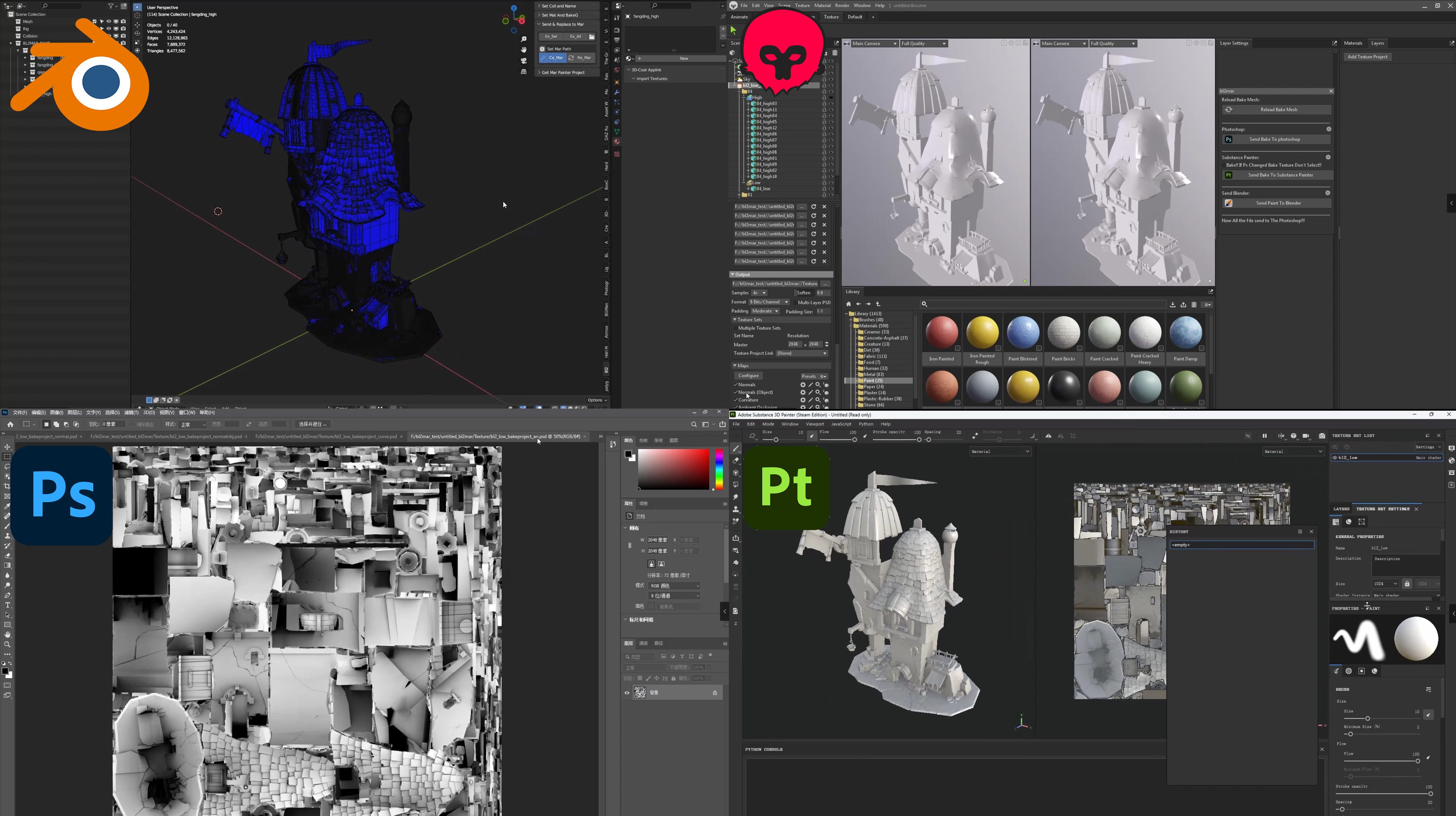
Photoshop Link is a Blender add-on for sending the Render Result or a selected Image Editor image to Photoshop, then bringing the edited image back into Blender. It gives the transfer a dedicated panel in Blender’s 3D View sidebar and requires a companion plugin installed inside Photoshop.
What it transfers
The add-on moves images between the two applications. It does not transfer Blender geometry or materials, or keep a live Photoshop document session connected to Blender. That makes it relevant to render finishing and image or texture editing workflows where you otherwise save, locate, and re-import files by hand.
How the round trip works
- Before installing, review the compatibility details later in this article. Then install the Photoshop companion plugin included with the product and restart Photoshop to activate it.
- In Blender, enable Photoshop Link under Edit > Preferences > Add-ons. If the add-on does not detect Photoshop, set its installation path in the add-on settings.
- Choose the Render Result or an image in Blender’s Image Editor, then use “Send to Photoshop” in the Photoshop panel in the 3D View sidebar.
- Edit the image in Photoshop and use “Save and Send to Blender” in the companion plugin. Back in Blender, choose “Import from Photoshop.”
On import, you can override the existing image or create a new version. Temporary files are cleaned up after the transfer.
Check compatibility before installing
The product’s system requirements state Blender 4.2 or later, Photoshop CC 2023 (version 24) through 2025 (version 26), and Windows 10/11 or macOS 12 or later. The marketplace’s Blender Version field separately lists 3.6–5.2. Product documentation says Photoshop versions 24–26 are auto-detected on Windows and macOS; its FAQ specifically describes registry-based detection on Windows. If you plan to use Blender 3.6–4.1, ask the developer to confirm support before installing.
For texture artists, concept designers, and 3D creators, Photoshop Link handles image handoff while Blender’s import settings determine whether an edit replaces the existing image or creates a new version.
See the Photoshop Link product page and its setup documentation for the published instructions.