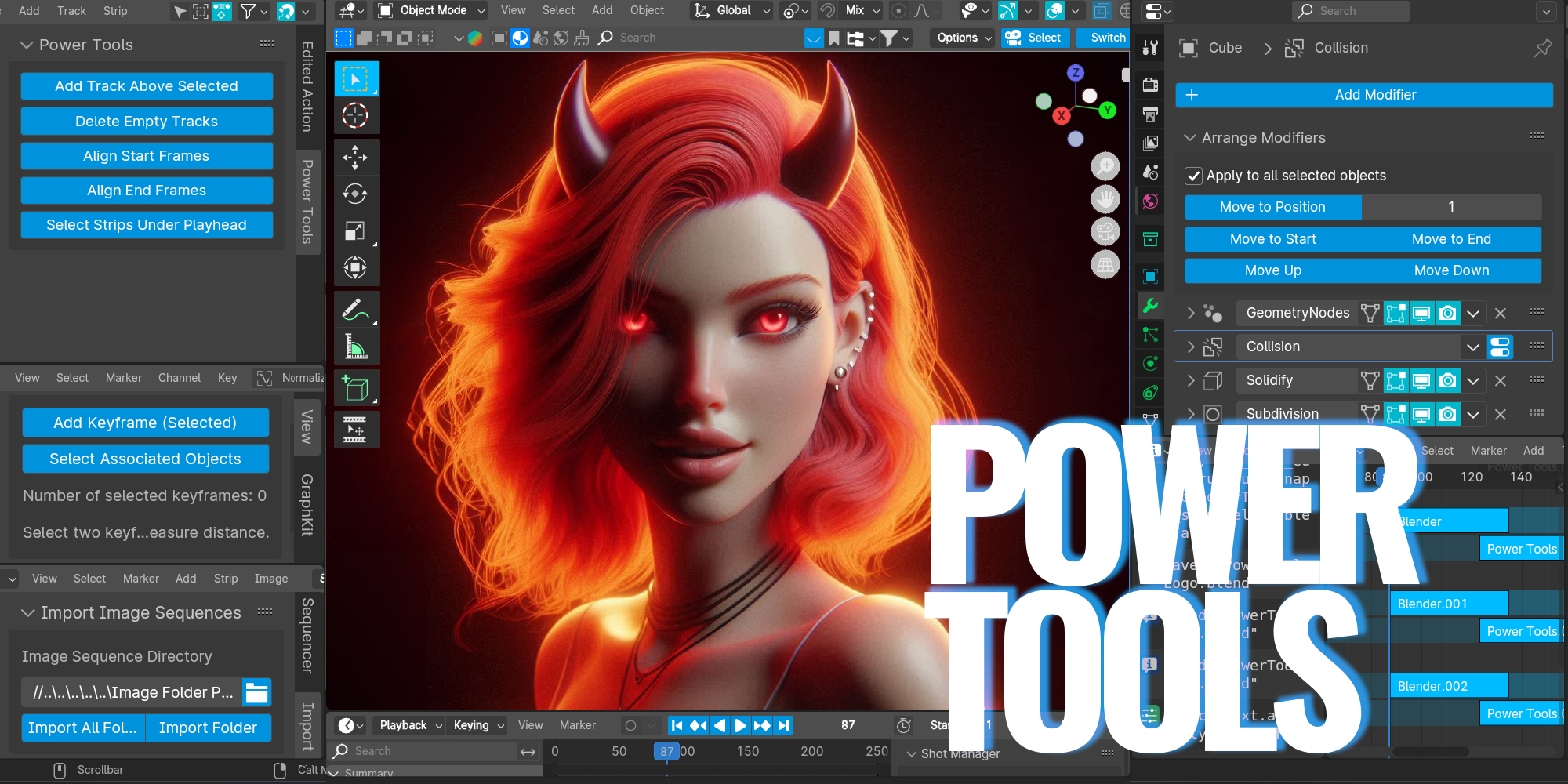
Power Tools - Productivity Toolset is a Blender add-on by aPOP with utilities for the Modifier panel, NLA Editor, and Video Sequence Editor. The creator says they built the tools for their own daily work making videos largely inside Blender.
Modifier tools for selected objects
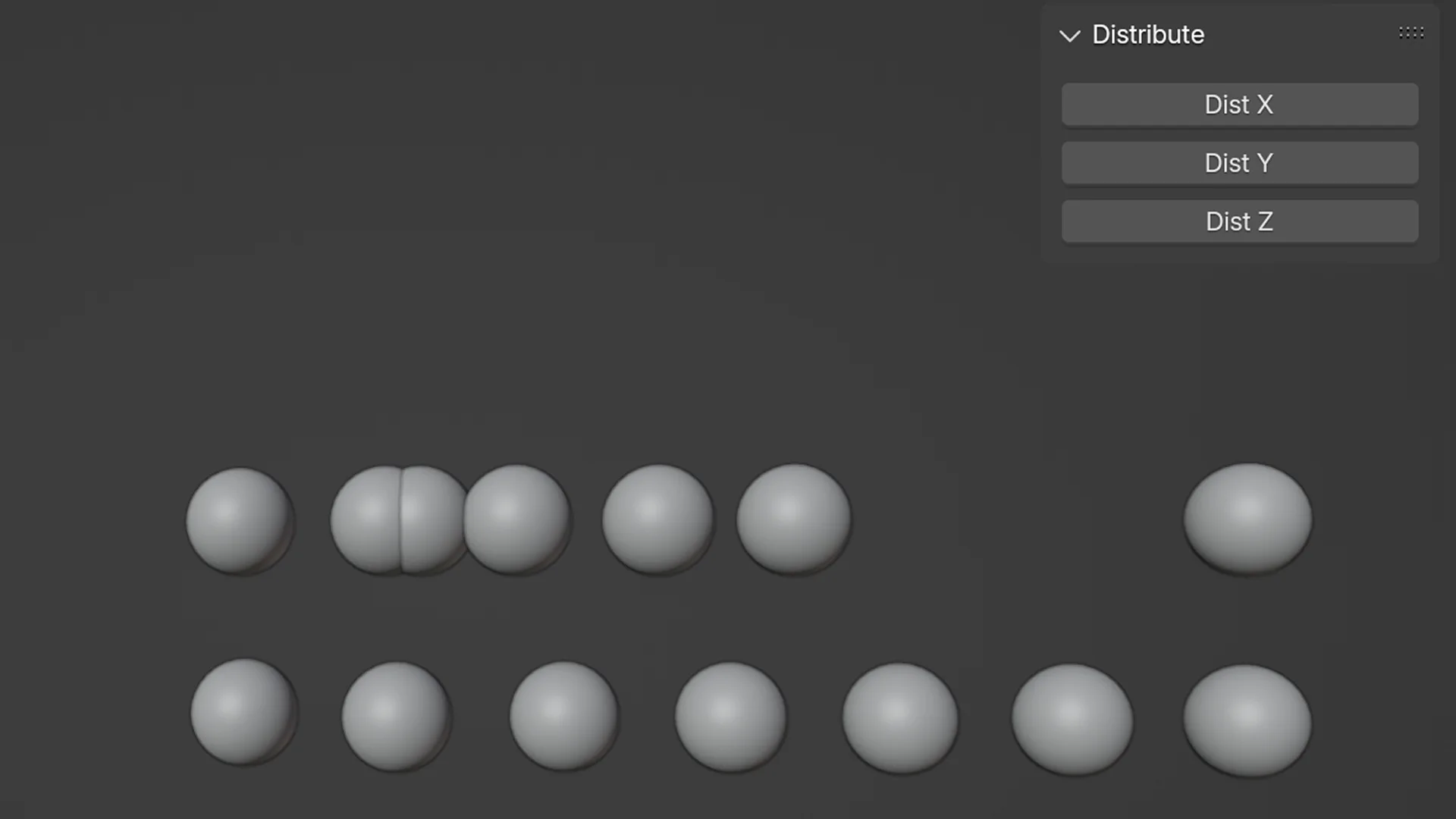
The Arrange Modifiers panel organizes modifiers across all selected objects. You can also move the active modifier up or down by one row, with an option to apply that move across the selection, or send it to a chosen index. The index control has soft limits from 1 to 10 and expands when you enter a higher value.
NLA Editor controls
Power Tools adds commands to select strips under the playhead, add a track above each selected track, and remove tracks that contain no strips. You can copy selected strips to other selected objects at the current frame, or align their start or end frames with the active strip.
Video and image sequence imports
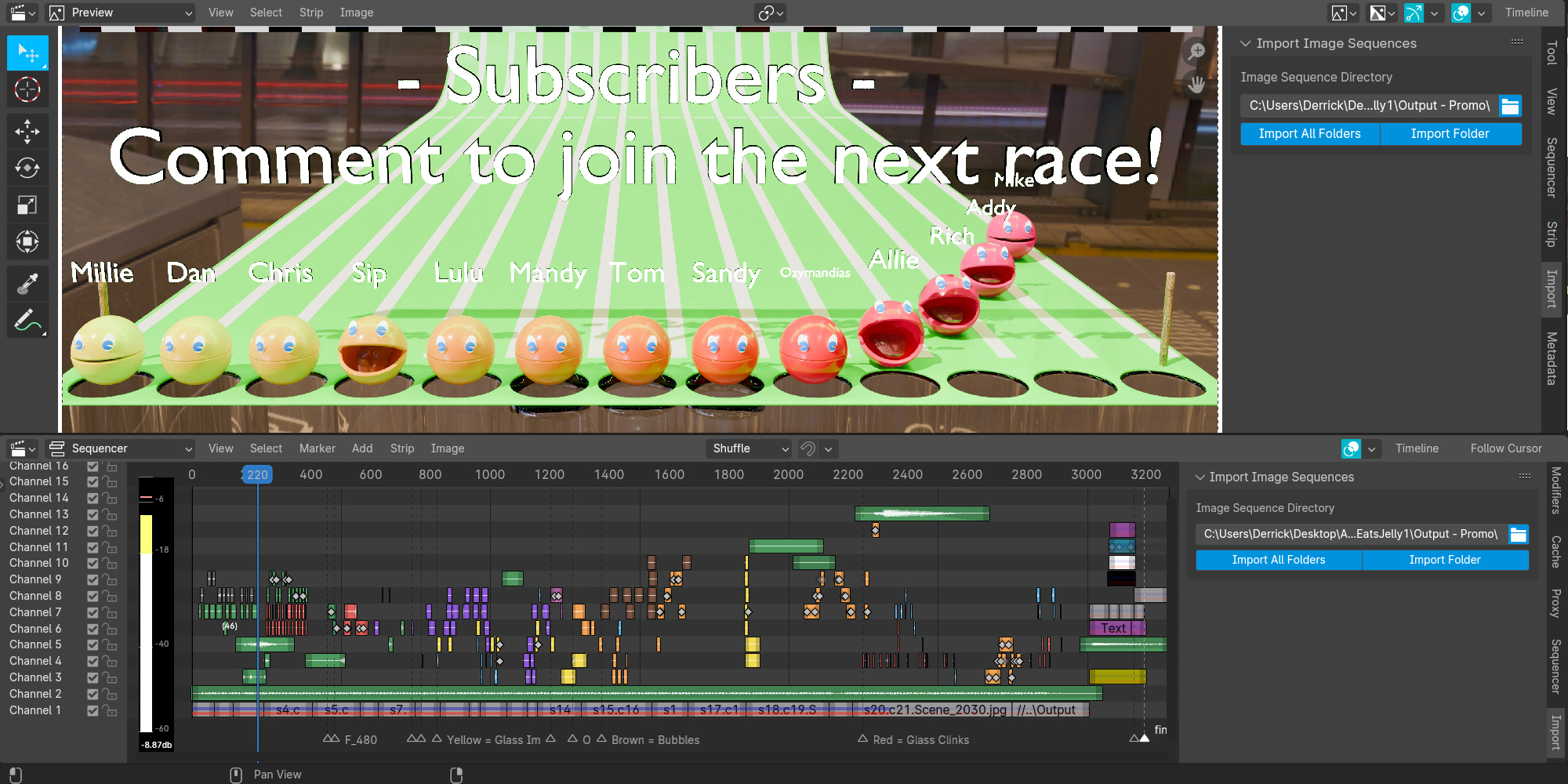
In the Video Sequence Editor, the add-on can import multiple video files from a folder or a set of folders and subfolders. It can also import rendered image sequences from folders inside a chosen top-level folder. For a broader video-editing setup, aPOP recommends the separate VSEQF add-on.
Features listed as coming soon
The product listing marks additional tools as coming soon. These include adding or removing collision on selected objects, deleting cloth bakes for selected objects, baking selected cloth objects, and pushing NLA strips down for multiple selected objects. Planned Graph Editor tools include selecting objects attached to selected keyframes, adding keyframes to selected F-curves at the playhead, and viewing time and value differences between keyframes. Check the product page for their current availability.
Compatibility and installation
The Superhive listing names Blender 4.0 and 4.1. Its installation notes say the add-on was made in Blender 4.1.1 and that backward compatibility is not guaranteed. Check the listing for compatibility with your Blender version before installing.
- Download the ZIP file from the product page.
- In Blender, open Edit > Preferences > Add-ons, choose Install, and select the ZIP file.
- Enable the add-on using the checkbox that appears.
If installation fails, the documentation suggests uninstalling the add-on, restarting Blender, reinstalling it, and trying again. The product details identify a GPL license. AnyPlugins lists the add-on as free; confirm current terms on the product page.