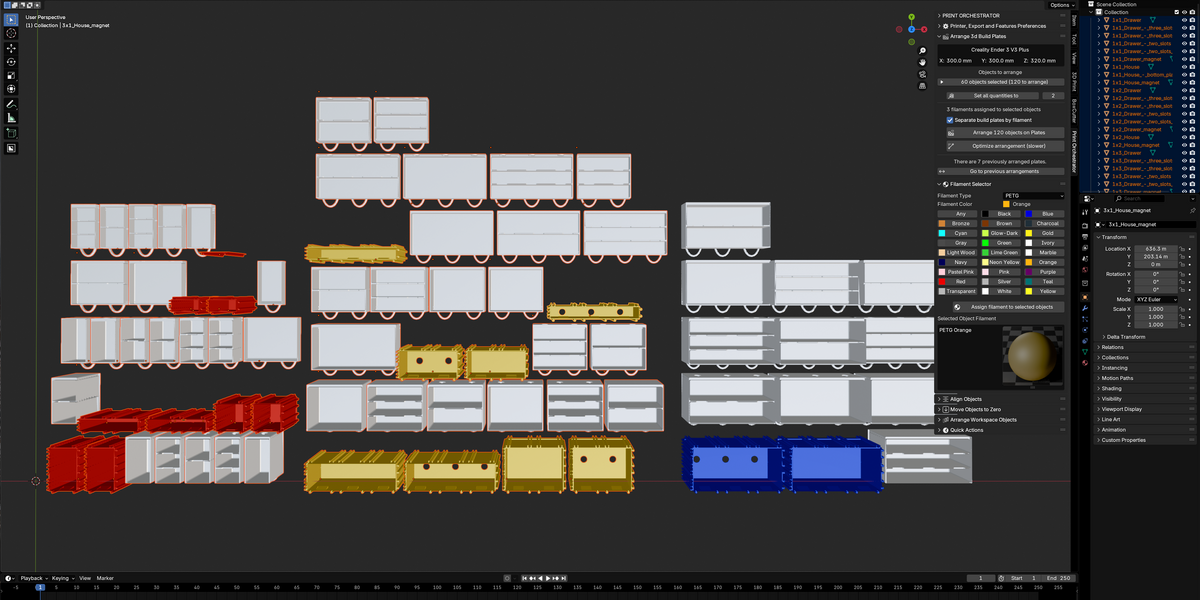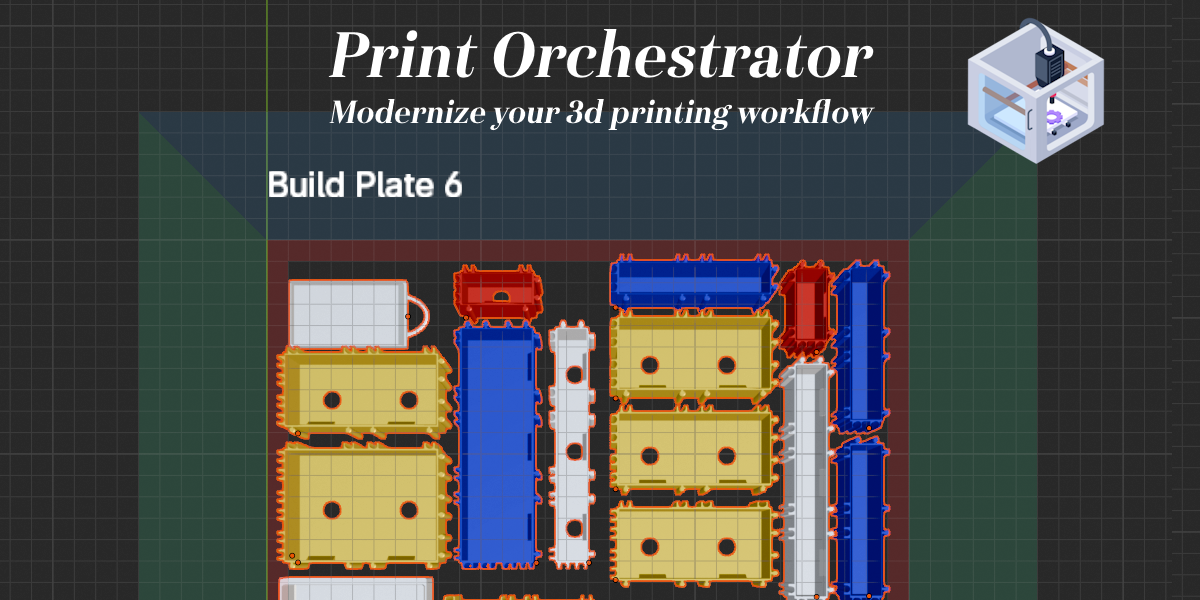
Print Orchestrator is a Blender add-on for preparing models for 3D printing. It arranges selected objects on one or more build plates, creates separate scenes for those plates, and exports files for slicing while leaving the main Blender scene intact. Its controls also cover quantities, filament grouping, and object placement.
Arrange objects across build plates
Select the objects you want to print, choose a printer, and set quantities if you need multiple copies. Print Orchestrator can arrange objects on plates quickly or use its slower Optimize arrangement option when you want to prioritize use of the available build area. When objects do not fit on one plate, Print Orchestrator can create separate scenes for multiple plates.
Printer settings include build plate dimensions, object spacing, and padding. You can also enable Z-axis rotation so objects can turn to fit the build area. The documentation recommends leaving it on unless absolutely necessary; disabling it can produce suboptimal arrangements, especially for objects rotated halfway around the Z-axis.
Keep the Blender scene organized
The build process creates separate scenes for the plates rather than moving objects in your main scene. Parent-child relationships are preserved: when you select a parent, its children move and arrange with it as a group. Before building, use Blender's Apply command to normalize rotation and scale across the parent-child chain and reduce unexpected behavior.
Collections receive no special handling, so Print Orchestrator treats each object separately. To keep objects together, use a parent-child relationship or Blender's Join command.
Group by filament and export for slicing
Assign filament types and colors to objects, then use filament grouping to separate them onto different plates. The add-on also provides controls to align objects, snap them to axes, organize workspace objects by volume or XY area, and adjust spacing and offsets. Quick Actions brings common operations such as arranging plates, resetting transformations, and dropping objects to Z=0 into one panel.
Export settings let you choose STL or another supported format, export entire plates or individual objects, and set file naming and folder options. The exported files are intended for the slicer software you choose; the documented workflow does not name a specific slicer or cover its settings. See Coding Art's Print Orchestrator documentation for the detailed workflow, and check the product listing for current compatibility and terms.