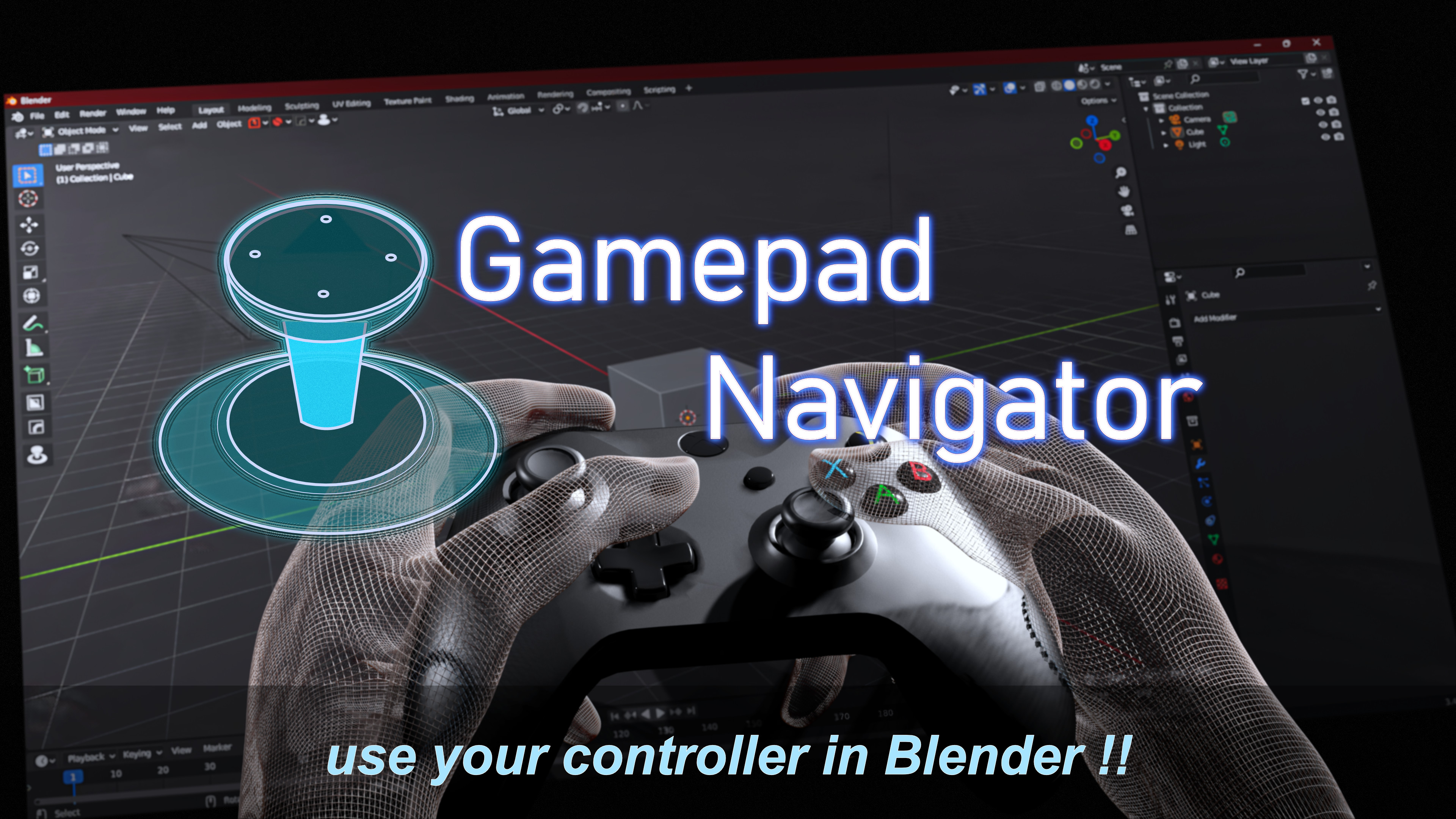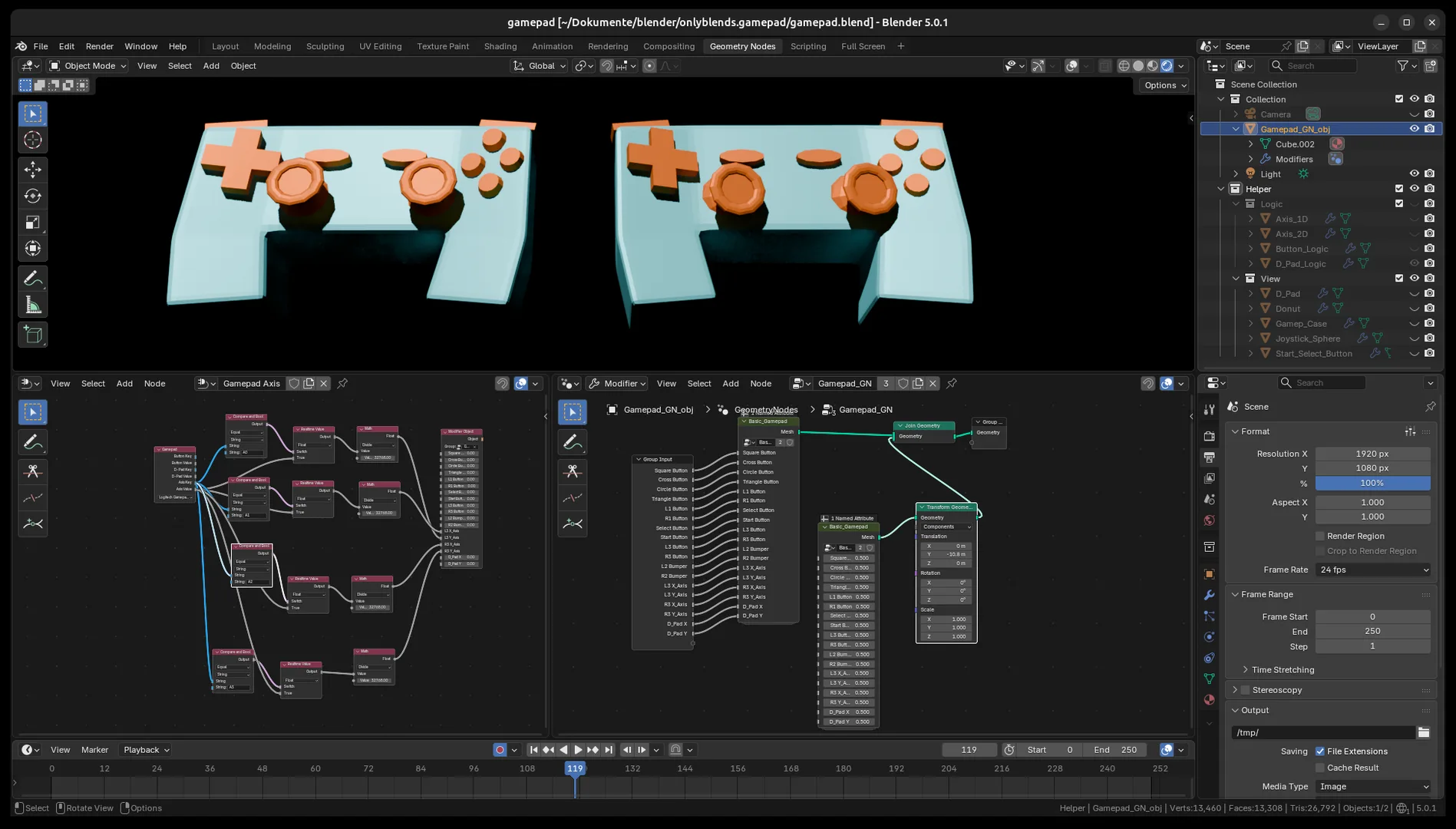
PS5 Controller for Blender is an add-on that maps a PS5 controller to object movement, rotation and camera controls in Blender. It is intended for Windows, with the controller connected by USB or Bluetooth. Listed uses include scene exploration, camera operation, animation previews and architecture walkthroughs. See the Superhive product details.
Controls and settings
The left stick moves and positions the selected object, while the right stick controls rotation. Axis-based navigation and adjustable deadzone settings are available. The Circle button switches to camera view, and L1 returns to normal perspective view. The add-on also supports direct camera object control.
You can adjust movement speed and turn sensitivity, set a boost multiplier, and choose custom speed presets. These settings let you tune movement for slower object adjustments or broader scene exploration.
Install and start the add-on
- Connect the PS5 controller to your Windows PC by USB or Bluetooth before starting Blender.
- In Blender, open Edit > Preferences > Add-ons, choose Install, and select the downloaded add-on file.
- Enable the add-on, then open the Controller panel in the 3D Viewport sidebar.
- Select a target object and click Start Controller.
If the controller does not respond, check that Windows recognizes it and that the add-on is enabled. Restart Blender if needed. The product listing says no additional software is required.
Requirements and compatibility
The listed requirements are Blender 3.6.0 or later, Windows, and a PS5 controller. The compatibility field names Blender 3.6 and versions 4.0 through 4.3. Check the product listing for support details for later Blender releases. Windows is the stated platform; macOS and Linux support is unspecified.
Package and listing details
The package includes a Python add-on file, a documentation PDF and a quick-start guide. AnyPlugins lists the add-on as free, while Superhive lists its license as GPL. Check the Superhive listing for availability and license details before downloading.
This add-on may suit Blender users who prefer a gamepad for object positioning, camera operation or navigating a scene. Its documented controls center on movement, rotation and switching between camera and normal perspective views.