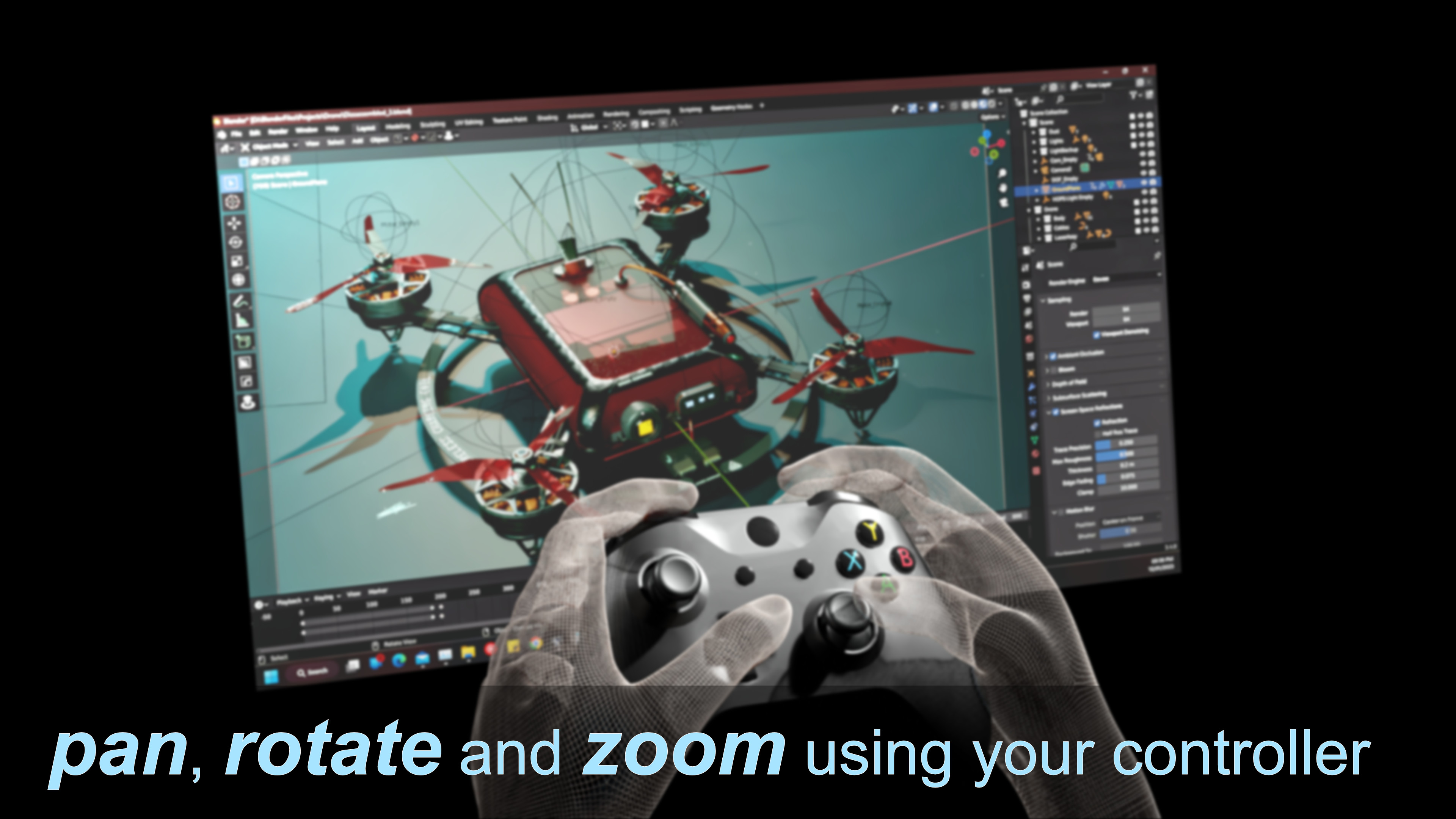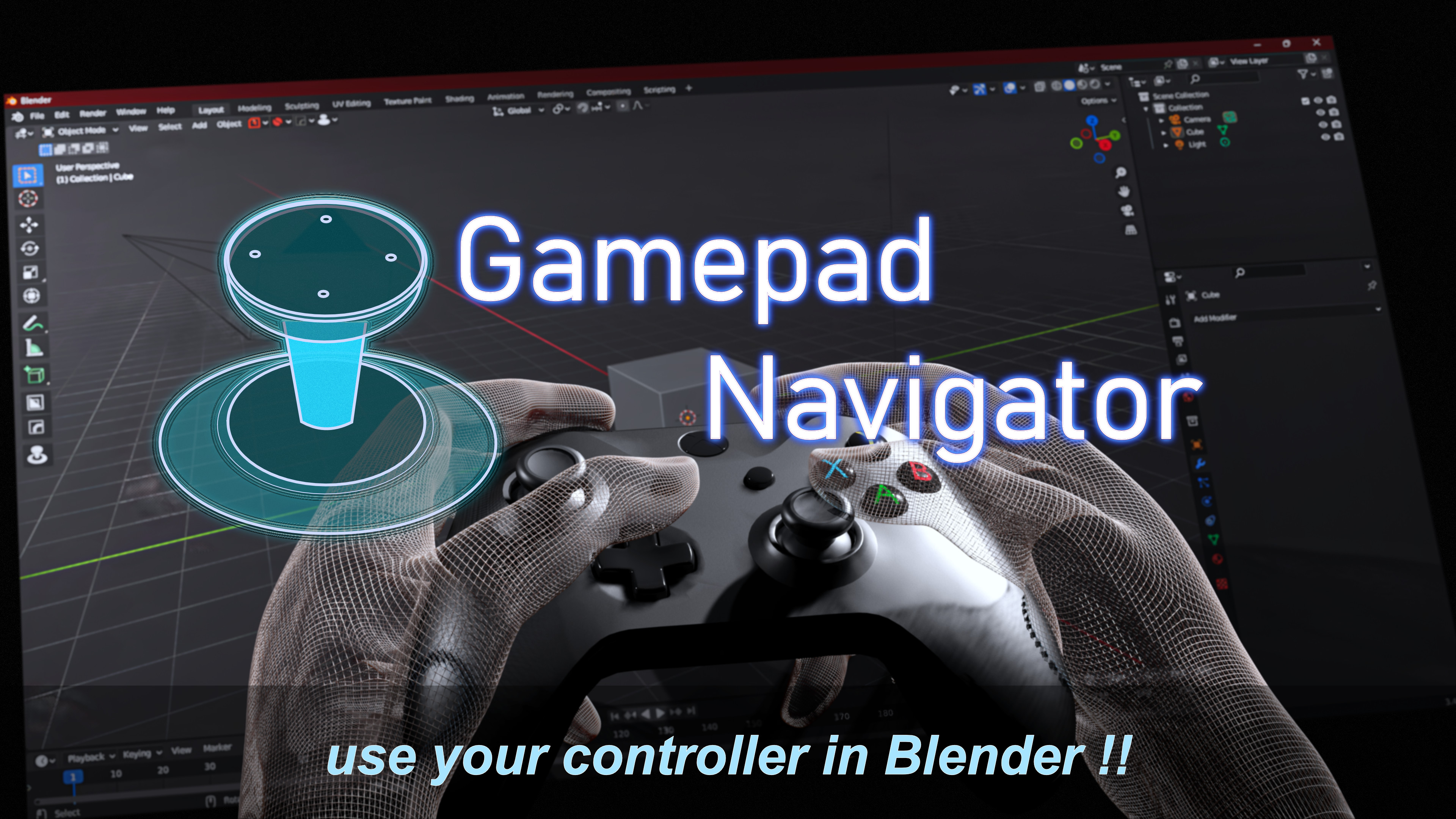
Gamepad Navigator is a Blender add-on for navigating a scene and controlling camera shots with an XInput game controller, such as an Xbox pad. It supports wired and wireless controllers on Windows and does not require separate drivers or external software. Version 0.1.4 adds turntable and trackball orbit modes. See the product listing for current details.
Navigate the viewport and frame camera shots
Use the controller to pan, zoom, and rotate the Blender viewport. Analog sticks and triggers control movement speed in proportion to how far they are pressed. The add-on also supports point-and-shoot object selection and turntable views for inspecting an object from different angles.
Camera controls include setting a view, focusing on objects, and adjusting depth of field and f-stop. You can switch between solid view and material preview, toggle overlays, and set the camera view to the selected object. A screencast feature displays controller inputs and triggers in real time.
Record camera movement
To record a camera move, enable Lock Camera to View and Auto Keying, then activate the controller and start playback. You can start playback with the controller's START button or from Blender's timeline. The add-on records camera location and rotation keyframes as you navigate. Press START again or stop playback in the timeline when the move is complete. The quick-start guide describes the setup.
Controller and Blender compatibility
The add-on supports XInput controllers, including Xbox-style pads. PlayStation 4 and PlayStation 5 controllers are not supported. The product FAQ specifies Windows 10 and 11; macOS is unsupported. Blender version details differ between the product listing, which names versions 4.2 through 4.5, and the FAQ, which says Blender 3.4 and above. Check the current listing before installing.
Setup and input behavior
- Connect the controller by cable or Bluetooth and confirm Windows recognizes it.
- In Blender, open Edit > Preferences > Add-ons > Install, then install and enable the add-on.
- Use the joystick icon in the tool menu to activate the controller. Press Esc or right-click in the viewport to deactivate it.
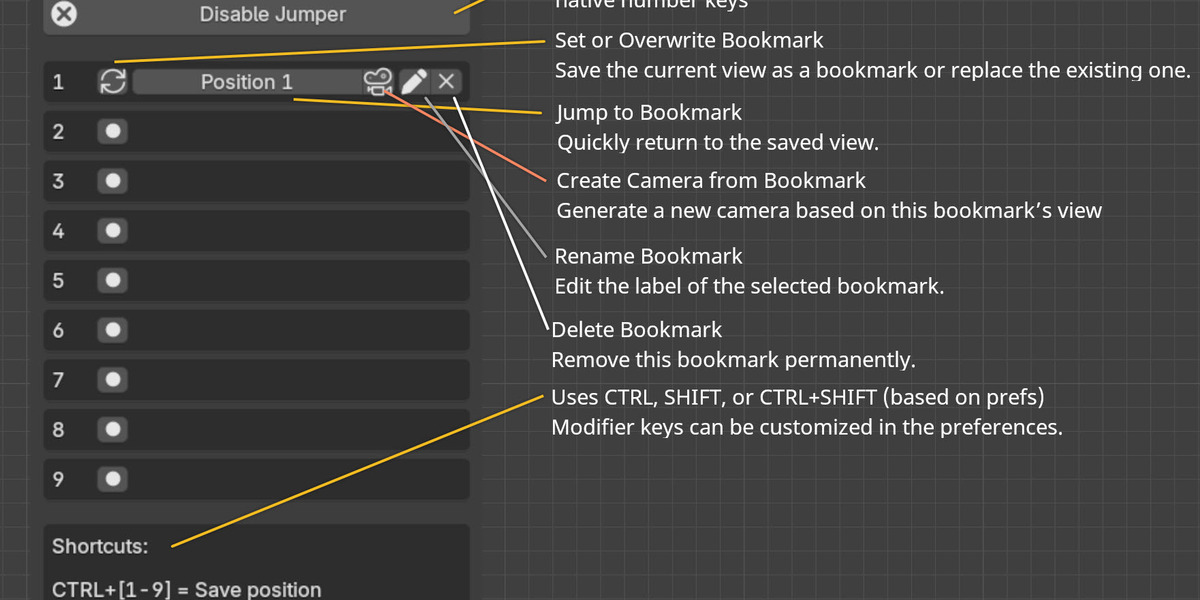
A panel in Blender's top header provides activation, sensitivity, camera, and screencast controls. Blender does not provide controller activity events, so the add-on polls the controller while it is active. Its documentation says CPU use drops significantly when no buttons are pressed, and notes that polling can sometimes delay button response or require a longer press. The product FAQ has further compatibility and input details.
The listing identifies version 0.1.4 and a GPL license. The AnyPlugins catalog lists Gamepad Navigator as free; check the developer's listing for current distribution details.