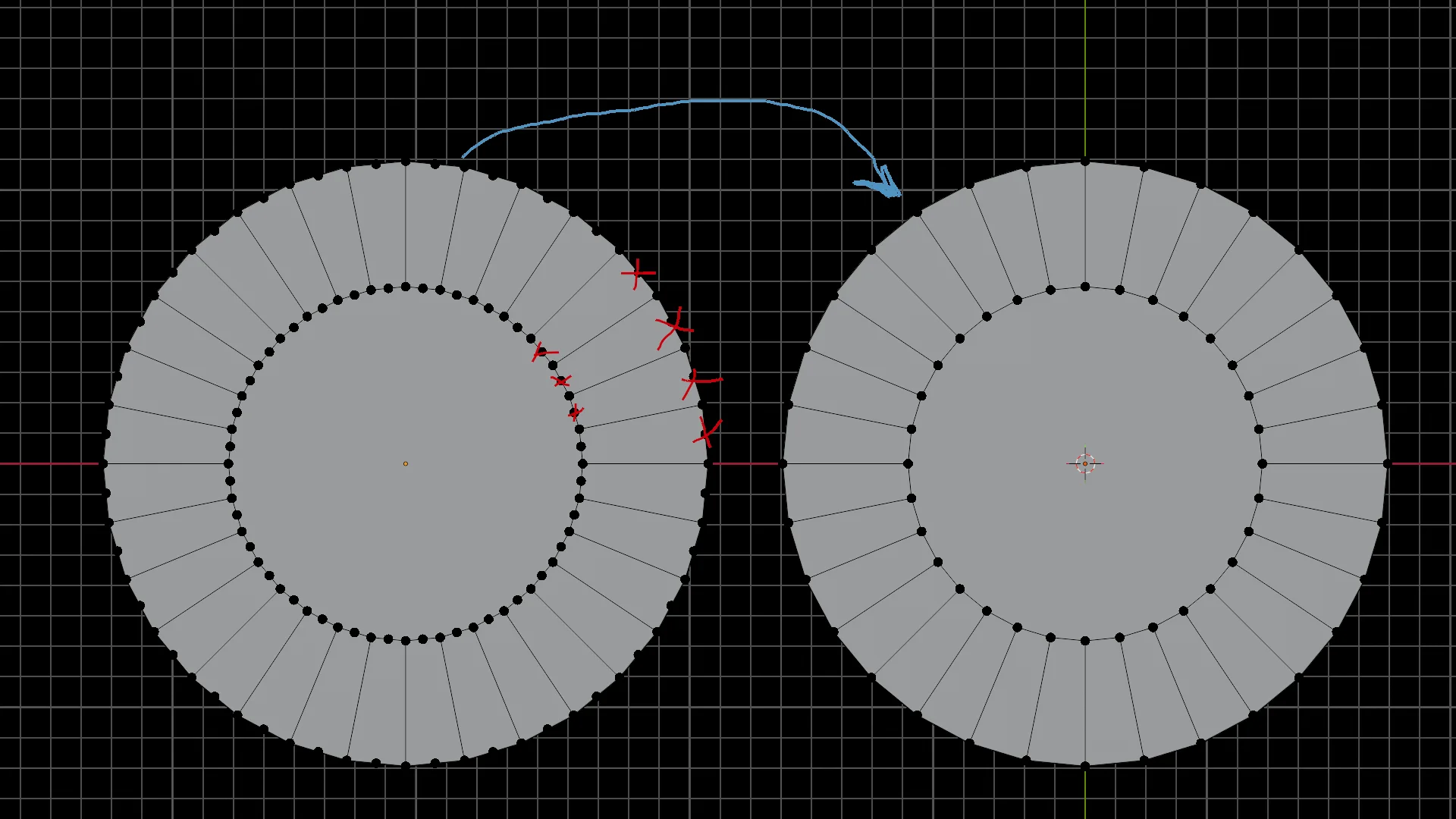
Quad Size Equalizer (Community) subdivides large quads toward a target edge length after Subdivision Surface or Bevel. Its new vertices sit on existing edges and bilinear face interiors, using simple subdivision rather than Catmull-Clark smoothing. The piecewise-linear shape stays intact. It is intended for mesh preparation before Displace or cloth.
Choose an edge-length target
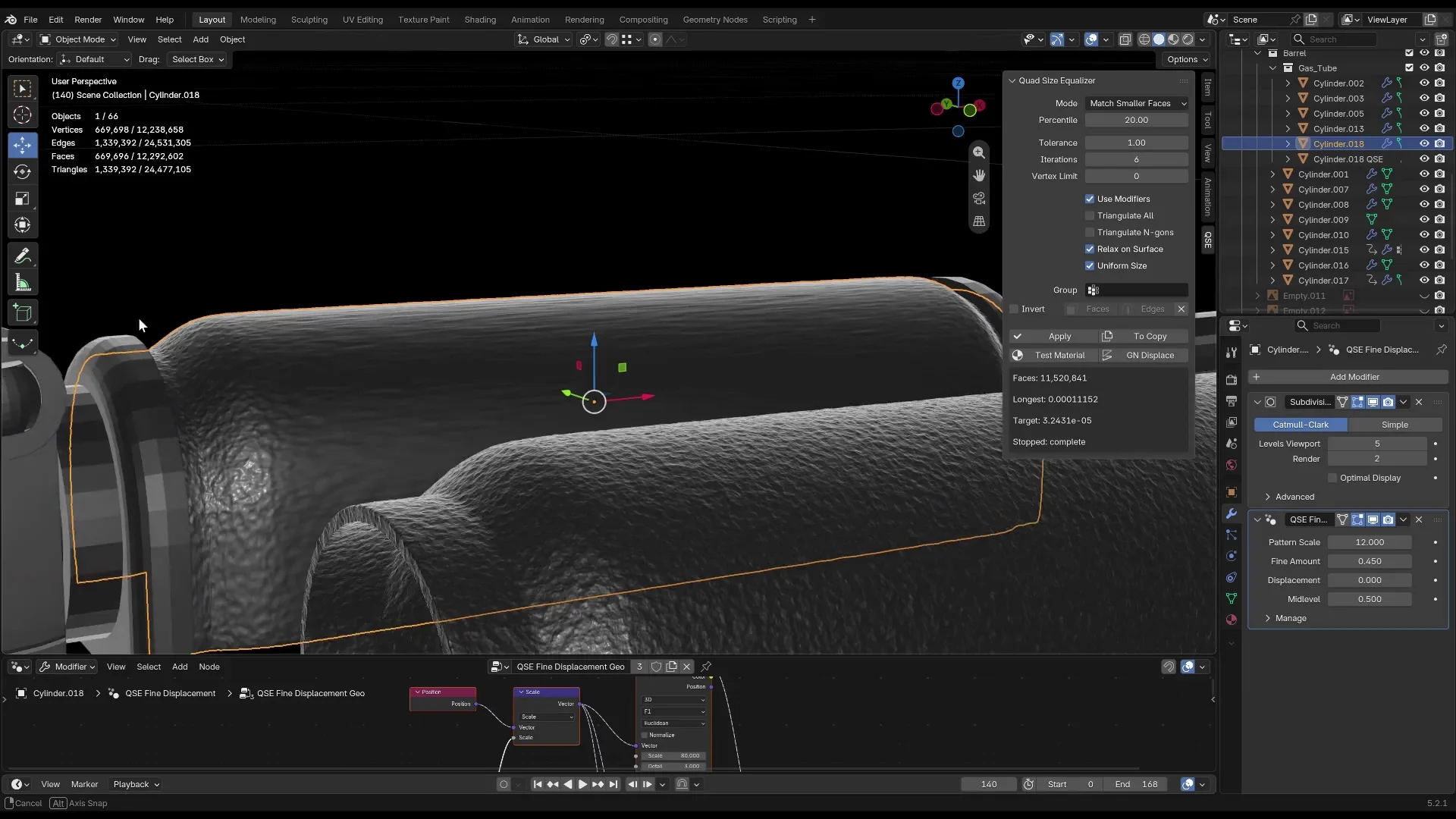
Select a mesh object and choose one of three modes:
- Match Smaller Faces derives a target from a percentile of the current edge lengths, so tiny outliers do not drive excessive subdivision.
- Match Smallest Edges aims at the shortest edges and ignores the smallest 2% as outliers.
- Manual Length uses a fixed target in scene units. In Edit Mode, you can also pick an edge to set the target length.
Optional controls can limit the operation to a vertex group or to faces or edges from the current selection. You can also triangulate n-gons.
Control mesh density
Uniform Size splits edges longer than twice the target and collapses edges shorter than 0.8 times the target. This can help when displacement reveals density bands or stretched slivers. Dense folds are not over-refined; remaining vertex budget goes to large faces. Start with Uniform Size off when you only need conformal splits.
Vertex Limit sets a ceiling; it does not tell the tool to use every available vertex. Increase Iterations if large faces need more time to catch up. The listing gives 12 as an example. Relax on Surface slides vertices across the original surface after topology changes.
Apply and inspect the result
The Community edition runs once when you press Apply; it is not a live modifier in the stack. Find it in Properties under Mesh Data, in the 3D Viewport sidebar under QSE, or in the Object menu as Apply Quad Size Equalizer. In Edit Mode, the Face menu has QSE Faces, and the Edge menu can use the selected edge as the target length.
Apply writes the result onto the selected object. To Copy leaves the original unchanged. Use Modifiers includes Subdivision or Bevel and applies those modifiers; Displace and later modifiers stay in the stack.
Object Mode edge-length overlays show the resulting lengths. Edit Mode statistics continue to show the original cage unless the tool has been applied. Large jobs display a RAM warning before running. The add-on also includes a test displacement shader and a Geometry Nodes displacement modifier for inspecting the result.
Version and compatibility
Version 1.9.0 requires Blender 5.2.0 or later and is licensed under GNU GPL v3.0 or later. The release adds Uniform Size, Relax on Surface, higher vertex limits, a test displacement material, and a Geometry Nodes displacement modifier. The listing reports testing with Blender 5.2 on Windows and says macOS and Linux should work.
See the Blender Extensions listing for the current release and download. Blender's extension installation instructions cover installing from disk. For issues, use the developer's issue tracker.