Quick Image Scale imports a folder of still images into Blender’s Video Sequencer as individual strips. It can size them against the scene resolution during import, so you can add a batch without placing each file one by one.
Import a folder into the Video Sequencer
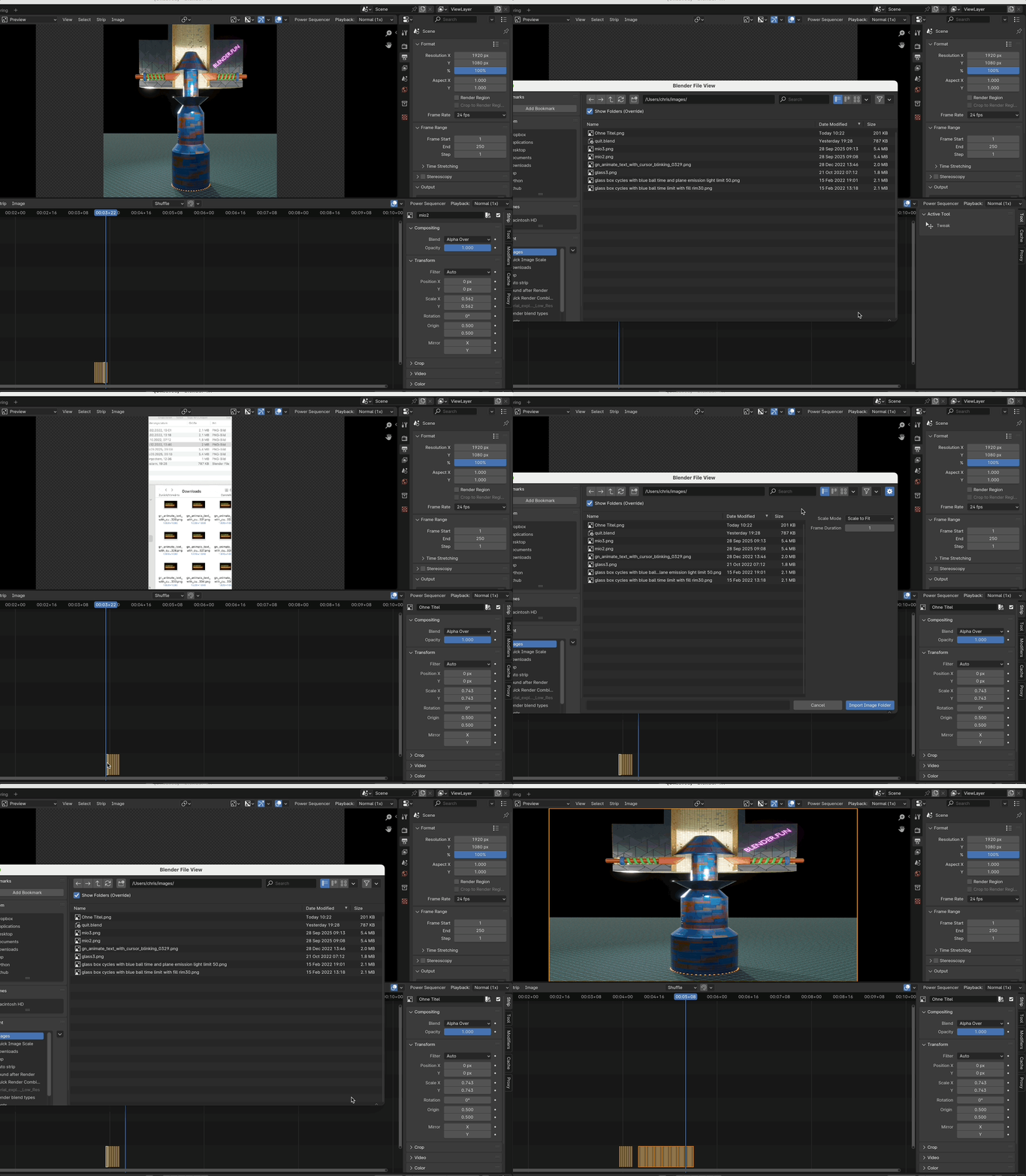
With the add-on enabled, open Blender’s Video Editing workspace or a Sequencer area. Choose Add > Import Image Folder, or use the default Ctrl+Shift+I shortcut. Select a folder, choose the import options and confirm. The images are added as strips in sequence, starting at the current frame. Imported strips are selected for further adjustments, and the status bar reports how many were added.
Choose how images fit the scene
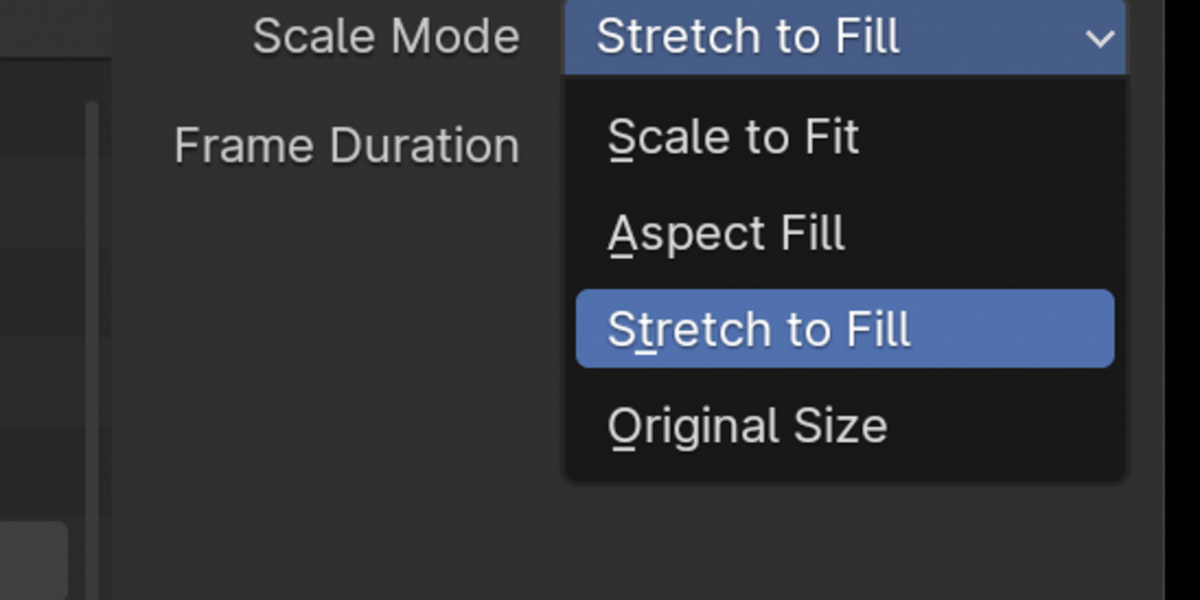
The product description highlights Scale to Fit and Aspect Fill. Its documentation also lists two more modes:
- Scale to Fit preserves the aspect ratio and fits the image within the scene resolution. Use it when keeping the full image visible matters.
- Aspect Fill preserves the aspect ratio while filling the scene resolution. It may crop the image edges.
- Stretch to Fill fills the scene resolution without preserving the aspect ratio, which may distort the image.
- Original Size imports the image at its source resolution without scaling.
You can set how many frames each image strip lasts. The documented range is 1 to 100 frames, with 1 as the default. The import operation also supports Blender’s undo command, Ctrl+Z.
Supported files and compatibility
The documentation lists PNG, JPG, JPEG, BMP, TIFF, TIF, EXR, HDR and WebP files. If no strips appear, check that you selected a folder and that it contains supported, readable images. The documentation notes that hidden or corrupted files can also prevent an import.
The documentation identifies version 1.0.5 and lists Blender 3.2.0 to 5.1.0 as compatible. The marketplace details list Blender 3.2 to 4.5, so the published compatibility ranges differ. The documentation says Stretch to Fill and Original Size may not work as expected in Blender 3.2, where API limitations can be a cause; both modes are fully supported in Blender 5.0 and later. Check the current product details for your Blender version, especially if you plan to use either mode above version 4.5.
The default shortcut is customizable in the add-on preferences. If Ctrl+Shift+I does not open the import operator, check for a keymap conflict or assign another shortcut in preferences.