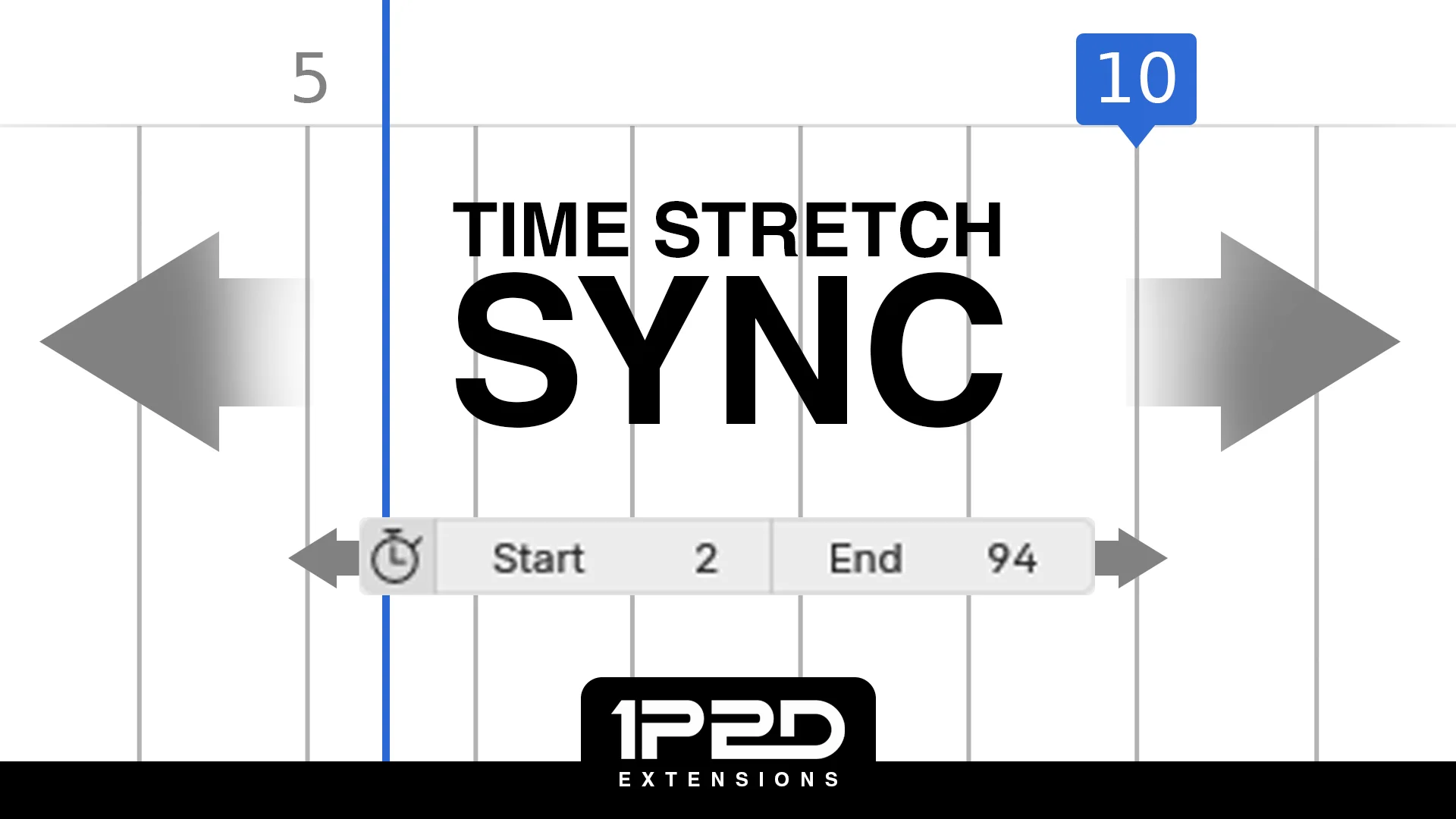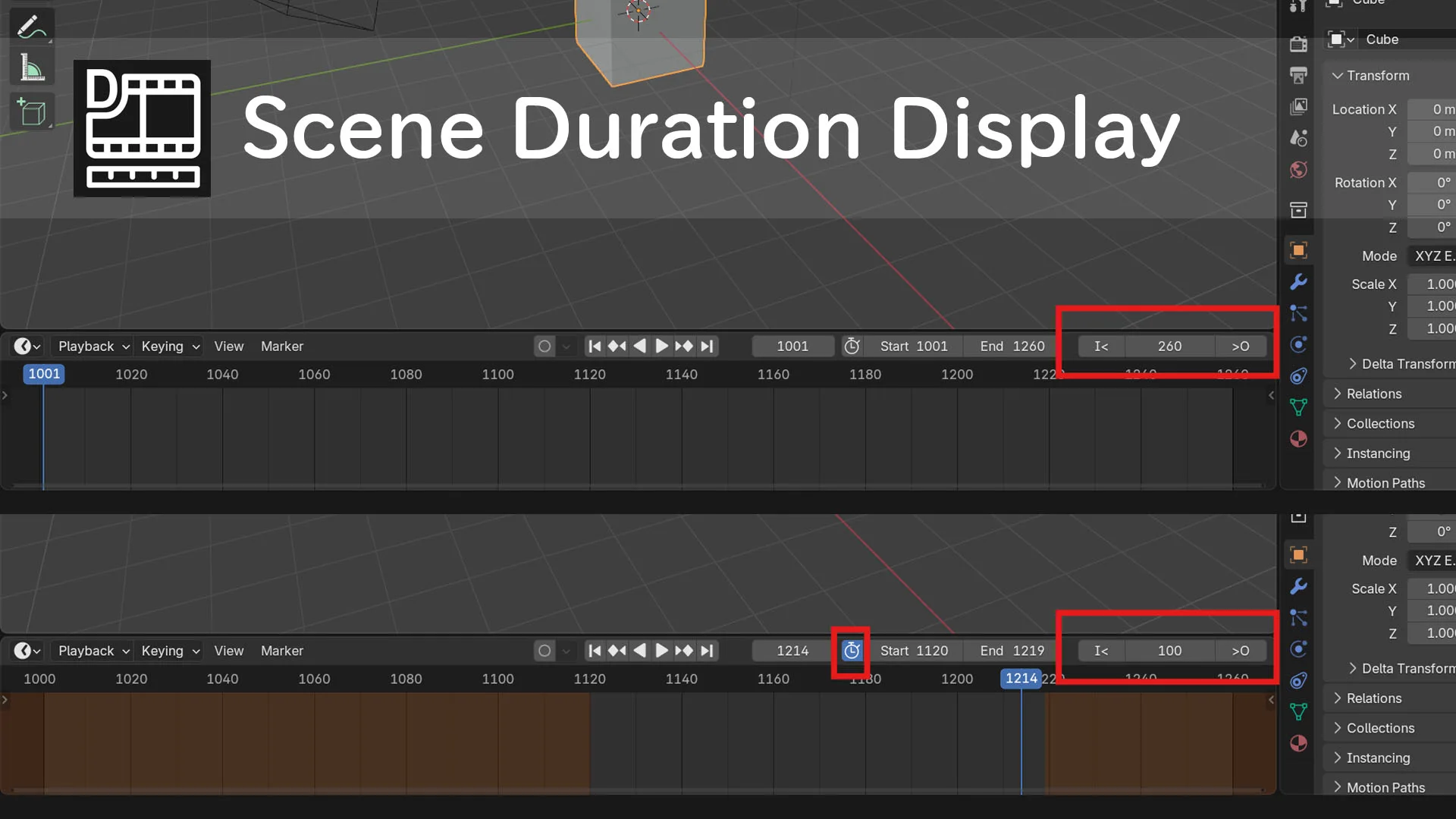
Scene Duration Display adds an editable Duration field to Blender's Timeline header. It reports the length of the active scene frame range or preview range. Changing the range's start or end updates the field, and entering a duration adjusts the matching End Frame.
Read the active range
When Use Preview Range is off, the field follows the scene's Start and End frames. Turn it on and the field follows Preview Start and Preview End instead, so the displayed duration reflects the range currently used for playback.
Set preview points from the playhead
- Move the playhead to the preview start and click
I<. This sets Preview Start and enables Use Preview Range. - Move the playhead to the desired preview end and click
>O. This sets Preview End. - Read the calculated duration in the field between the two buttons.
Change a range by duration
Click the Duration field, enter a frame count, and press Enter. The add-on adjusts the active range's End Frame, or Preview End when Use Preview Range is enabled. The field also updates when you change the range's start or end directly.
Compatibility and installation
Version 1.1.1 lists Blender 4.2.0 or later. The Blender Extensions listing provides installation options and identifies K_Naoki as the maintainer; it lists the license as GPL-3.0-or-later. If the add-on does not work after first installation, restart Blender. See Blender's install-from-disk instructions.