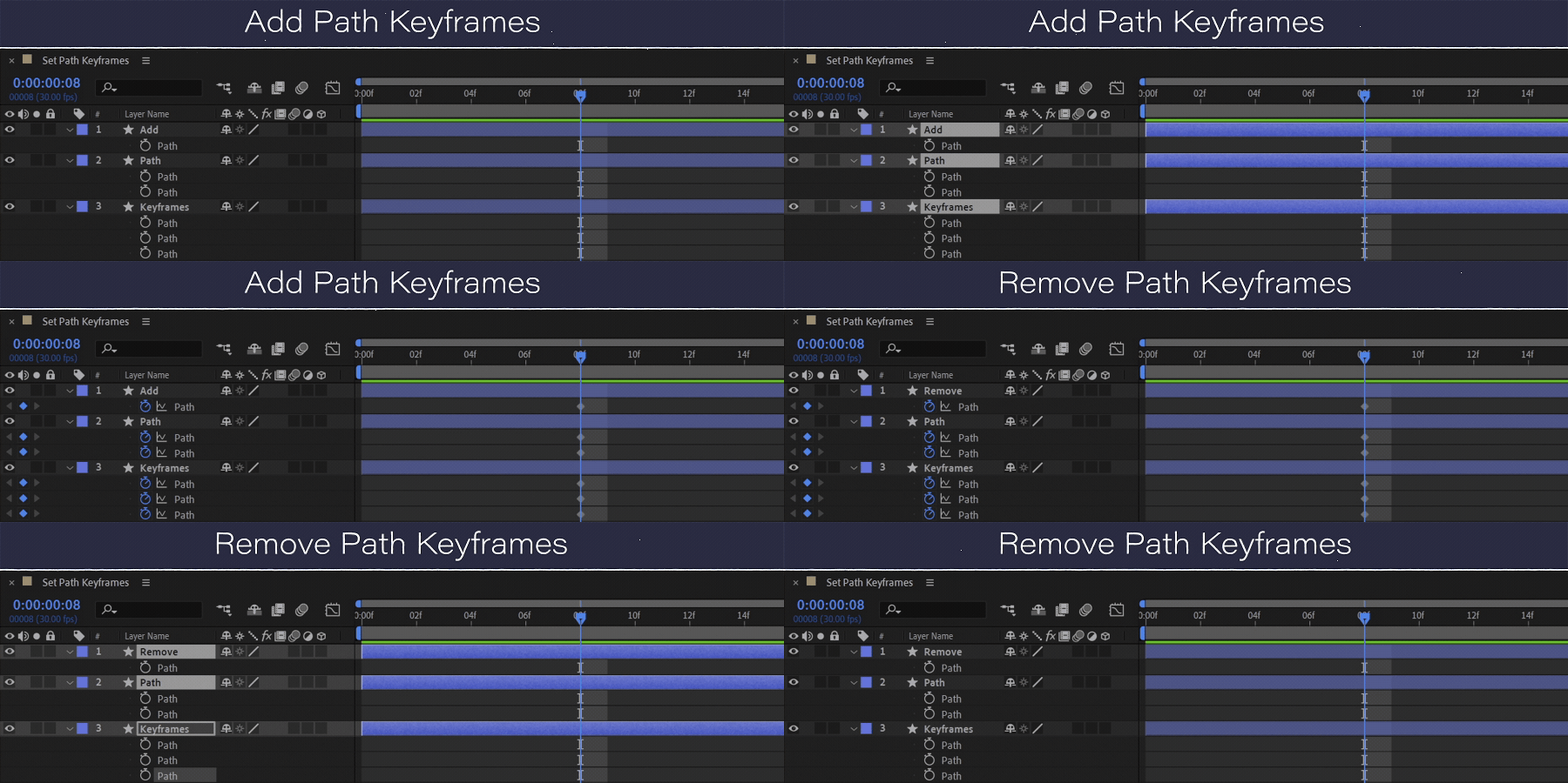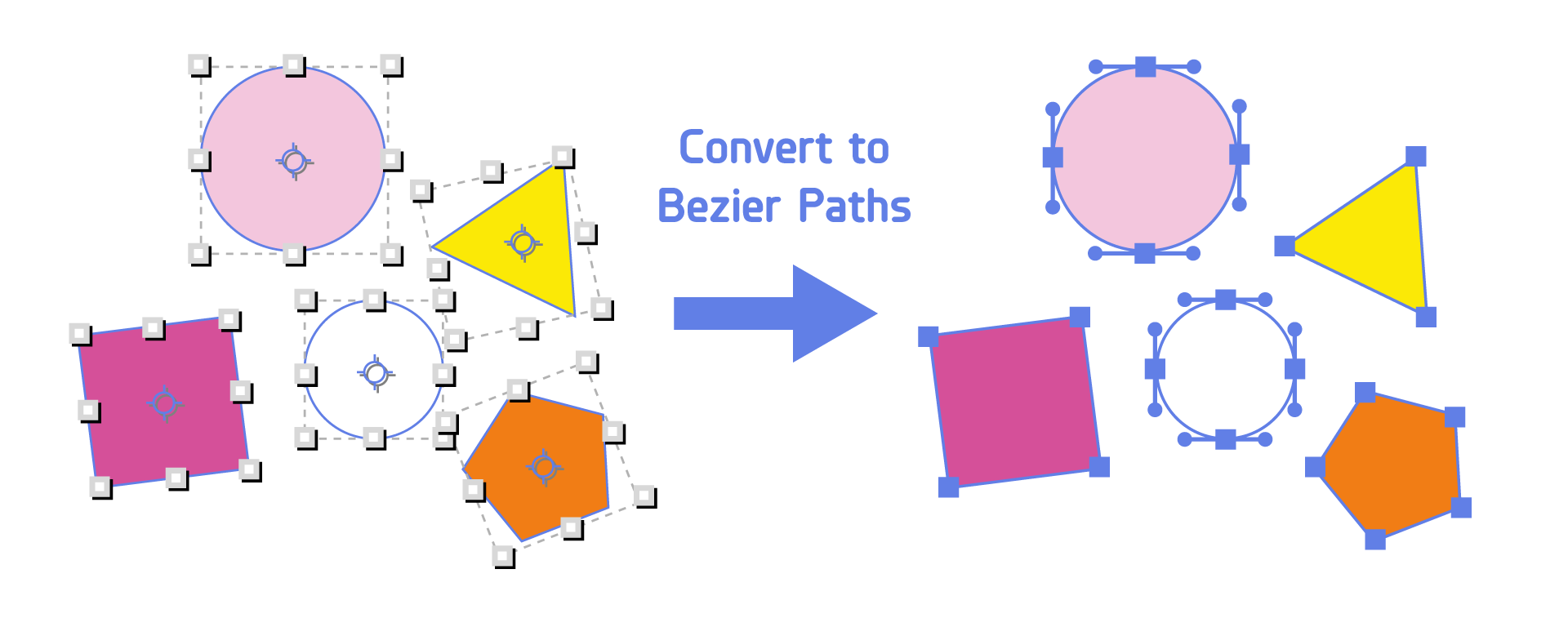
Set Path Keyframes, developed by Mograph Mindset and Nate Lovell, is an After Effects utility for adding Path keyframes to selected Shape Layers, or removing them if all their Paths already have keyframes at the playhead. It saves you from opening each layer’s Path controls just to set a keyframe at the playhead.
Add or remove path keyframes
Select the Shape Layers you want to edit and move the playhead to the time where the paths should be keyed. Choose Animation > Set Path Keyframes. The command adds Path keyframes to the selected layers. If all their Paths already have keyframes at that time, the command removes those keyframes instead.
Find the keyframes in the timeline
Version 1.1 selects newly added keyframes automatically. Press U to reveal all modified properties, or SS to show only selected keyframes. This makes it easier to check the new keys without expanding each Shape Layer by hand.
Assign a shortcut and install
You can map the Animation menu command to a custom keyboard shortcut. The product page gives Ctrl + Alt + Q for Windows and Option + Control + Q for Mac as examples.
The aescripts + aeplugins manager app is the easiest installation option. For manual installation on Windows, move Set Path Keyframes.aex to C:\Program Files\Adobe\Common\Plug-ins\7.0\MediaCore. On Mac, move Set Path Keyframes.plugin to /Library/Application Support/Adobe/Common/Plug-ins/7.0/MediaCore. The product page also has the version history and license terms.