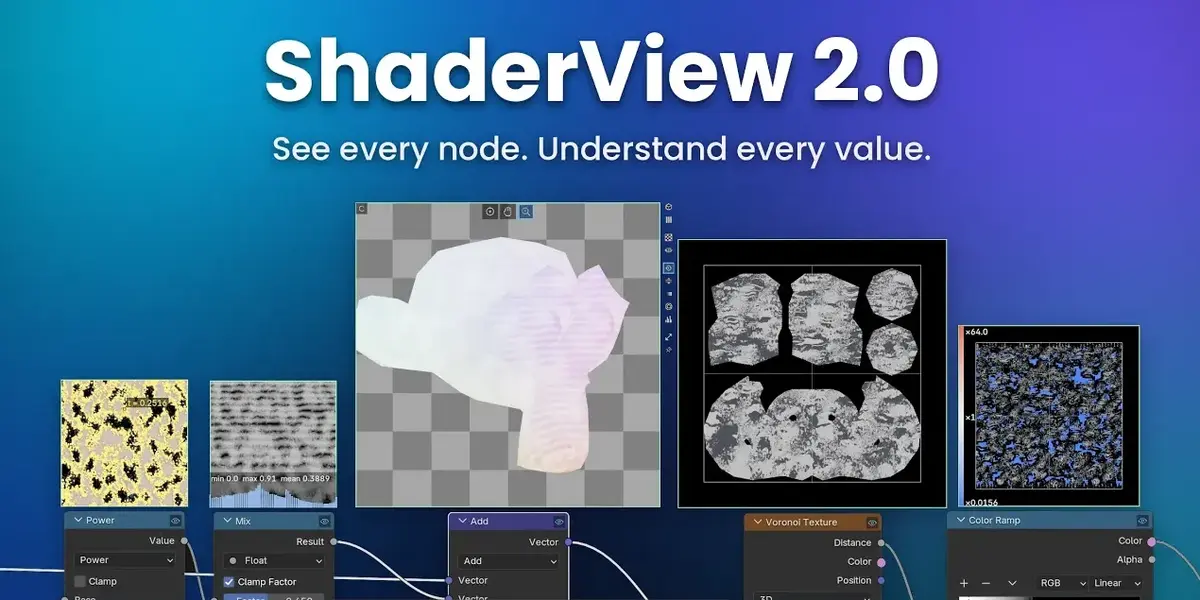
Shader Nodes Doctor 2.0 is a Blender add-on for previewing node outputs, investigating material issues, and navigating shader graphs in the Shader Editor. Floating preview cards show results without changing the material’s normal output connections. The product listing and version 2.0 documentation describe its preview, analysis, and repair tools.
Inspect shader outputs in the graph
Preview cards can follow selected nodes, stay visible when pinned, and refresh as you edit. For nodes with multiple outputs, choose a socket; display modes include Color, Value, Vector, Shader, Alpha, Normal, and Displacement. You can move or resize cards, inspect pixel coordinates and linear RGBA values, and view summaries such as average value, standard deviation, and alpha range. Pixel readouts describe the preview image. Preview-image statistics describe rendered pixels. Direct RGB and Value constants can show their source values; other summaries should not be treated as exact socket values or final-render measurements. A display transform can make a raw-channel hexadecimal value differ from the color shown on screen.
For a dedicated inspection point, add the Preview Node wrapper. It passes through Shader, Color, Value, Vector, Alpha, Normal, and Displacement sockets. Floating previews can also inspect nodes inside nested shader groups when the group path resolves from the material root.
Compare edits and interpret preview results
When a preview is ready, remember its image, change the material, and compare the saved result with the current preview. Snapshots are tracked separately by material, group path, node, and output. Up to eight are retained during the current session. They save images and summaries, not earlier node parameters or a restorable material state. Loading a file, undoing, or disabling the add-on clears them, so use comparisons to inspect visual changes rather than to back up a material.
Preview rendering uses a temporary scene, a small model, and limited quality. Scene synchronization can follow supported world, lighting, and color management settings, but a preview can still differ from a production render. The first EEVEE preview may take longer while rendering starts; compatible materials can show an approximation that updates when rendering finishes. Previews use Cycles for Cycles scenes and EEVEE for other scene engines.
Analyze and repair material issues
Shader Analyzer reports material structure, detected channels, and possible setup or PBR issues. Use Locate to jump to a reported node. Fix This checks whether a repair still applies before changing the graph. Other tools include supported safe fixes; PBR reconnection attempts high-confidence texture connections to a Principled shader. Review the graph and rendered result after repairs. A color space change affects the image datablock, including other nodes and materials that share it; Blender Undo can reverse graph edits.
Batch Scanner can check materials in a scene or active collection. Review the findings, choose a result filter, select the entries to change, and confirm; only selected results visible under the current filter are included. Graph Navigator provides a minimap, search, node counts, group navigation, and fit and focus controls. Its Slow Nodes analysis compares graph-update behavior, which helps locate possible update slowdowns; it does not measure each node’s GPU render time.
Install and start in Blender
- Before installing, check that your Blender version is within the marketplace listing's 4.2 to 5.2 range, then download the Shader Nodes Doctor ZIP file.
- In Blender, open Edit > Preferences > Get Extensions and choose Install from Disk. Select the ZIP file and enable the add-on. A legacy Preferences > Add-ons installation route is also documented; menu placement can vary by Blender version.
- Select an object with a material and open its Shader Editor. Press N to show the sidebar, then open the Shader Doctor tab.
- Enable previews, select a node with a previewable output, and start with the Fast quality preset. Pin cards you want to keep visible while inspecting other nodes.
Compatibility and limits
The marketplace listing gives Blender 4.2 to 5.2 as the compatible range. The version 2.0 documentation requires Blender 4.2 or newer and reports Windows tests with Blender 4.2.16, 4.5.11, and 5.2.0. The package also declares Linux x64 and macOS Apple Silicon and x64 support; those platforms were not included in the documented local release tests. Solo Viewport Preview works in the root material graph. Use floating cards for nested groups. Some nodes have no previewable output, and shaders that rely heavily on other scene objects may behave differently in the temporary preview scene.