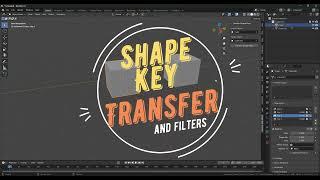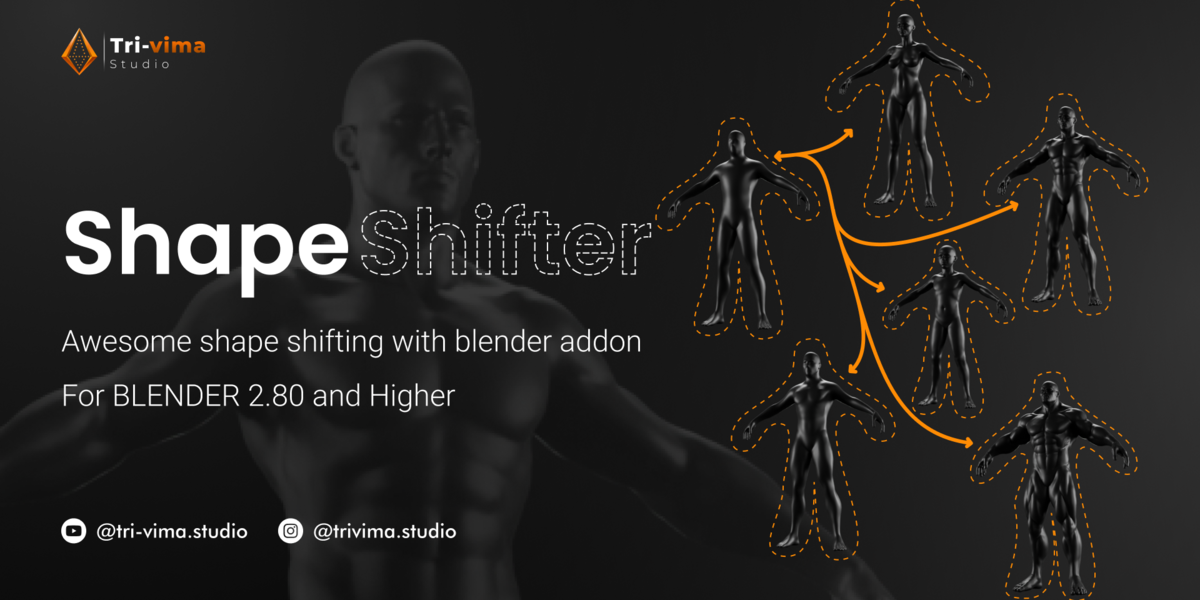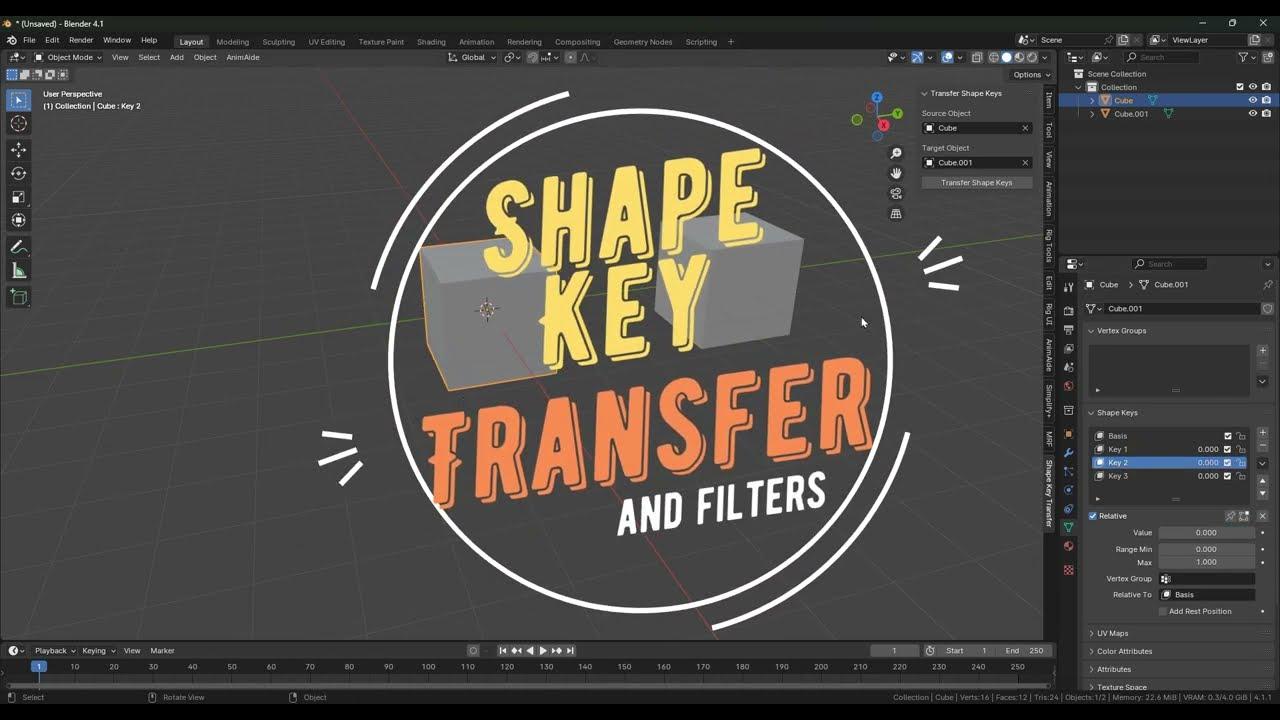
Shape Key Transfer moves shape key deformations from a source mesh to a target mesh in Blender. Its documentation describes three transfer modes for different mesh relationships: matching vertex order, matching vertex counts with different ordering, or different topology. Choosing the mode that fits the meshes helps avoid misplaced or distorted deformations.
Choose a transfer mode for the meshes
- Relative (Index-Based): Transfers deformation by matching vertex indices. Use it for meshes with the same topology, vertex count, and vertex order, such as a duplicate of the source.
- Spatial (Nearest Vertex): Matches vertices by their local spatial positions. The meshes need the same vertex count, but their vertex order can differ. Their geometry still needs to be compatible.
- Surface (Different Topology): Supports different vertex and polygon counts. The add-on projects target vertices onto the source surface, then interpolates the source shape key deformation across the target. The meshes should have similar overall shapes and consistent alignment. The documentation gives a compatible low-poly to high-poly model as one example.
Relative is the direct choice when vertex correspondence is intact. Spatial is useful when vertex counts match but vertex order differs. Use Surface when topology or mesh density differs.
Adjust Surface transfer
Surface mode has Strength and Falloff Sharpness controls, both documented with a default of 1.0. Strength changes the overall intensity of the transferred deformation. Falloff Sharpness changes how deformation is interpolated across the source surface; a higher value can preserve sharper, concentrated features. Review the result on the target and adjust these controls when needed.
An Influence Mask is optional. With it disabled, Surface mode transfers across the compatible target surface. To limit or soften the effect in particular areas, enable the mask and choose a vertex group on the target mesh. The group’s weights control how much deformation each area receives.
Filter shape keys and retain drivers
Muted source shape keys are skipped during transfer, so you can mute keys you do not want to copy without deleting them. The documentation also describes transferred keys being created at a value of 0.0, leaving the target in its Basis state until you adjust the sliders or drivers change them.
Compatible shape key drivers are copied with their configuration. Their original references are retained, so check that referenced objects, bones, and properties remain valid in the scene where you use the target.
Check compatibility before transferring
- Choose a source mesh that contains the shape keys and a target mesh.
- Compare their topology, vertex counts, and vertex order, then select Relative, Spatial, or Surface accordingly.
- Mute any source keys you want to skip. For Surface mode, set any optional controls or influence mask.
- Transfer the keys and inspect the target using its shape key sliders or drivers.
The product documentation describes Surface mode in its section for version 2.5. The Superhive listing identifies Blender versions 3.0 through 5.1 and a GPL license. Check the listing and documentation for current details before installing.