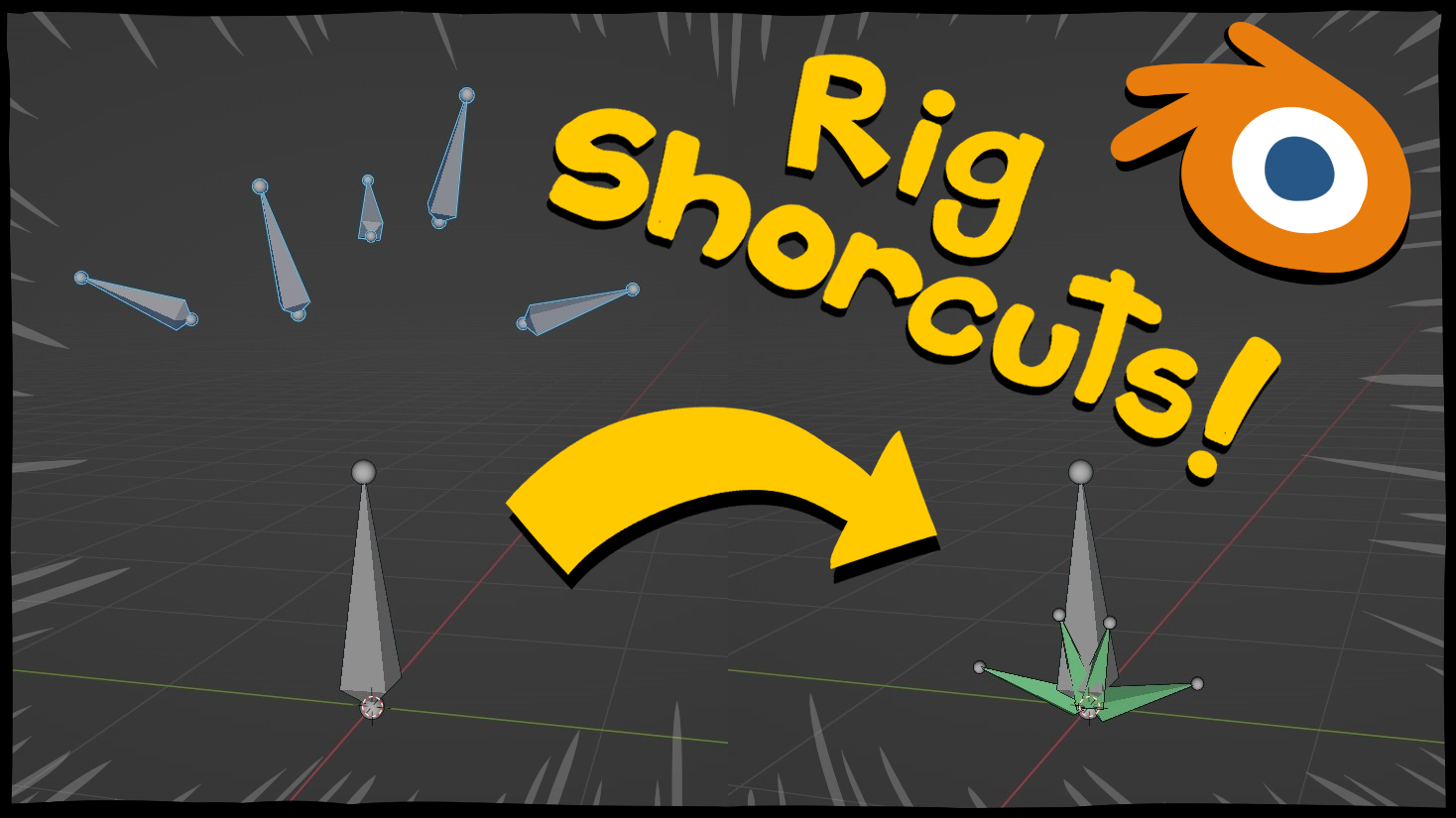
Skip Redundant Steps In Rigging is a Blender add-on by WizzDono for reducing repeated rigging setup. It adds operators that create constraints from selected bones, carries chosen values into new constraints, and changes Bendy Bone handles. The tools appear in the 3D Viewport's Rigging tab, in separate Constraints and Bendy Bones panels.
Create constraints from bone selections
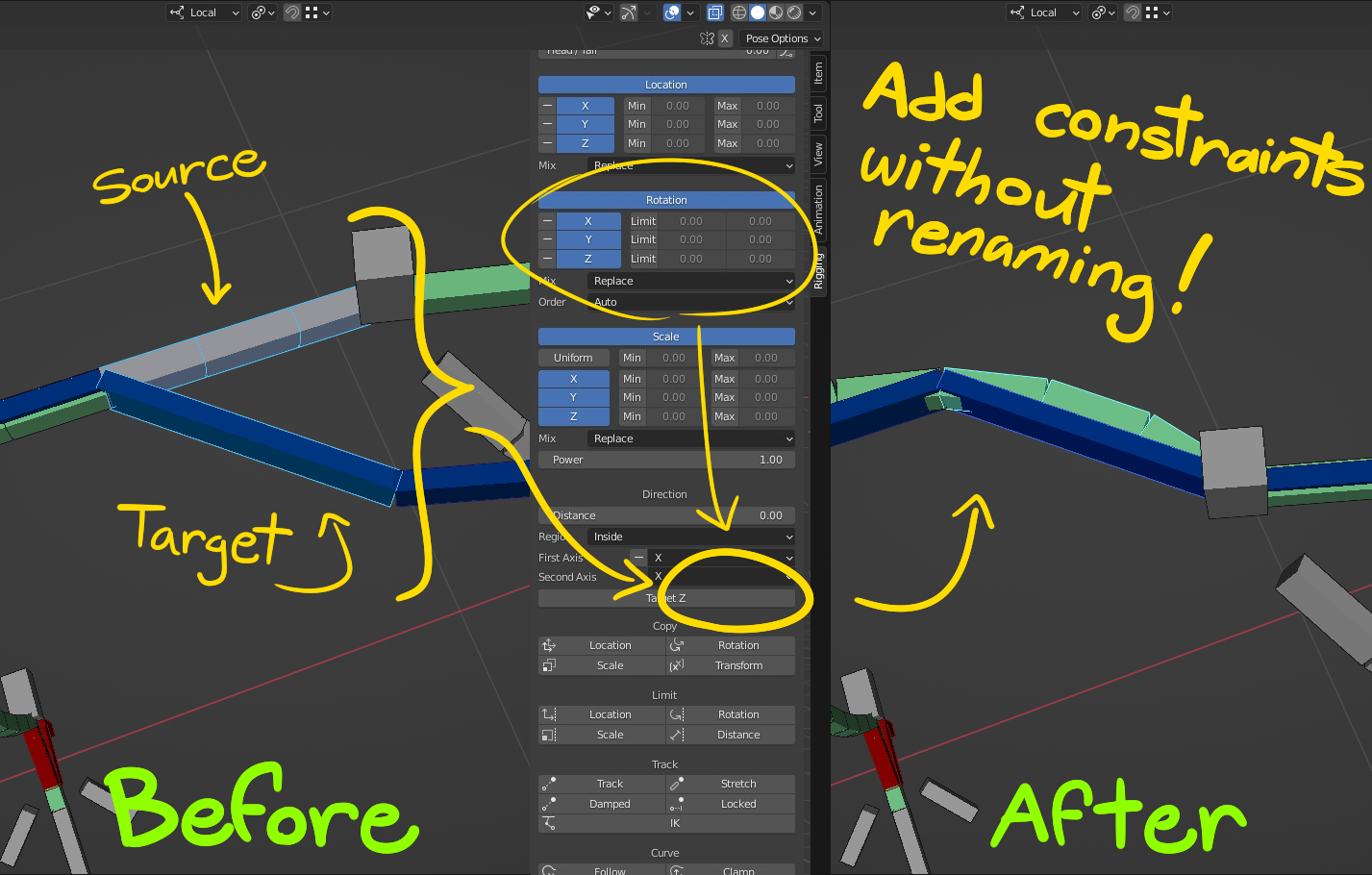
For most constraint types, select the source bones that will receive the constraint, then select a target bone. Choose the matching operator in the Constraints panel. The target comes from the selection, so you do not have to type its name into the constraint.
Some operators use a different selection pattern. Limit Location, Limit Rotation, Limit Scale, and Maintain Volume apply to all selected bones without a target. For an Armature constraint, the last selected bone receives the constraint and the source bones become its targets.
Curve and Mesh constraints need a curve or mesh selected along with the armatures. Select the curve or mesh first, then the armatures before entering Pose Mode. The selected bones receive the constraint.
Reuse constraint parameters
The Parameters section sets values for newly created constraints. Shared options such as Target, Owner, Influence, and Head/Tail apply to almost all types. Location, Rotation, and Scale settings activate matching fields in constraints such as Copy Location, Limit Location, and Child Of. Axis controls choose which axes to use; a minus setting inverts an axis for Copy constraints.
Other controls depend on the constraint family. Mix sets the evaluation mode for Copy constraints, Uniform sets the uniform parameter for Copy Scale and makes the XYZ use and limit values uniform, and Order sets the Euler order for rotation constraints. Power applies to Scale constraints. Distance sets a limit value for Limit Distance and Inverse Kinematics constraints; Region selects a limit mode such as minimum or maximum. First axis and Second axis set values for Track-style constraints, and Target Z sets a value for Track To. Set the relevant values before adding constraints to reuse them across the new constraints.
Clear or symmetrize constraints
Clear removes all constraints from the selected bones. Symmetrize copies the selected bones' mirror counterparts, including their target bones. These operators are useful when revising or matching a rig across mirrored sides.
Set Bendy Bone handles
In the Bendy Bones panel, choose Auto, Absolute, Relative, or Tangent for a handle at the Start or End of selected bones. For Absolute, Relative, and Tangent, select the source bones to change, then select the target bone to use for the handle. Auto sets the selected bones' handles to automatic and removes the target.
Version information
The available listings identify the add-on as version 1.2.1. The Superhive product listing shows Blender Version 3.0. Check the listing for current compatibility details before using it in a project.