Smart Auto Apply Plus is a Blender add-on by Galaxy Studios for applying object transforms and origins from the 3D Viewport’s N-panel. It has manual controls and optional auto-apply settings for modeling tasks. The Superhive product listing describes its features and lists compatibility with Blender versions 3.0 through 4.1.
Apply transforms from the N-panel
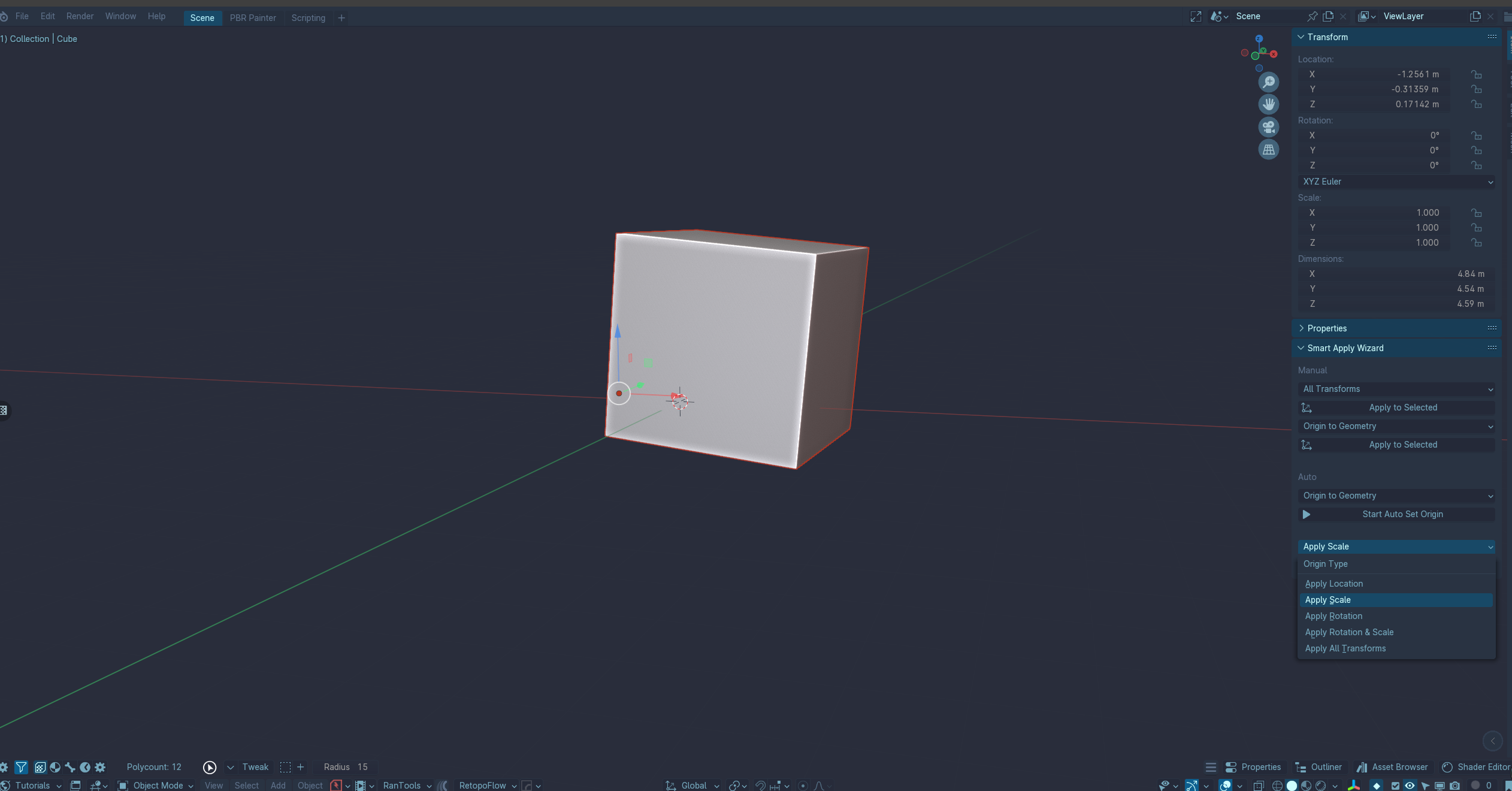
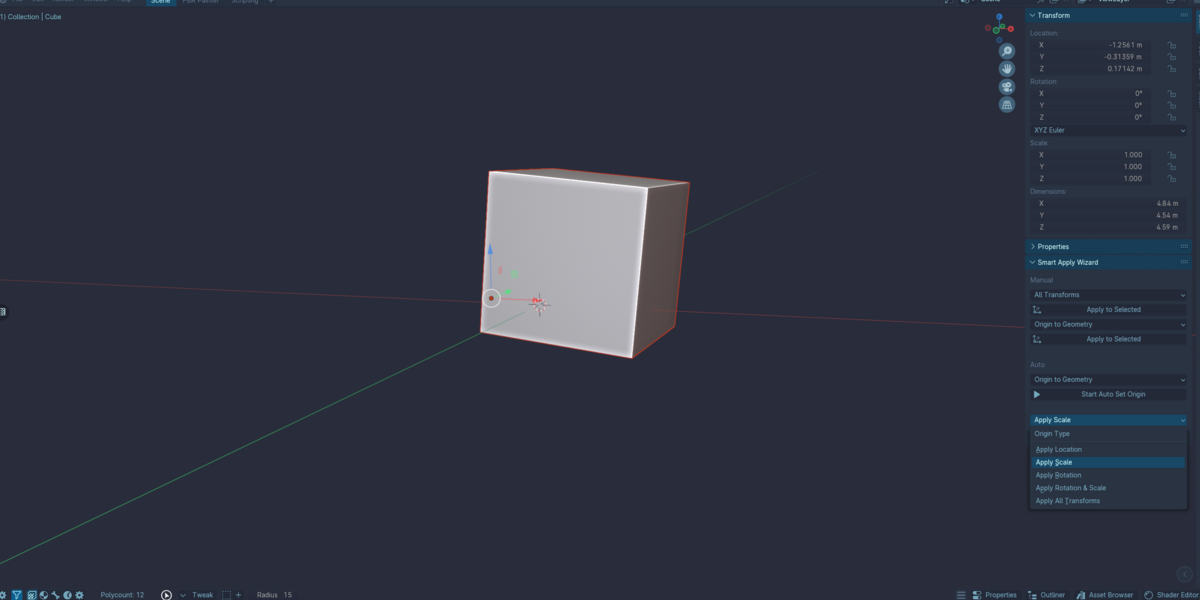
The documentation describes a dropdown for choosing location, rotation, scale, rotation and scale, or all transformations. Select a transformation type and use “Start Auto Apply” to have it applied as you work. The N-panel also provides access to applying transforms manually, so you can leave automation off when you prefer to make each change yourself.
The documentation says the add-on operates in Object Mode to prevent unintended transformations in Edit Mode or other Blender modes. Its scope is focused on applying transforms and origins rather than providing a general set of modeling tools.
Choose how origins are applied
The default origin option waits until you adjust the active object, then applies the origin when you pause. “On selected” applies the origin as soon as you select an object. The product listing describes “apply on mode change” as applying origins to selected objects when you switch modes. These options have different triggers, so check which behavior fits your scene before leaving one enabled.
Compatibility and license
The Superhive listing names Blender 3.0 through 4.1, including 3.6. It does not confirm compatibility with later versions. The listing also identifies the add-on’s license as GPL. Check the ObjectSmartApplyWizard documentation and product page for current details; the documentation uses that name while the product listing identifies the add-on as Smart Auto Apply Plus.
Installation
The documentation’s installation steps are to download the add-on, open Edit > Preferences > Add-ons in Blender, choose Install, select the downloaded file, and enable the add-on. It says the controls are available in the 3D Viewport’s N-panel.