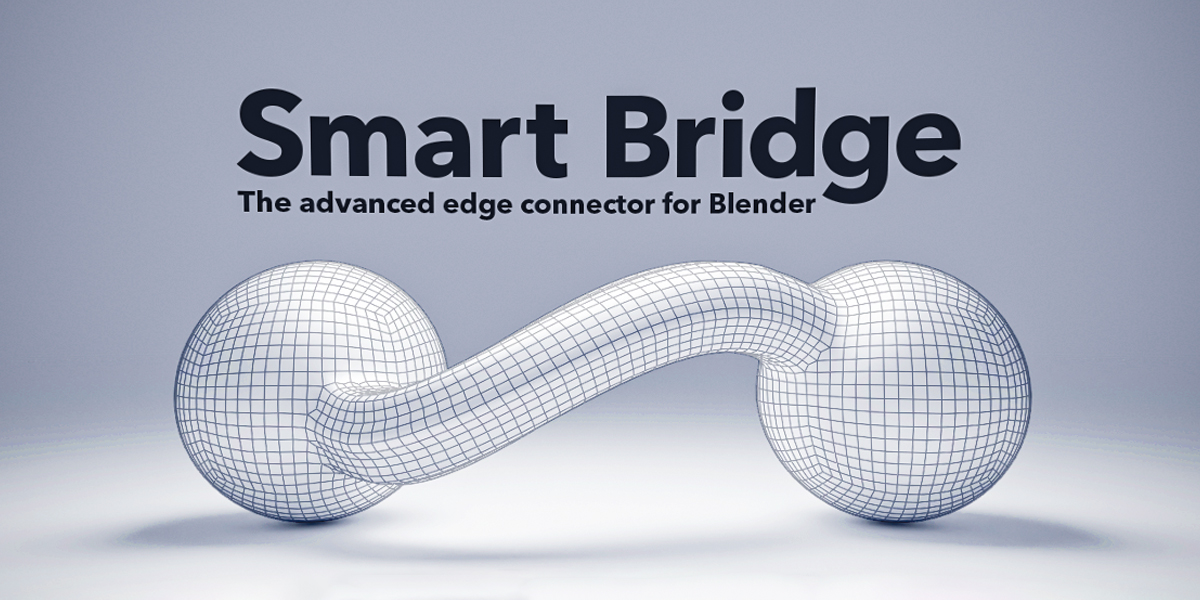
Smart Bridge is a Blender add-on for connecting two edge loops when their vertex counts differ. It subdivides longer edges to match the counts, then creates the bridge. It also provides smoothing options, optional triangulation of newly created n-gons, and a merge option for joining loops instead of bridging them.
Use it with scanned and joined meshes
Developer Kuutti Siitonen says Smart Bridge grew out of work with 3D scans, where Blender's built-in bridge tool fell short on complex models with mismatched loops. The documented audience includes artists working with scan data, character modelers combining meshes, and hard-surface modelers who need control over edge connections.
Choose the bridge operation when you want to connect two loop boundaries. Smoothing controls adjust the transition, while triangulation is optional for newly created n-gons. If you want to join the loops without creating a bridge, use the merge option.
Install and run Smart Bridge
- In Blender, open Edit > Preferences > Add-ons, choose Install, select the Smart Bridge ZIP file, and enable the add-on.
- In the 3D Viewport, press N to open the side panel if it is hidden, then select the Edit tab. Smart Bridge is in that panel.
- Select two separate edges or edge loops and click Smart Bridge. Its settings appear in the bottom-left menu.
The Smart Bridge documentation includes installation and usage details.
Blender version notes
The Superhive listing identifies Blender 4.1. Version 1.5 release notes dated July 22, 2024, mention a fix for the Relax Edge Loops option in Blender 4.2. For Blender 4.2 or later, the documentation says to install the LoopTools extension from Preferences > Get Extensions if you want to use that option. These notes do not establish general compatibility with later Blender releases, so check the product listing for current version details.
AnyPlugins lists Smart Bridge as free, and Superhive identifies its license as GPL. Check the marketplace listing for current availability and terms.