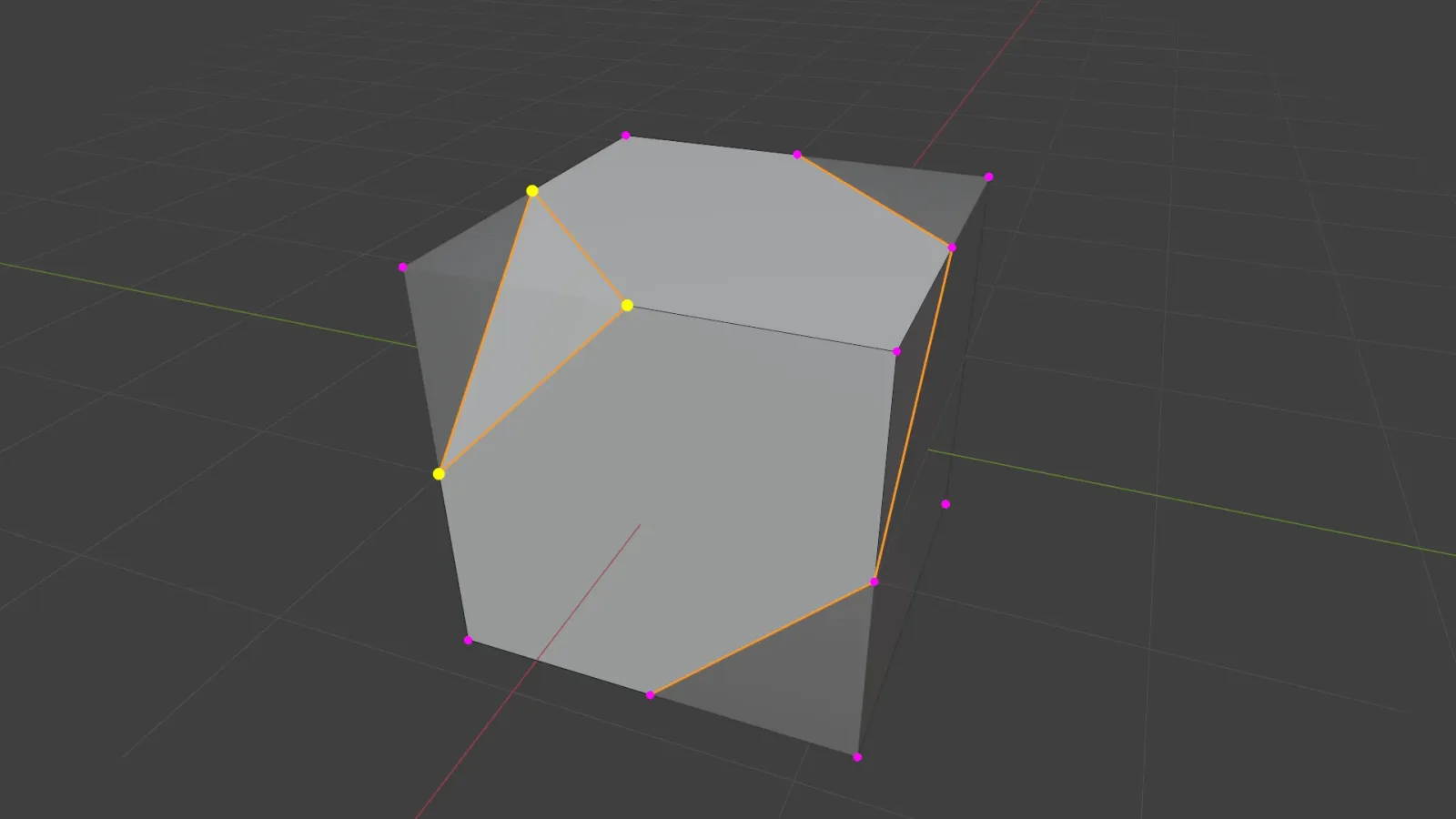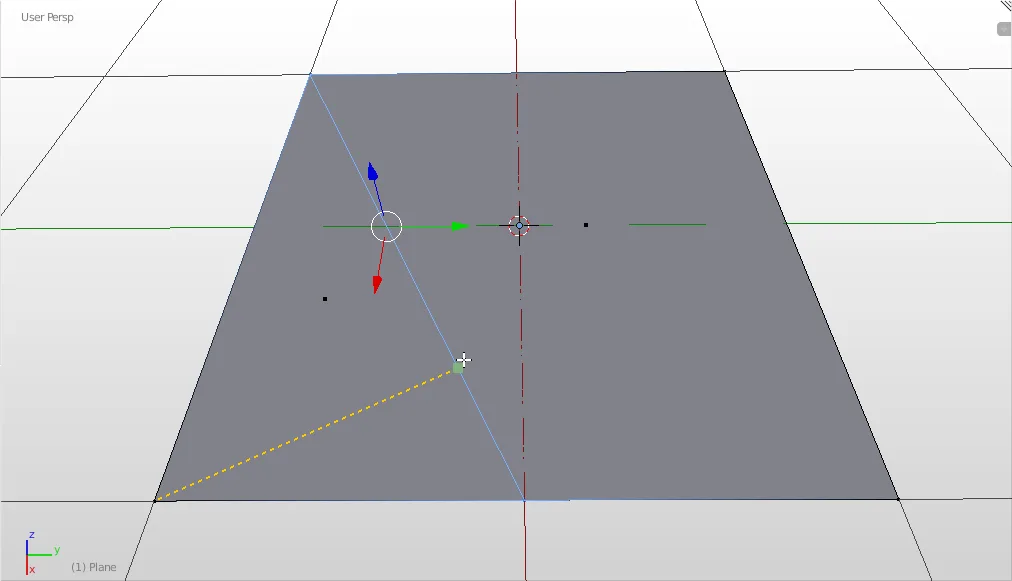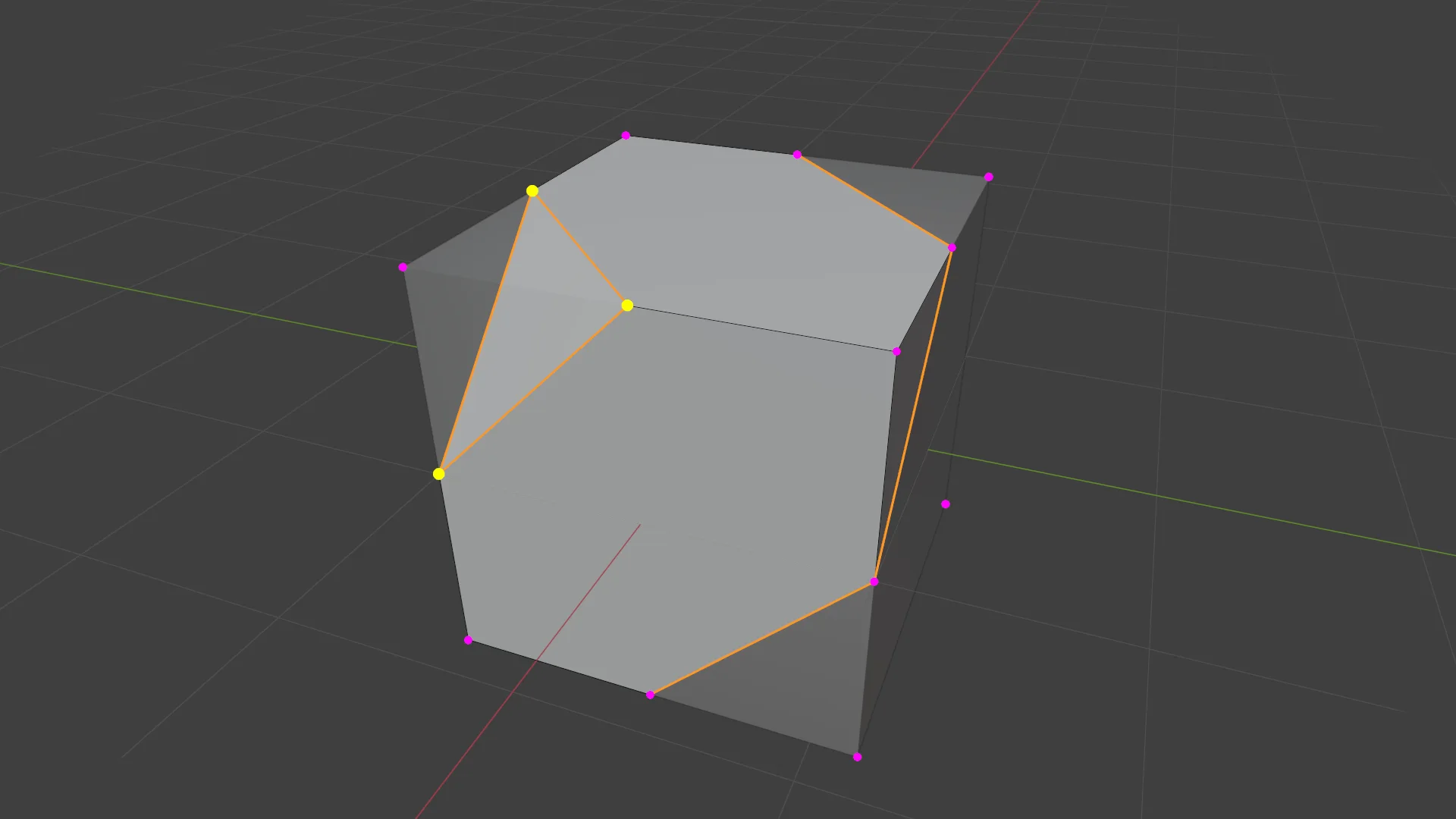
Snap Bisect adds snapping to vertices and edge midpoints to Blender's Bisect operator. In Edit Mode, it lets you position a cut plane using existing mesh points. The Blender Extensions listing identifies AdamDominec as maintainer and lists version 1.0.6, a Blender 4.2.0 minimum, and the GPL-3.0-or-later license.
Set the cut plane
In Edit Mode, select the mesh geometry to cut, then invoke the operator with F3 or from 3D View > Mesh > Snap Bisect. The Snap Bisect usage notes describe selecting three vertices or edge midpoints to define the plane. Two points followed by Enter make a view-aligned cut. Two points followed by X, Y, or Z make an axis-aligned cut, while one point followed by an axis key makes a plane-aligned cut.
Adjust and install
After a cut, the operator panel includes Offset, Fill, Clear Inner, and Clear Outer options. The sliced edges and faces remain selected. Download the add-on from its Blender Extensions listing, then follow Blender's instructions for installing an extension from disk.
Reviewer-reported selection behavior
One reviewer on the Blender Extensions review page reports that point selection works only on the active object while the cut is applied to all selected faces. The reviewer also asks for larger selectable points and an option to limit the cut to the plane between selected nodes rather than extending it across the entire plane. Treat this as one user's report and check current behavior if those details matter to your workflow.