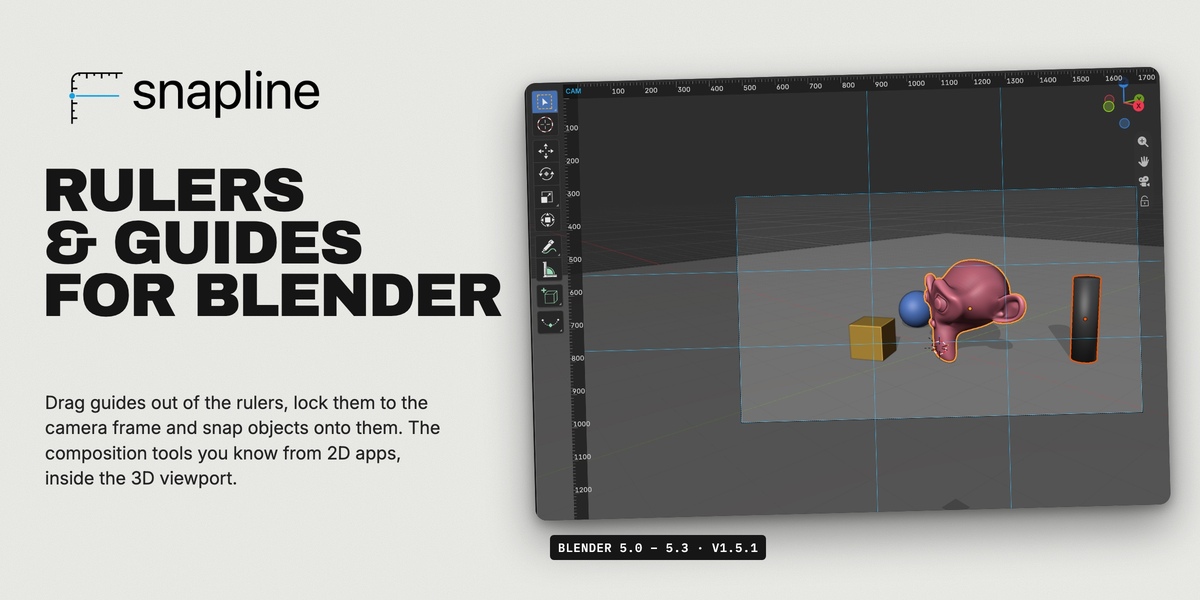
Snapline adds rulers and composition guides to Blender's 3D viewport for framing and alignment. Drag guides from the top or left ruler, choose a composition preset, or snap an object's position to a guide layout. The guides appear in the viewport and stay out of the final render, according to the product listing.
Create guides from the rulers
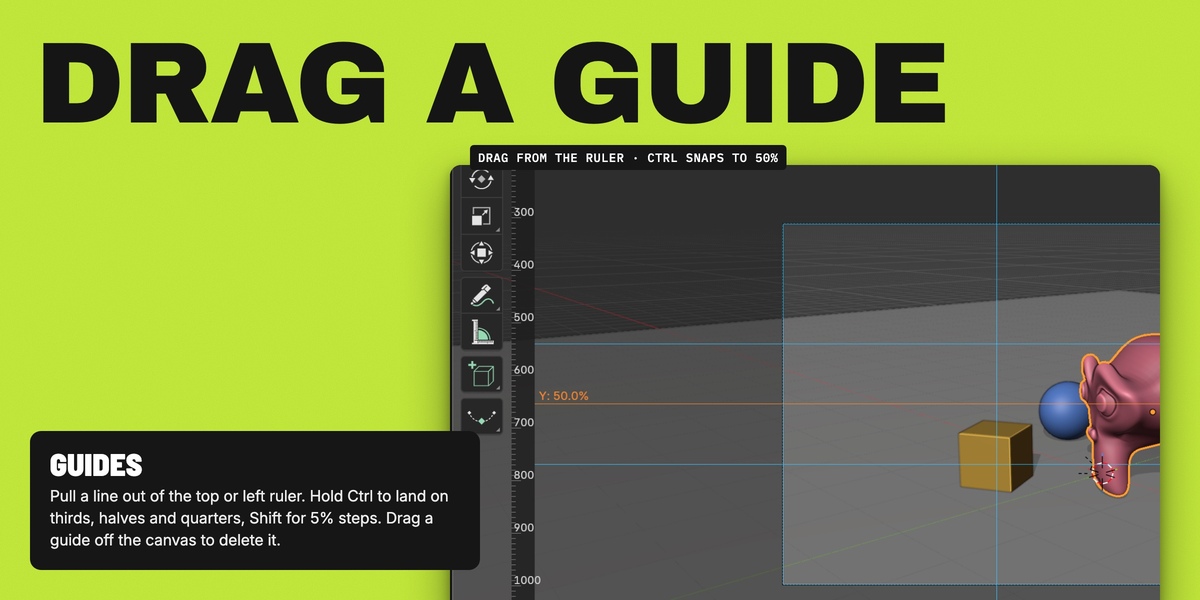
Drag from the top ruler to create a horizontal guide, or from the left ruler to create a vertical one. Drag a guide off the canvas to delete it. Adding, moving or deleting a guide creates a regular Undo step. While placing a guide, hold Ctrl to land on thirds, halves or quarters; hold Shift to move in 5% steps.
Apply presets and snap objects
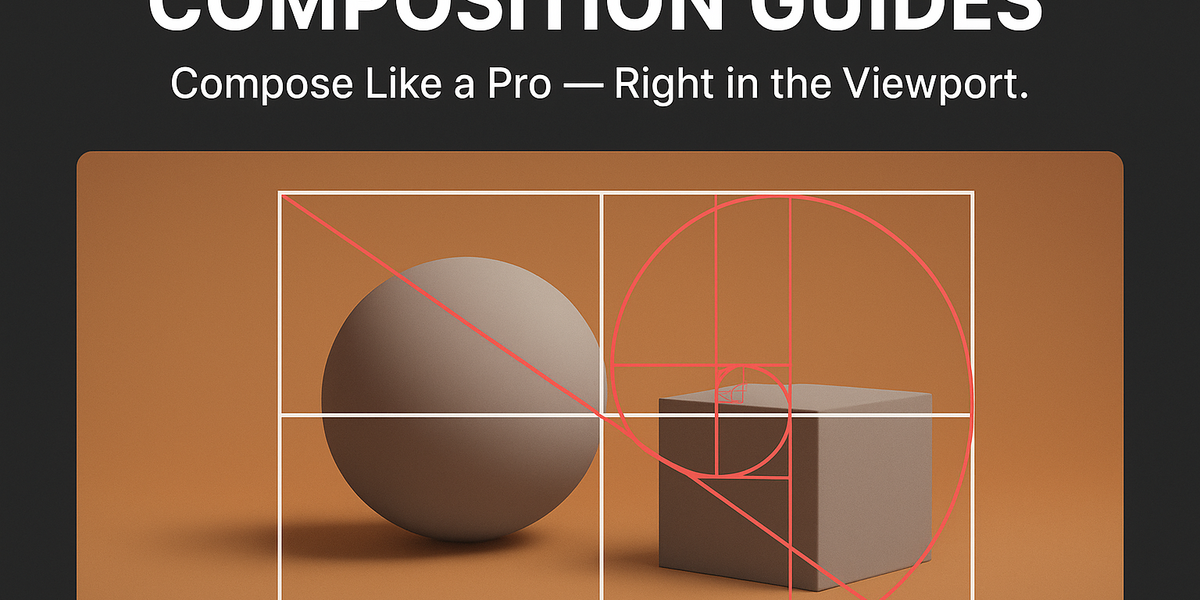
The composition presets place guides for thirds, the golden ratio, center alignment or quarters. You can replace the current guides with a preset or stack presets to make a denser grid. In camera mode, guides stay attached to the camera frame as you zoom or pan.
Move with Snap pulls the active object onto guides while you drag it on screen. Press X or Y to lock an axis, and adjust the snapping tolerance. Snap to Guide moves the object's origin to the nearest guide intersection in one click.
Choose where guides stay fixed
Camera mode positions guides as fractions of the camera frame, so they follow the frame as the view changes. Viewport mode pins guides to the screen for general layout work. When rulers are on, Lock View prevents orbit, pan and zoom with the mouse wheel, middle mouse button or trackpad. Numpad views remain available.
Keep the render clean
Snapline draws guides in the viewport only. They do not appear in Cycles, EEVEE or Workbench renders. Guides and settings are saved per scene in the .blend file, so they are there when you reopen that scene.
Blender support and setup
The listing identifies version 1.5.1 and names Blender 5.0, 5.1, 5.2 and 5.3 as tested versions. Snapline is listed for Windows, macOS and Linux, with no internet connection or external dependencies required. Install the snapline-1.5.1.zip file through Preferences, Get Extensions, Install from Disk. Then press Ctrl+Alt+R in the 3D viewport to show the rulers, or open the N-panel under View and select Snapline. The developer's full guide covers the setup and workflow.