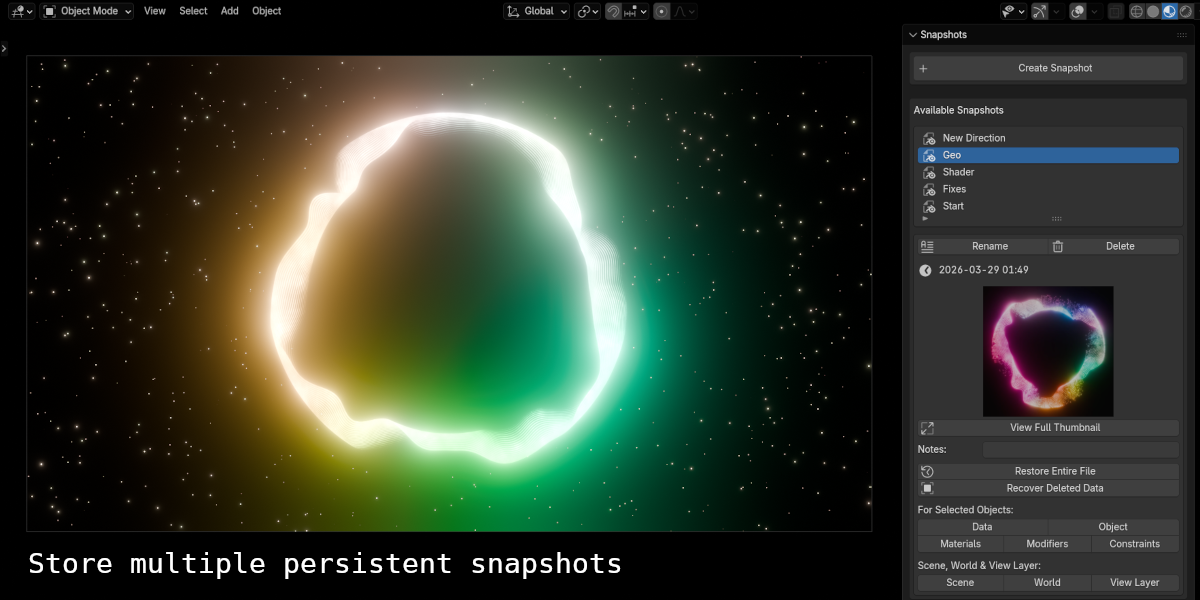
Snapshots - Freedom To Experiment adds project history to Blender. It can save global snapshots of a project or partial snapshots of materials, node trees, actions, objects and mesh data. That gives you a way to explore another shader setup, modifier stack or animation take, then recover selected work without replacing the entire current scene.
Save project checkpoints
Press N in the 3D Viewport or a major editor to open the Snapshots tab, then choose Create Snapshot. If the .blend file has not been saved, Snapshots prompts you to save it first. By default, history goes in a hidden .snapshots folder beside the project file. You can set a global snapshots directory in the add-on preferences, such as a folder on another drive.
Snapshots can include a cropped thumbnail and notes to help identify an iteration. You can rename a snapshot in the list and recapture its thumbnail later. These labels are useful when a project has several lighting, material or animation variations.
Restore only the data you need
For a single setting, right-click a property and choose Restore Property from Snapshot, then select the earlier version. Snapshots can also restore components such as materials, node trees, modifiers and constraints. Its panels adapt to editors including the Node Editor, Dopesheet and Graph Editor, where you can load specific networks or actions.
Animation tools let you compare earlier motion with Ghost Curves in the Graph Editor and restore selected bones or F-curves. For mesh data, the manual describes restoring UV maps, vertex groups, shape keys and attributes. When you restore mesh data in Edit Mode, it applies only to the currently selected vertices, edges or faces. A viewport menu also provides bulk restoration for multiple selected objects.
Recover deleted data and move a project
The Recover Deleted Data tool finds objects or data blocks present in a global snapshot but missing from the current file. The product page lists geometry, materials, Grease Pencil and node groups among the recoverable data. When the original collections still exist, recovered items can be linked back into them.
To move a project to another computer, copy the whole project folder, including its hidden .snapshots folder, and install Snapshots on that machine. If you use a global snapshots directory, copy that directory too. The product FAQ says a .blend file can still open and render on a machine without the add-on.
Compatibility and workflow fit
Blender's Undo history covers recent actions and clears when you close the file. Snapshots keeps saved versions available after reopening it, with options to restore a specific property, data block or animation channel. The user manual explains its editor integrations and restore steps. The product listing identifies Blender 4.2–5.2 as its supported range; check the listing for current compatibility before installing.