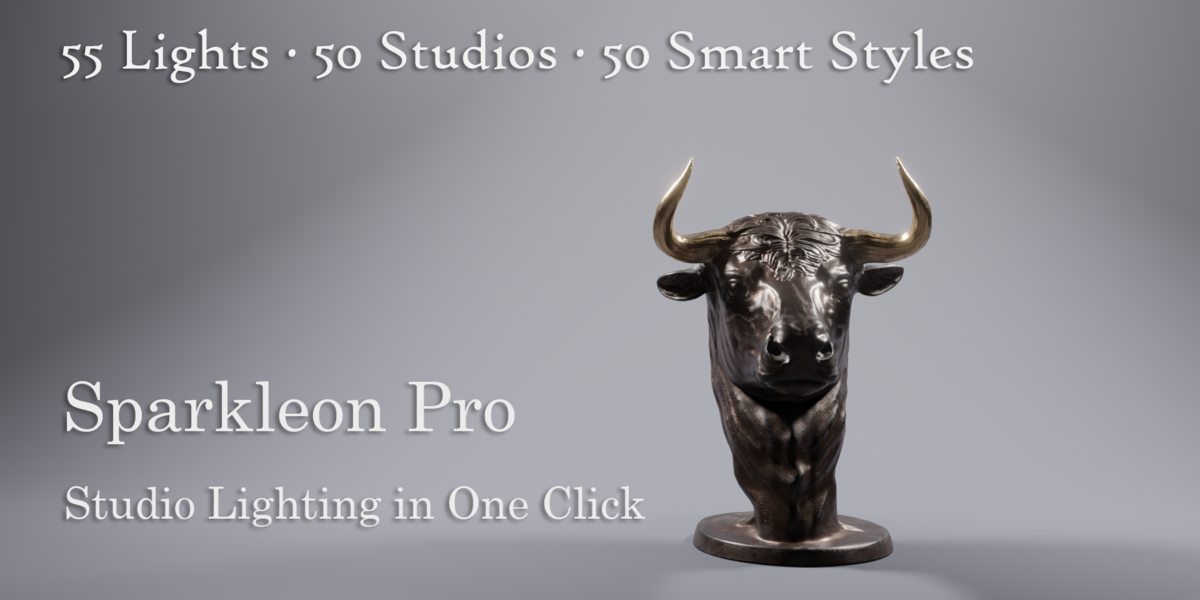
Sparkleon Pro is a Blender add-on for setting up studio lighting around a selected object. Choose a look and it creates lights, a studio environment, camera framing and render settings as editable Blender objects. You can adjust those parts after the setup is created.
Lighting presets and studio environments
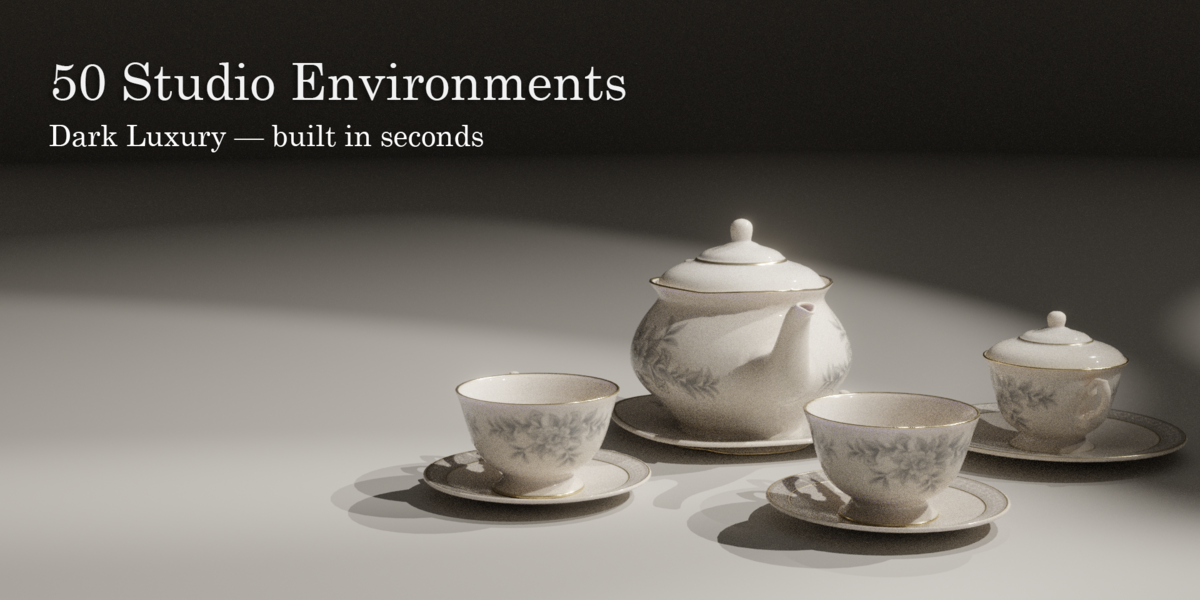
The add-on includes 55 lighting presets, from clean product photography to dramatic, cinematic and stylized looks. Its 50 studio environments use real geometry, with stage forms such as cycloramas and domes rather than flat backdrops. For a matched starting scene, choose from 50 Smart Setup styles. Each pairs a studio with a lighting rig and camera angle. Search, categories and favorites help you find a setup.
Camera and render tools
Camera tools include cinematic angles, object-aware framing and studio camera presets. A turntable generator can create animated product spins ready to render. Sparkleon Pro also includes shadow catcher and reflection floor options, an HDRI manager and atmosphere controls. Preview, Final and Ultra quality modes provide render configurations to choose from.
A typical workflow
- Select an object in Blender and choose a lighting preset or Smart Setup.
- Review the generated lights, studio and camera, then adjust the editable objects to suit the shot.
- Choose a quality mode, or use the camera and turntable tools for a product view or animated spin.
The tool is aimed at product visualizers, 3D artists, freelancers and studios lighting items such as jewelry, gadgets, cosmetics and vehicles, as well as cinematic keyframes. It can provide a prepared scene when you want to start from a lighting recipe instead of assembling each setup from scratch.
Compatibility and installation
The listing says Sparkleon Pro works with Cycles and EEVEE on Windows, macOS and Linux. Its version details conflict: the overview says Blender 4.0 and newer, while the Details panel lists Blender 4.2–5.1. Check the current Superhive listing for your Blender version before installing. The listing describes installation through Blender’s add-on preferences; once enabled, Sparkleon Pro appears in the sidebar, also called the N-panel.