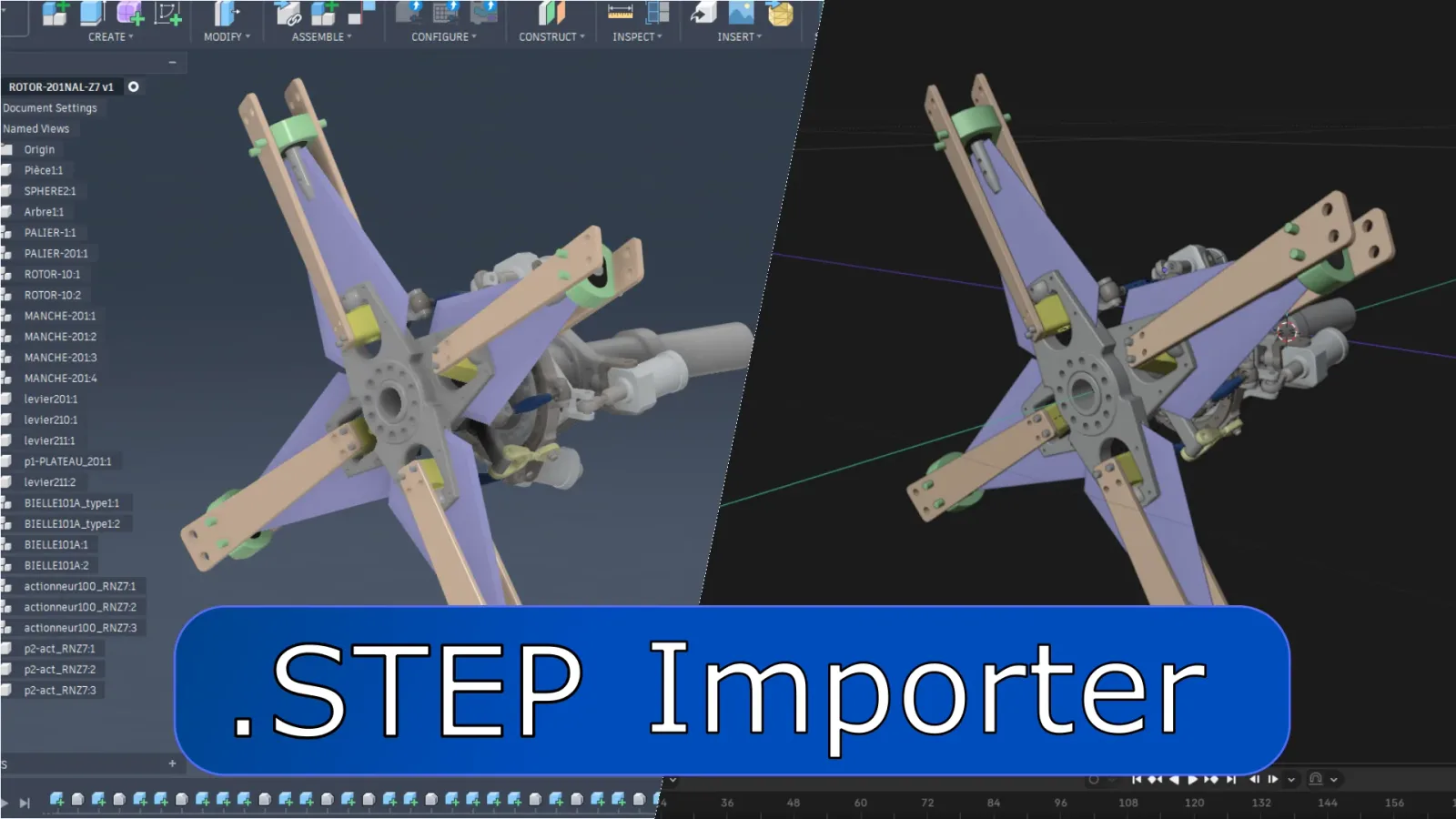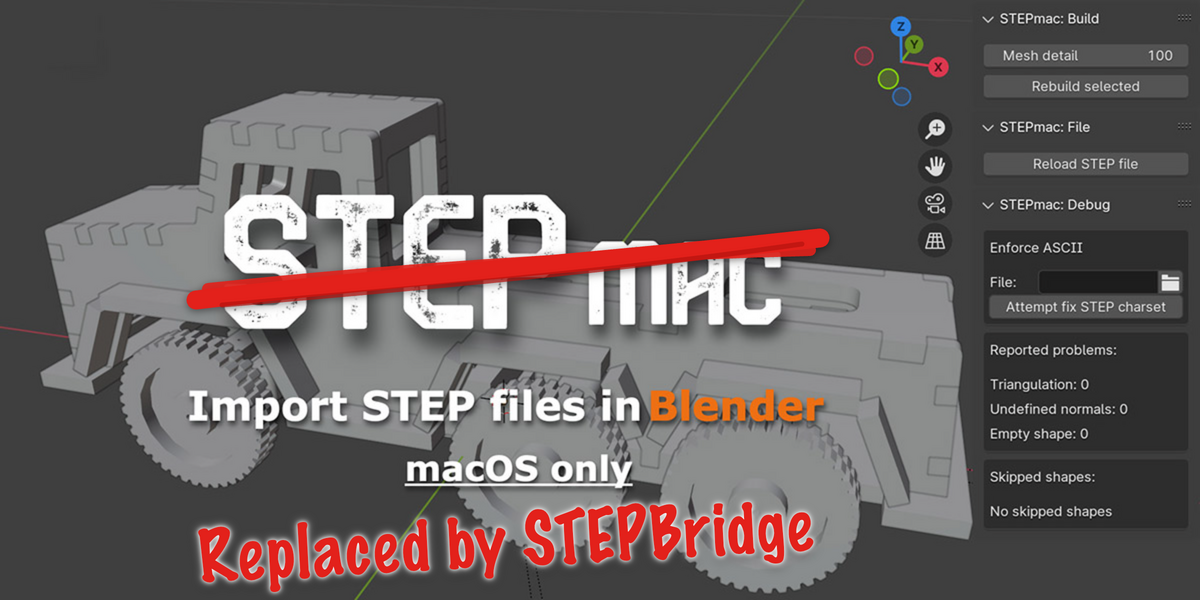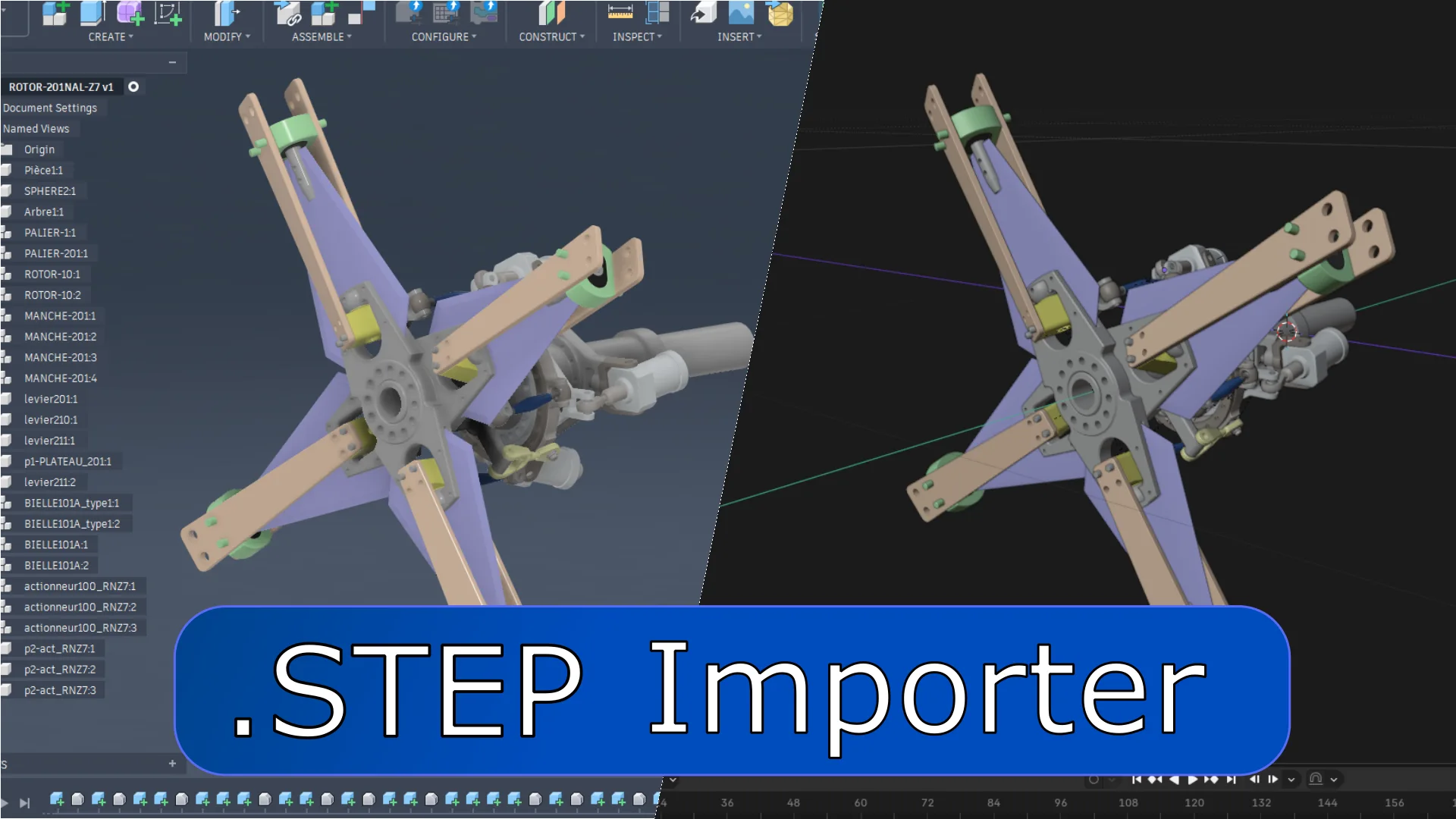
STEP Importer brings STEP (.step and .stp) and IGES (.iges) CAD files into Blender. You can select files or drag them into the 3D Viewport; its product description says multiple files can be imported in sequence.
The product description says STEP conversion uses Cascadio to create glTF data, which Blender's built-in glTF importer then uses to create meshes, objects and materials.
Choose tessellation detail
STEP Importer offers Draft, Balanced, Fine and Ultra Fine tessellation presets, plus Custom settings for linear and angular tolerance. These options control how CAD geometry is converted into polygon meshes. The product description also lists topology cleanup for welding surfaces and reducing over-tessellation during import.
Rework imported parts
The STEP tab in Blender's viewport sidebar includes Regenerate Part, which can re-tessellate an imported body from its source file using new quality settings. Cleanup Selected reruns topology cleanup on selected objects, so you can adjust an import without starting the full import process again.
Organize assemblies in Blender
Assembly Collections can place parts into nested Blender collections that follow the CAD assembly hierarchy. Import filters can exclude non-solid entities such as sketches and construction lines. The listed placement options are the world origin and the 3D cursor, and imported colors are retained.
Version and compatibility
The Blender Extensions listing and its catalog record identify the add-on as version 1.2.1 and list Blender 5.1.0 as the minimum Blender version. The catalog includes packages for Windows x64, macOS Intel, macOS Apple Silicon and Linux x64. It lists the license as GNU GPL version 3.0 or later. Check the current listing for release details before installing.