Light Switch Generator creates architectural wall switches directly in Blender. Its eight modeled mechanisms cover period fittings and contemporary controls, so you can choose details that suit an interior visualization. Each fitting starts at real-world scale, and you can adjust its size and gang count in the add-on.
Choose a switch style and surface
The collection includes twin push-button, Bakelite tumbler, porcelain rotary, metal toggle, fluted rotary dimmer, paddle rocker, slide dimmer and glass touch panel designs. Their shapes range from moulded housings, stepped porcelain feet and slotted screws to narrow paddle reveals and flush glass faces.
- For period interiors, choose a twin push-button, Bakelite tumbler or porcelain rotary.
- For traditional or contemporary plates, use a metal toggle or fluted rotary dimmer.
- For modern rooms, choose a paddle rocker, slide dimmer or glass touch panel.
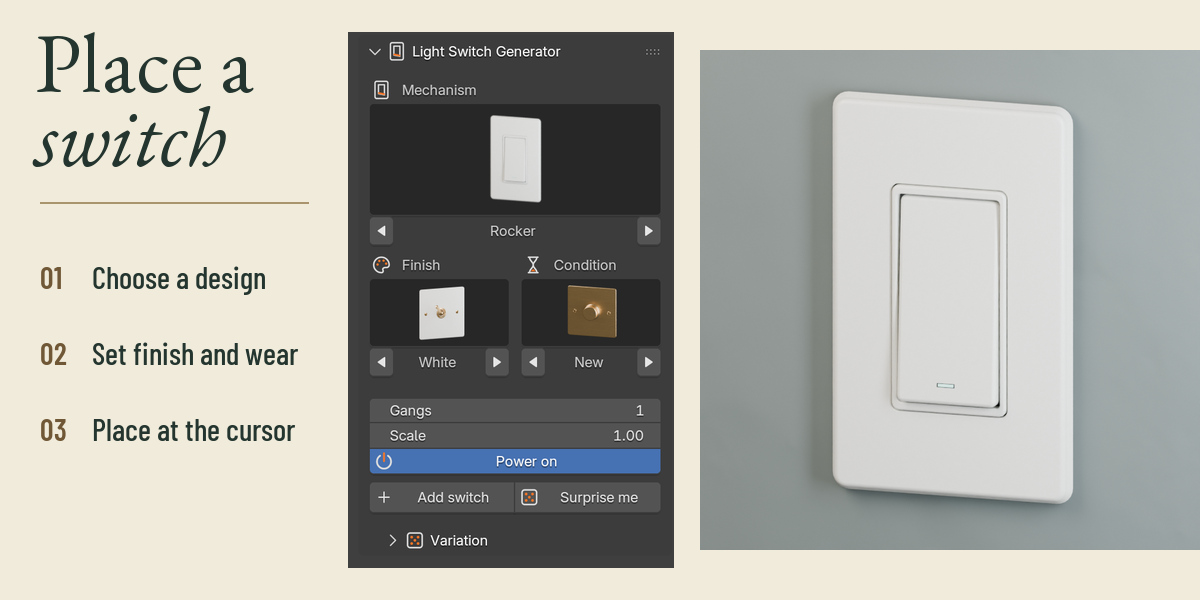
Set the plate or trim to white, graphite, brass or steel. Choose New, Used or Aged condition independently of the mechanism, so a period fitting can have fresh brass or a modern one can show wear. UV-mapped finishes use packed image textures for brushed grain, fingerprints and scuffs.
Add a switch to a Blender scene
- In Blender Preferences, install the extension ZIP from disk and enable Light Switch Generator.
- Open the 3D Viewport sidebar with N and choose the Switches tab. Place the 3D cursor where the fitting should go.
- With no switch selected, click a mechanism image to open the gallery and choose a design.
- Set Finish, Condition, one to four gangs and scale, then click Add switch. You can also add one through Add > Mesh > Light Switch.
The mounting surface sits at local Y = 0, and the front faces local negative Y. Rotate the object to align it with the wall. The cursor determines where a new switch is placed.
Adjust fittings after placement
Select a switch to revise it in the sidebar. Power changes a switch position, while Dimmer level adjusts a slider or dial. Surprise me changes the selected switch in place, or adds a switch at the cursor when none is selected. When you edit a duplicated switch in Object Mode, the add-on rebuilds its mesh while preserving the object transform and the geometry of its duplicates.
Blender compatibility and license
The add-on requires Blender 4.2 or newer. Its documentation lists tests on Blender 4.2, 4.5 and 5.2 LTS. The product listing identifies it as Blender Extension Compatible, lists Cycles and Eevee as render engines, and gives the license as GPL. The product documentation includes the installation and control steps.