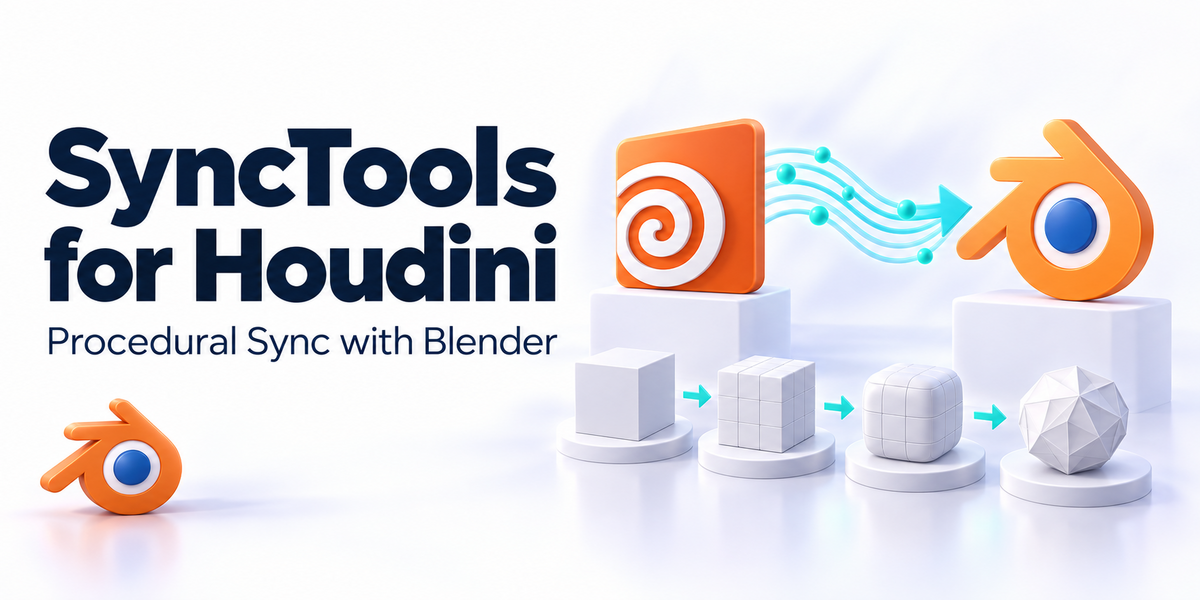
SyncTools Pro for Houdini transfers selected scene data between Houdini and Blender through a copy-and-paste workflow. In the source app, select the items and press Ctrl + Shift + C. Switch apps and press Ctrl + Shift + V to paste. The plugin adds a shelf tool in Houdini and a sidebar tab in Blender, and the same workflow runs in either direction.
What transfers between the apps
The product description lists polygon and NURBS geometry, baked keyframe animation, materials, lights, cameras, and hierarchy data. Lights and cameras retain their transforms, while OBJ network parenting and names carry across. The feature list also names armatures as a selectable transfer item.
Selective transfer toggles let you choose which elements to include. PBR materials are supported, with optional Octane material sync. Automatic unit matching is intended to keep meter-scale Houdini work consistent in Blender. The product also includes cache auto-clean and supports pointing both applications to a shared cache directory for team workflows.
Where the workflow fits
The seller describes the plugin for FX artists handing baked simulations to Blender for shading and final rendering, and for modelers who prototype in Houdini before finishing layout in Blender. The documented transfer is initiated with copy and paste shortcuts, so artists control when each handoff happens. The product lists baked keyframe animation for transfer and describes a baked-simulation handoff to Blender; it does not document live simulation streaming.
Its cross-platform listing names Windows 10 and 11, macOS 13 or later, and Linux. Both host applications are needed for a round-trip.
Setup and compatibility
The seller’s quick-start instructions describe installing the SyncTools Python file in Houdini’s scripts directory, or loading it through the Python shell, then restarting Houdini. For Blender, the instructions list installing the SyncTools ZIP through Edit > Preferences > Add-ons. The default shortcuts can be remapped in each application’s preferences.
Check host compatibility before installing. The product description says Houdini 19 and newer and Blender 3.0 and newer, while Superhive’s marketplace metadata lists Blender 3.6 to 5.2. These Blender ranges differ, so confirm the version tested for the package you plan to use. The Superhive product listing is the seller’s reference for current installation and compatibility details.
Price and support details
The AnyPlugins listing labels the download as free. The supplied Superhive page does not state a standalone price or license in its product description; it mentions a DCC Integration Suite with savings of over 25% compared with buying its ten released products individually. Check the current seller listing for the plugin’s price and license terms. The seller also lists email and ticket support through the Superhive inbox, typically with a 48-hour response, community chat, and lifetime updates within the current major version.