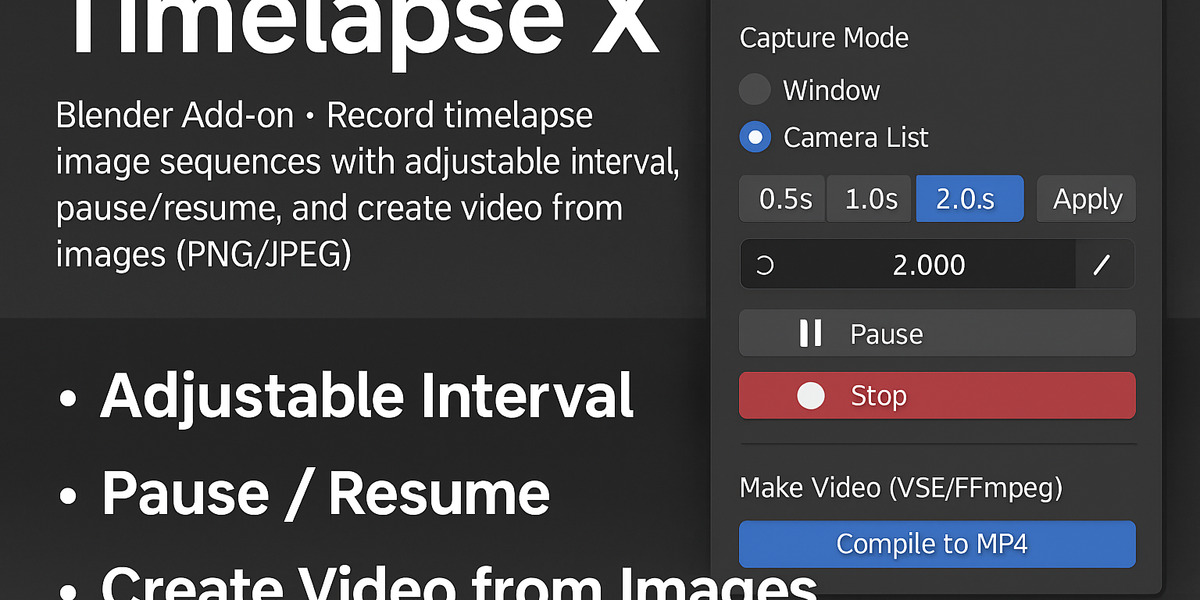
Timelapse Tool is a Blender add-on by Fwiller that records project progress in the background while you work. It captures the full project window at a fixed interval or records from scene cameras, then can generate a timelapse video from the saved image sequence.
Choose a capture view
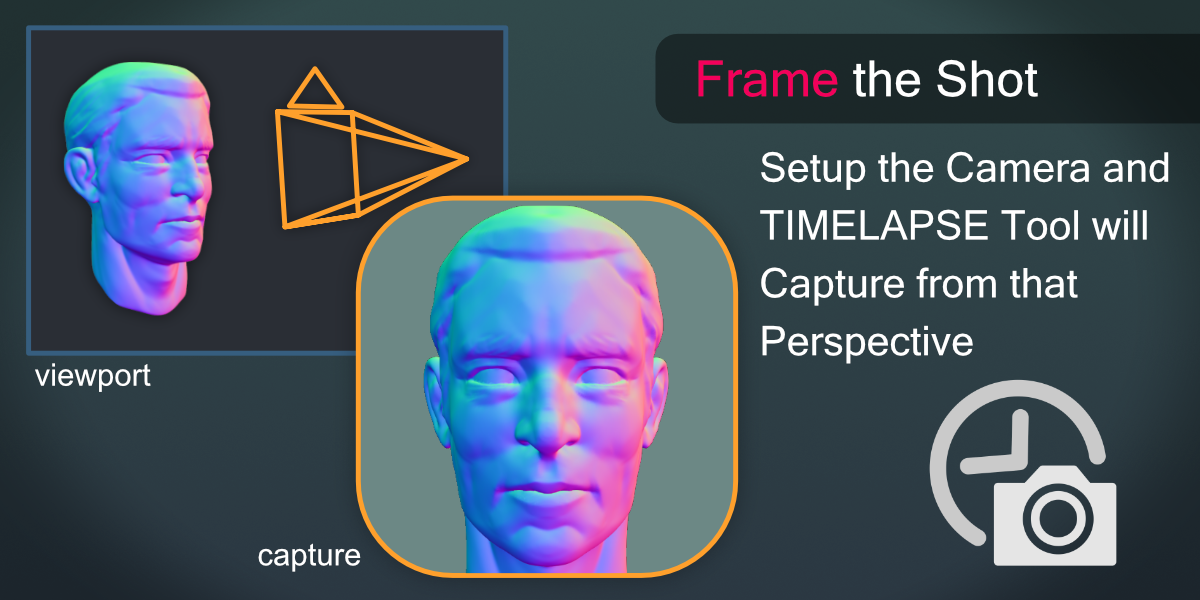
Use window capture for a broad view of the Blender workspace, or camera capture for the scene composition. Animated cameras with keyframes are supported, and the add-on can capture from multiple scene cameras at once.
- Capture the entire project window at a fixed interval.
- Record from one or more scene cameras, including animated cameras.
- Lock viewport shading settings for the timelapse capture.
- Generate a video from the recorded image sequence.
The product page says cameras currently share settings. Per-camera resolution, aspect ratio and shading controls appear on its roadmap, so check this limitation if your setup needs different capture settings for each camera.
Control the image sequence
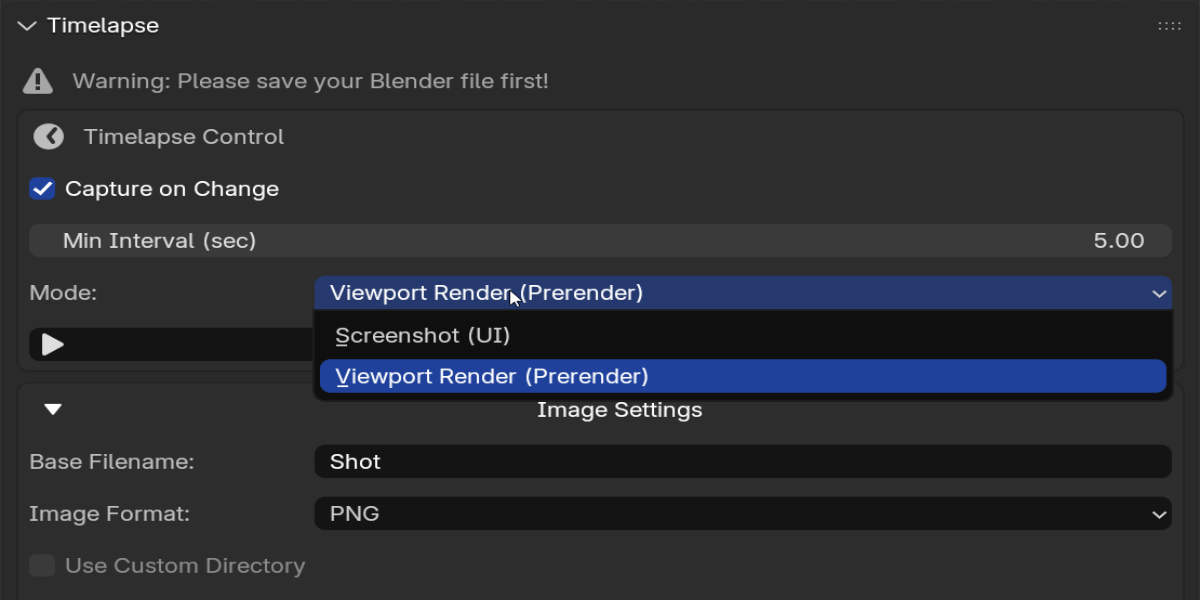
Version 1.1.0 added Detect Idle, a capture option that takes an image only after a change is detected in the project. That release also added JPEG output and zero padding for image names, such as 0001.png. Both options are listed in the add-on preferences.
Dyntopo capture is experimental. Enable it under Addon Preferences, then Experimental Settings, then Dyntopo, to capture that data.
Version and compatibility
The product page lists version 1.1.1. Its hotfix addresses objects with a multiresolution modifier that were not visible during capture. The listing names Blender 3.0 through 3.6 and says older versions are not supported. It also says Blender 4.0 support is in active development, so check the developer's page for current compatibility before installing on a newer release.
The same page describes Mac support as in progress and not thoroughly tested. The developer notes that some users have had no problems using Timelapse Tool on Mac.
Documentation and support
The documentation page is marked as a work in progress. For questions, the developer's FAQ points to the Discord server or the Ask a Question option on the product page.