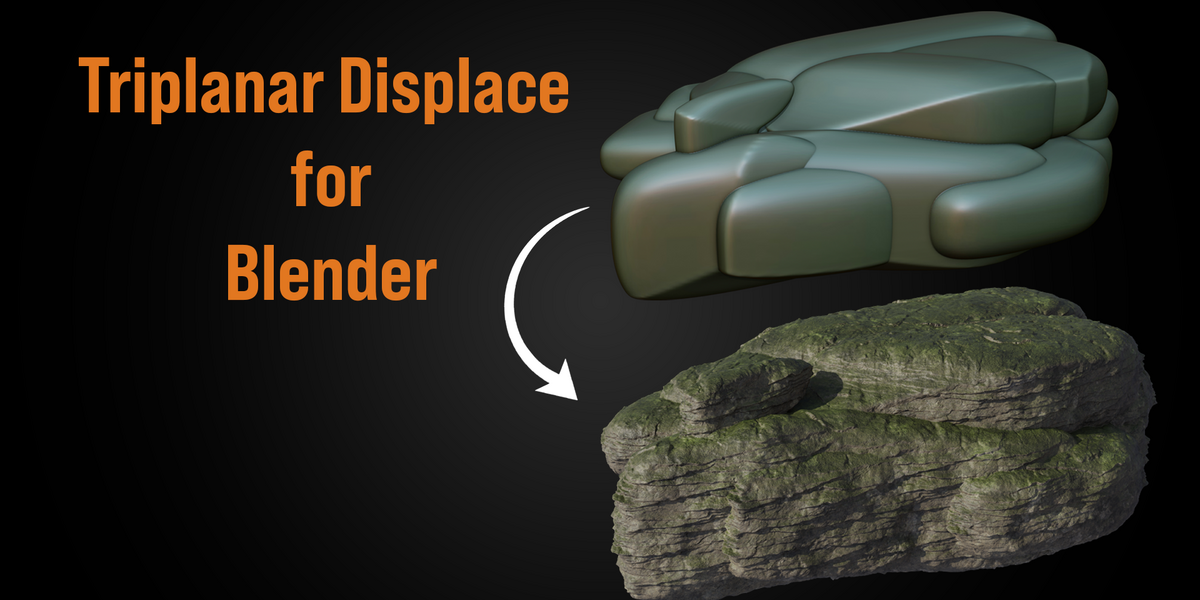
Triplanar Displace is a Blender add-on for adding texture-driven detail to meshes without UV unwrapping. It projects a texture along the X, Y, and Z axes, then blends the projections according to the surface angle. This helps avoid the stretched appearance that a single projection direction can produce on vertical faces and overhangs. The workflow is suited to terrain, rocks, cliffs, and organic surfaces.
How the displacement works
The modifier combines three axis projections to cover the top, sides, and angled faces of a mesh. Its Geometry Nodes setup moves mesh vertices using the texture, so it creates geometric displacement rather than a bump or normal-map effect. The result depends on mesh resolution: a sparse mesh cannot reproduce fine texture detail.
You can use the same texture on all three axes for a consistent surface, or assign separate textures to create different patterns on top and side faces. Greyscale images work well for displacement. The modifier stack keeps the effect adjustable as you refine the mesh and settings.
Controls in the modifier stack
Add the tool from the Triplanar tab in Blender's N-panel, then adjust its settings in the modifier stack. Each axis has its own texture, strength, tiling, and flip controls. Tiling sets how often the texture repeats per Blender unit; increasing it makes the repeated detail smaller. Flip swaps the texture coordinates for that axis, effectively rotating the texture by 90°.
Two global controls affect the result. Midlevel sets the neutral grey value: at the default 0.5, middle grey produces no displacement, darker values push inward, and lighter values push outward. Blend Sharpness controls how abruptly the three projections transition across the surface. Lower it if the transitions appear too distinct.
Setup and mesh preparation
- Install the downloaded ZIP from Blender's Preferences under Add-ons, using Install from Disk, then enable Triplanar Displace.
- Select a mesh, open the N-panel, choose the Triplanar tab, and click Add Modifier.
- Assign greyscale displacement textures to the X, Y, and Z slots, then tune strength and tiling for each axis.
- Add a Subdivision Surface modifier above Triplanar Displace when the mesh needs more vertices to capture fine detail. The documentation suggests levels 4–6 for fine detail; adjust the level to suit the mesh.
If the projections show visible transitions, the documentation suggests lowering Blend Sharpness, with 1.5–2.5 as a range to try. Applying object scale before adding the modifier can also make tiling values more predictable.
Compatibility
The Superhive listing gives Blender 4.2–5.2 as the compatible range, while its documentation says Blender 4.2 or higher. Check the current product listing for compatibility details before installing. The documentation names Cycles and EEVEE. Because the modifier moves actual vertices, the available surface detail depends on the mesh density.