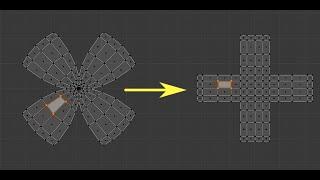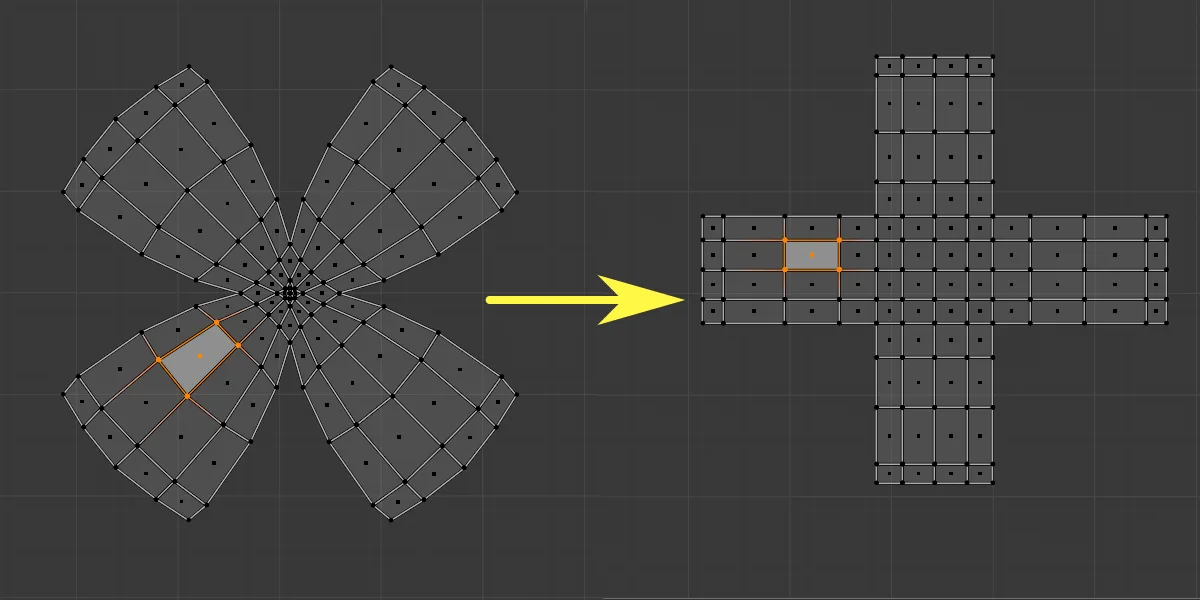
Uv Align And Follow is a Blender add-on for straightening UV layouts after unwrapping. It uses an active UV quad as a reference, turns it into a rectangle, and aligns the other quads in the island along horizontal and vertical coordinates to form a grid.
When it helps
Nearly regular surfaces, such as slightly curved planes or tapered cylinders, can unwrap into curved or warped UV shapes that are awkward to paint. Choose a quad that resembles the proportions you want, make it active, then run the operator. The result depends on that reference quad.
Choose a follow mode
- Even creates similarly sized rectangles across the island.
- Length Average accounts for quad sizes, so larger and smaller areas produce larger and smaller rectangles.
- Length resizes quads independently. This can be useful when their lengths differ, but the result may not fit into a rectangular grid.
These modes follow the options available with Blender's Follow Active Quads operation.
Install and run it
- In Blender, open Edit > Preferences > Add-ons > Install and select the add-on ZIP file. Enable the Uv Align And Follow add-on when it appears. Alternatively, place the
uv_align_and_followfolder in Blender's add-ons directory. - In Edit Mode, select faces so they appear in the UV Editor, then select a UV quad to make it active. The active quad appears white.
- Choose Align and Follow from the UV menu or the right-click context menu.
The add-on's version 1.1 notes say that, in Blender 4.0, an option modifies selected UVs only, leaving UVs outside the active face's island unchanged.
Compatibility and documentation
The product listing names Blender 4.3, 4.2, 4.1, 4.0, and versions 3.6 through 3.0 as compatible. It is also marked as Blender Extension compatible. Version 1.2 adds usability in Blender 4.2; version 1.1 restores functionality for Blender 4.0 and its updated follow operator. The add-on is released under the MIT license. See the installation and usage documentation or the product listing for details.