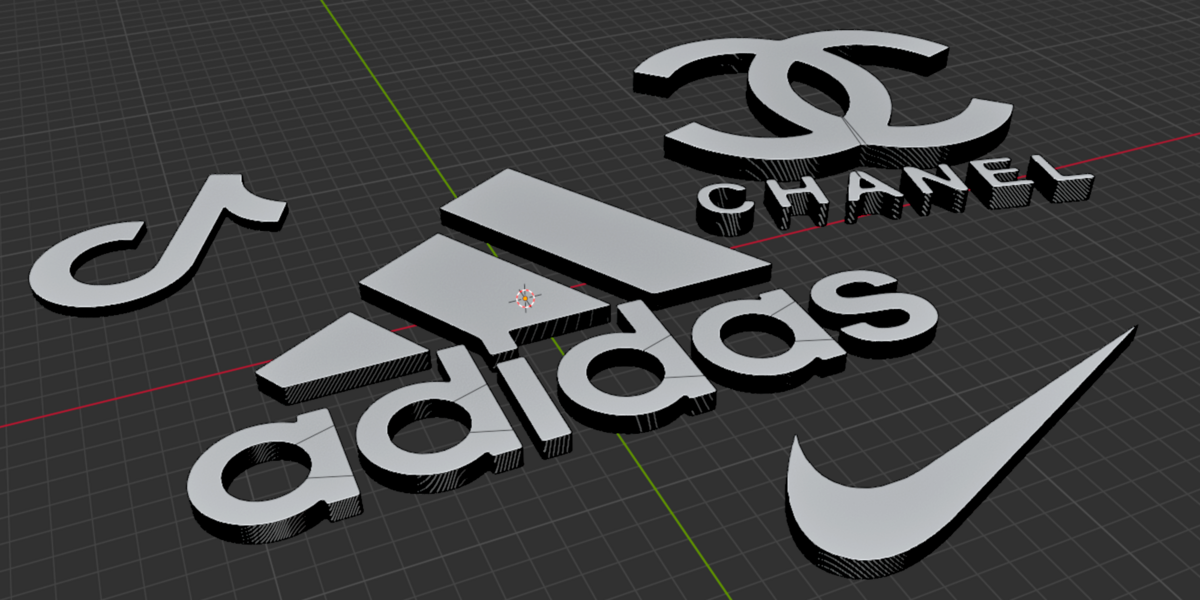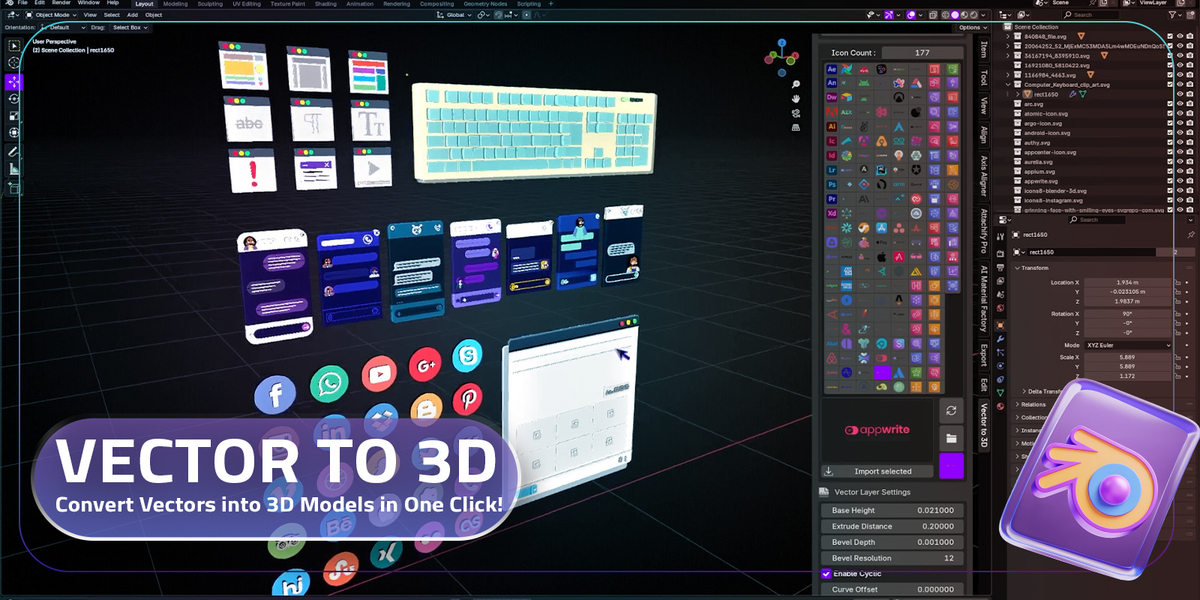
Vector To 3D by Blender Procedural is a Blender add-on that imports SVG files and converts selected vector layers or icons into 3D geometry. It is suited to designs such as logos, icons, banners, and UI/UX mockups that you want to shape and render in Blender.
The workflow keeps SVG import, layer selection, and conversion inside Blender. After choosing a design, you can set the base layer's height, extrusion, bevel, and curve options, then create a mesh in the scene.
How to convert an SVG
- Choose Import Vector File (.svg) and load your SVG.
- Browse the layers or icons in the Icon Selection Panel. Select the element you want and confirm it with Import Selected.
- Adjust the vector layer settings to set the model's thickness and edge treatment.
- Click Apply & Convert Mesh. The resulting model is added to the Blender scene for further editing or rendering.
Settings for the converted model
- Base Height sets the initial thickness of the base layer.
- Extrude Distance controls how far the vector is extruded.
- Bevel Depth adds rounded edges, while Bevel Resolution adjusts their smoothness.
- Enable Cyclic creates closed-loop geometry when the design supports it.
- Curve Offset fine-tunes the curve's position.
The developer recommends using a simple, clean SVG for smoother conversions. You can then adjust Bevel Resolution on high-detail designs to avoid sharp edges and use Curve Offset for precise alignment on intricate designs.
Vector files and Blender compatibility
The product listing names Illustrator, Figma, Inkscape, and CorelDRAW among the vector tools that can supply designs. Since Vector To 3D imports SVG files, export the artwork in SVG format before loading it in Blender.
The developer's listing specifies Blender versions 4.0 to 5.3 and the Cycles and Eevee render engines. It also lists the add-on under the GPL license. Check the product listing for current compatibility and terms.
Install the add-on
Download the add-on's ZIP file, then open Edit > Preferences > Add-ons in Blender. Select Install..., choose the ZIP file, enable Vector To 3D in the add-on list, and save your preferences. The developer's installation and interface documentation describes the controls and conversion workflow.