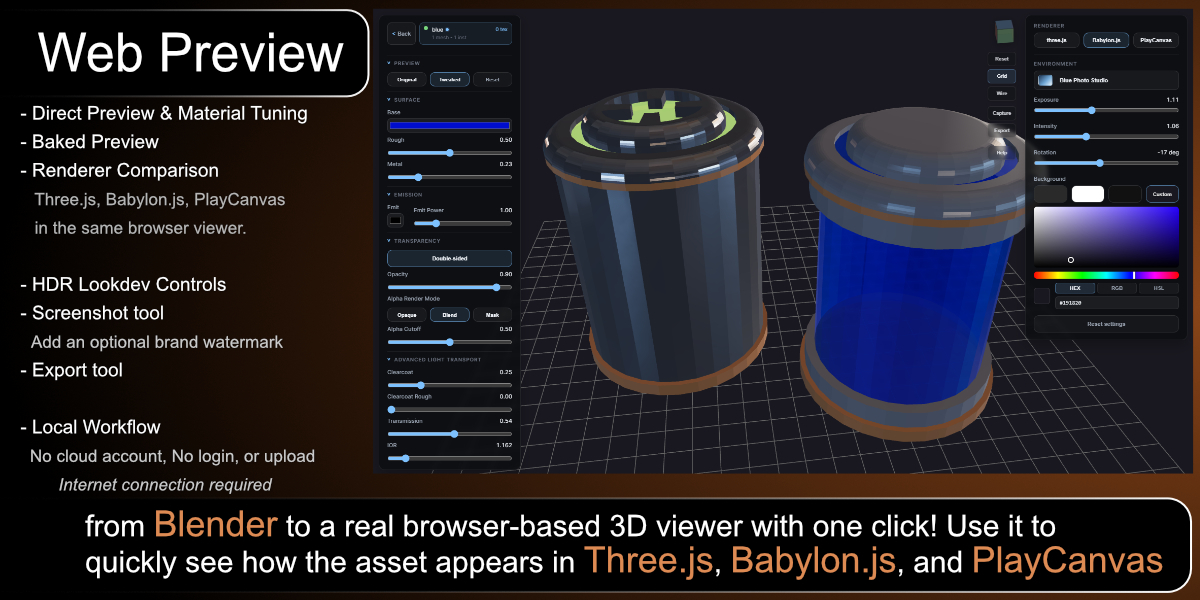
Web Preview is a local Blender add-on that lets asset creators check how a selected model and its materials look in a browser viewer before placing the model in a web project or handing it off.
Preview a model in web renderers
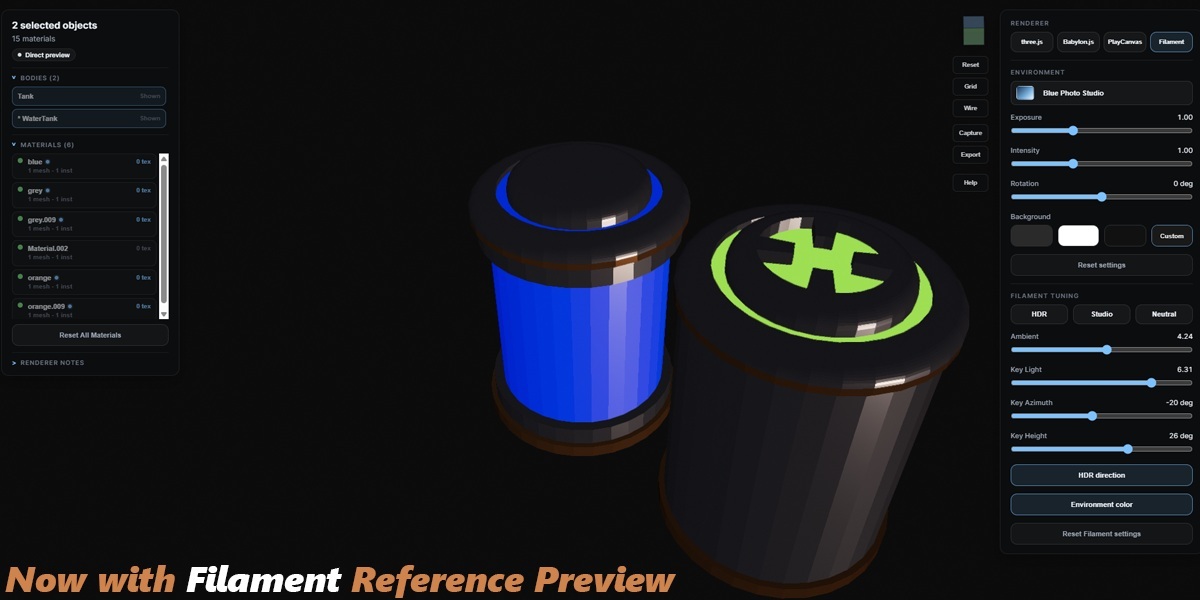
Direct Preview exports the selected object through Blender’s glTF export path, then opens the temporary file in the browser viewer. From there, you can compare three.js, Babylon.js, PlayCanvas, and a read-only Filament reference preview. The viewer shares lookdev controls between three.js and Babylon.js; PlayCanvas and Filament have additional lighting controls for their different environment workflows.
- Select an object in Blender and open the Web Preview panel.
- Click Direct Preview to open the exported model in your browser.
- Switch renderers or adjust the scene to review the presentation.
Adjust materials and lighting
The material panel focuses on one material at a time. You can change color, roughness, metalness, emission, opacity, alpha mode, clearcoat, transmission, IOR, and double-sided rendering. Compare the original and tweaked material, reset one material or the full session, and export a tweaked glTF for further testing. That export is a browser-patched copy of the Blender-exported file with the current material changes.
For lookdev, choose a bundled HDR environment and adjust exposure, environment intensity and rotation, background color, grid, or wire overlay. Body visibility controls let you hide parts of the model while reviewing the exported bodies and materials.
Use Baked Preview as a fallback
Baked Preview creates a baked fallback for selected mesh materials. Its Speed, Balanced, High, and Extreme presets let you choose a bake quality for the preview. Baked Preview can help with complex node-based materials that benefit from a baked real-time representation.
A baked preview cannot be exported as a glTF handoff because the baked result may lose material quality or intent outside this preview workflow. Use Direct Preview or Blender’s built-in export when you need a handoff file.
Capture images and keep the preview local
Save the current view as a PNG or export a transparent PNG for product images, storefront layouts, compositing, or image and video work. Optional watermark controls include position, size, color, shadow, and plate styling.
The selected asset is exported to a temporary glTF file and served to your browser through a local 127.0.0.1 connection. The preview workflow does not require a cloud account, login, or asset upload. The viewer loads its renderer libraries from public CDNs, so an internet connection is required for the viewer to start.
Preview files go in Blender’s temporary folder when available, or otherwise the system temporary folder, inside a folder whose name starts with wmp_preview_. They are cleaned up when the local preview server stops or the add-on is disabled. You can also remove them with the Clear Temporary Files button in the Blender panel.
For current download details and product terms, see the Web Preview listing on Superhive.