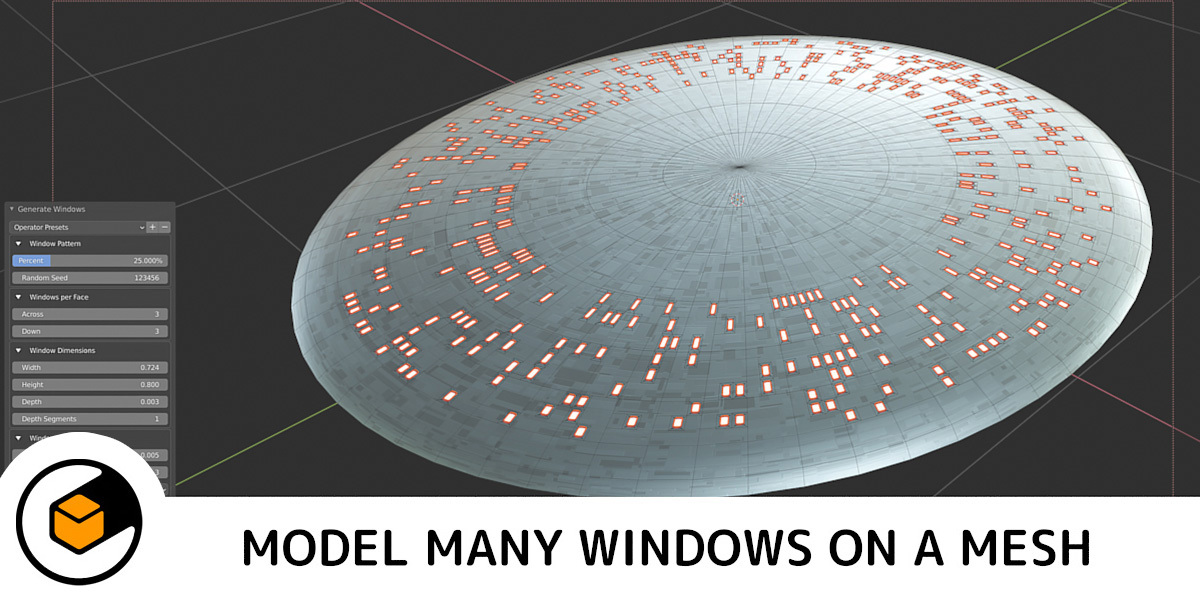
Window Generator is a Blender add-on by Mark Kingsnorth for placing window patterns across selected quad faces. It is intended for repeated details such as building facades and spaceship surfaces. You set the coverage, layout and window dimensions, then adjust the pattern and mesh options for the model.
Apply a pattern to selected faces
In Face Edit Mode, select the quad faces and run Face > Generate Windows from the 3D viewport menu, or press F3 and search for Generate Windows. The options appear in a panel at the lower left of the viewport.
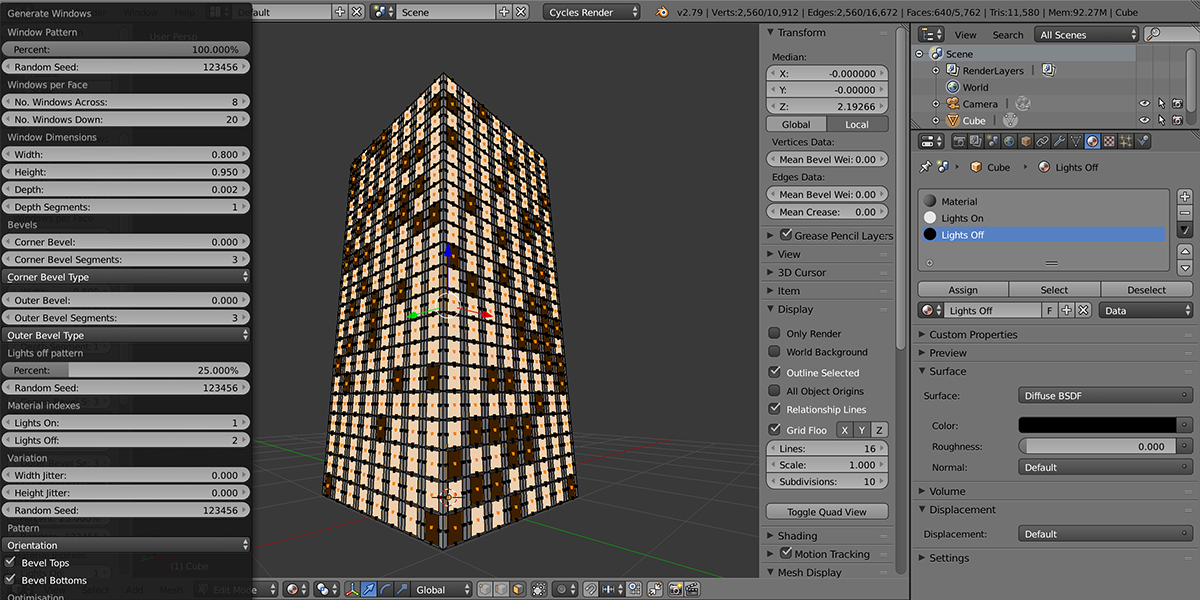
The Across and Down settings control how many windows are placed on each face. Percent controls pattern coverage, and a random seed initializes the arrangement. Width, height and depth set the relative window dimensions and recess depth. By default, the pattern runs from the top edge of a face toward the bottom; you can switch its orientation to Left-Right or Front-Back.
Shape the windows and assign materials
Corner bevels change the shape of each window, while an outer bevel smooths the edge of its recess. Bevel segments add detail. You can disable the top or bottom corner bevel to make a different window shape. Width and height jitter add random size variation across the pattern.
After adding material slots to the object, set a slot index for the generated windows. A separate lights-off pattern randomly assigns another material slot to some windows, giving a facade a mix of lit and unlit appearances. The add-on can mark UV seams on the windows to help with later unwrapping and texturing. Its Edge Split option changes edge smoothing, while the dissolve options try to remove unwanted edges or vertices created by a random pattern.
Mesh fit and topology
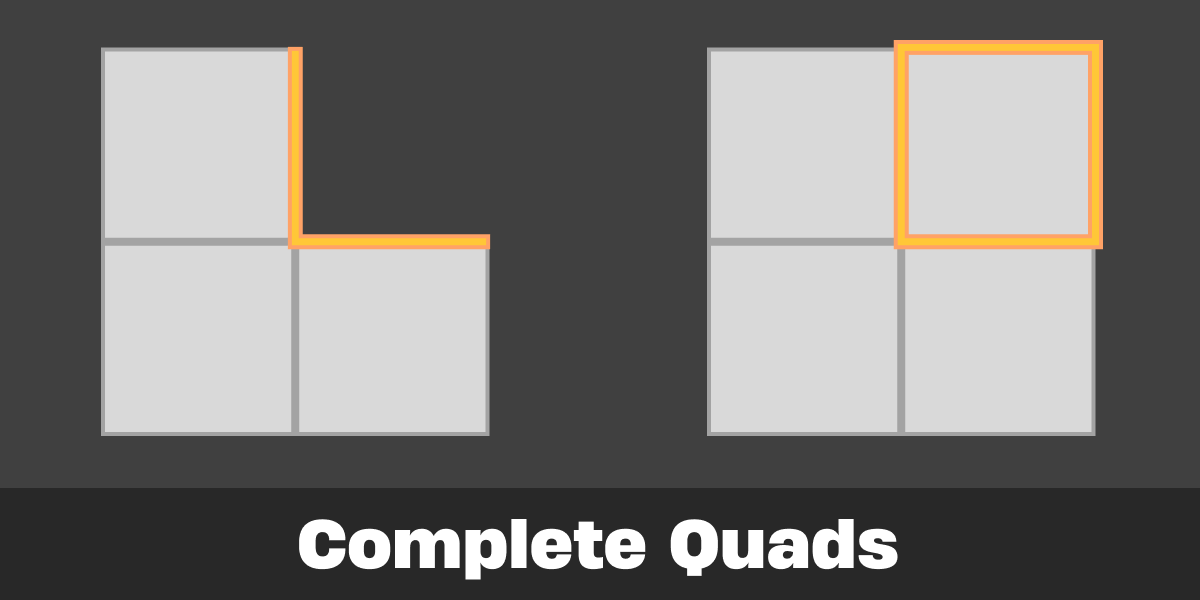
The add-on works on quad faces, and the developer's FAQ says it tends to behave best on faces that are closer to rectangular. An irregular quad can produce a distorted-looking pattern. If you want windows on neighboring faces, select those faces together before generating them: creating windows on one face adds vertices, so a neighboring face that looked like a quad may no longer qualify.
Version 1.2.2 added an inset step for selected faces to limit changes to surrounding face topology. You can turn the inset off or adjust its amount. The dissolve options can also affect the result, so disable edge or vertex dissolving if they create unwanted changes. The developer suggests adding windows toward the end of modeling, once the overall form is defined.
Large patterns can take time to calculate. A high number of windows across and down increases the work on each face, and bevels add more calculations per window. If Blender becomes unresponsive, reduce the window count or set the bevel amount to zero. The product FAQ describes these limits and other mesh issues.
Installation and compatibility
The product listing reports compatibility with Blender 2.83 through 5.3 and identifies version 1.2.2. For Blender 4.2 and later, the installation documentation says to drag the add-on ZIP into Blender. For earlier versions, use Edit > Preferences > Add-ons > Install and select the ZIP without unpacking it. Enable Mesh: Window Generator, then use the Generate Windows command in Face Edit Mode. Check the product listing for the current download and details.