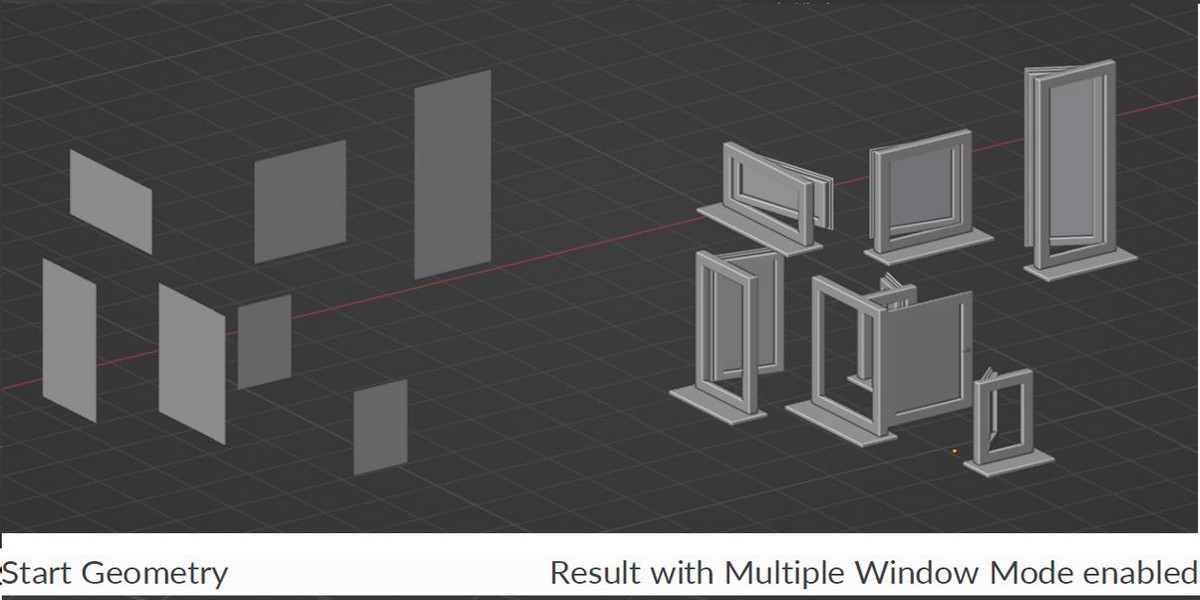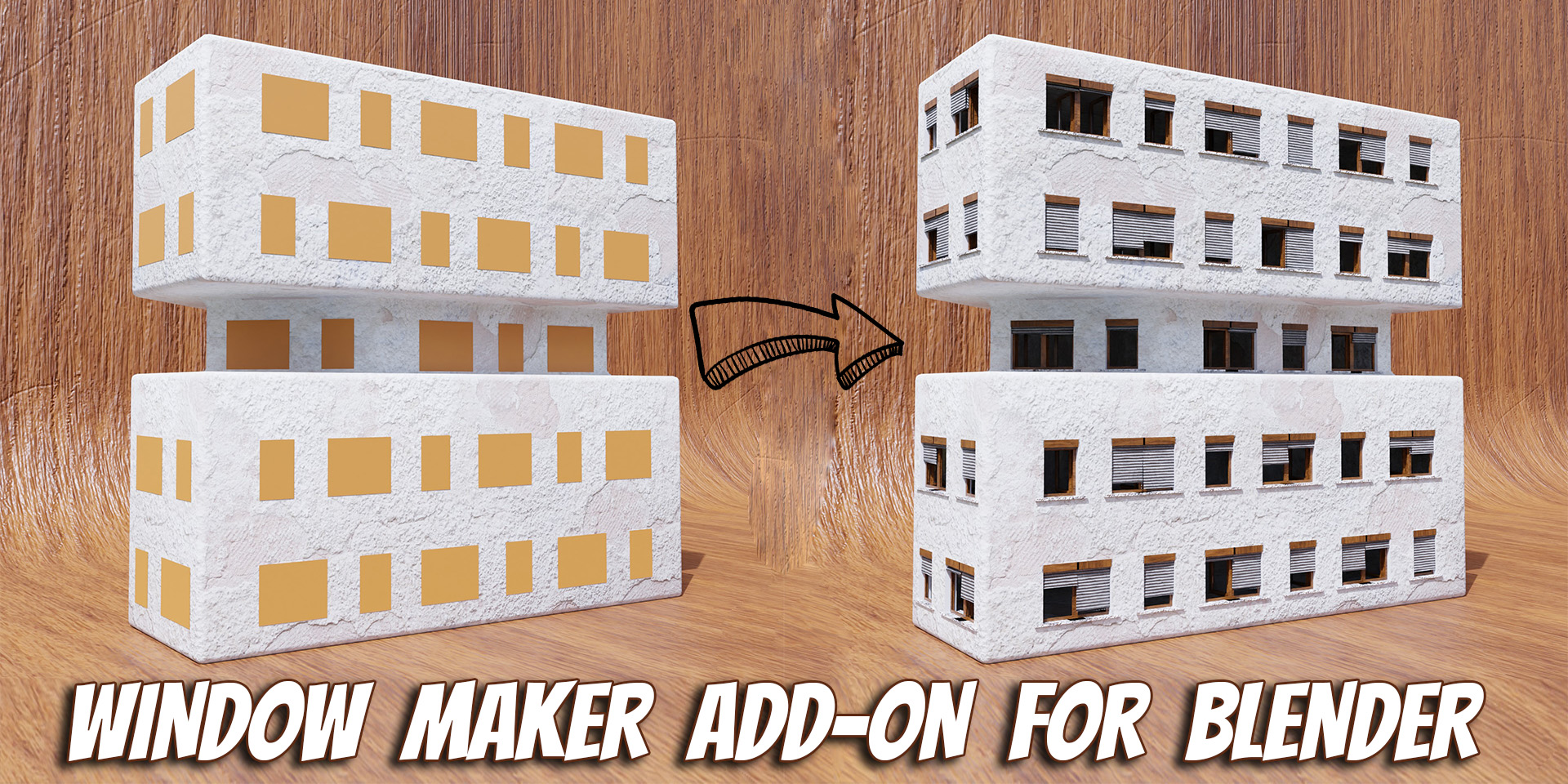
Blender Bash's Window Maker Add-On creates procedural windows from faces on objects in Blender. The shape of each window follows its underlying face, so the source geometry determines the window's form. The add-on can also create procedural openings in wall objects, with holes that move and change as the windows do.
Because the source face determines window shape, start with faces that match the intended openings. If a model uses different face shapes, try the modes on representative faces before generating a larger set.
Create windows from faces
Enable the add-on and open the BB Windows Panel in the 3D Viewport side panel. Select an object that contains faces, then click Create Windows. Window Maker applies a Geometry Nodes modifier to the selected object and creates window objects. You control the result through panel options organized in dropdowns, without needing Geometry Nodes knowledge. The full User Manual explains the options.
Window modes and procedural wall openings
The add-on has three modes: multiple Window Mode, Double Wing Window Mode, and Fixed Window Mode. Editable parameters let you personalize and randomize the windows. Each generated window takes its shape from the face beneath it.
To make wall openings, select a wall object or a collection of wall objects and use the hole-creation control. The holes are procedural: they are created as you add windows, then move and change with the windows' position, size, and shape. This keeps the openings linked to the window arrangement as you revise the scene.
Materials and UV mapping
Each part of a window can have its own material. UV mapping is controlled by a vector attribute. When you apply the geometry, that attribute converts into a regular UV map that you can edit in Blender's UV Editor. The map is also used when exporting the geometry to other 3D software.
Version, compatibility, and license
Window Maker Add-On is identified as version 2.1.1, updated for Blender 4.2 and higher. The Superhive listing marks it as Blender Extension Compatible, specifies Blender 4.2 through 5.2, and lists the GPL license. Check the listing for current compatibility details before installing, especially if your Blender version falls outside that range.
Manual and video review
The Superhive listing links to a full User Manual available at no cost and to a video review on YouTube. Use the manual for details on individual panel options and the video for a visual overview of the workflow.