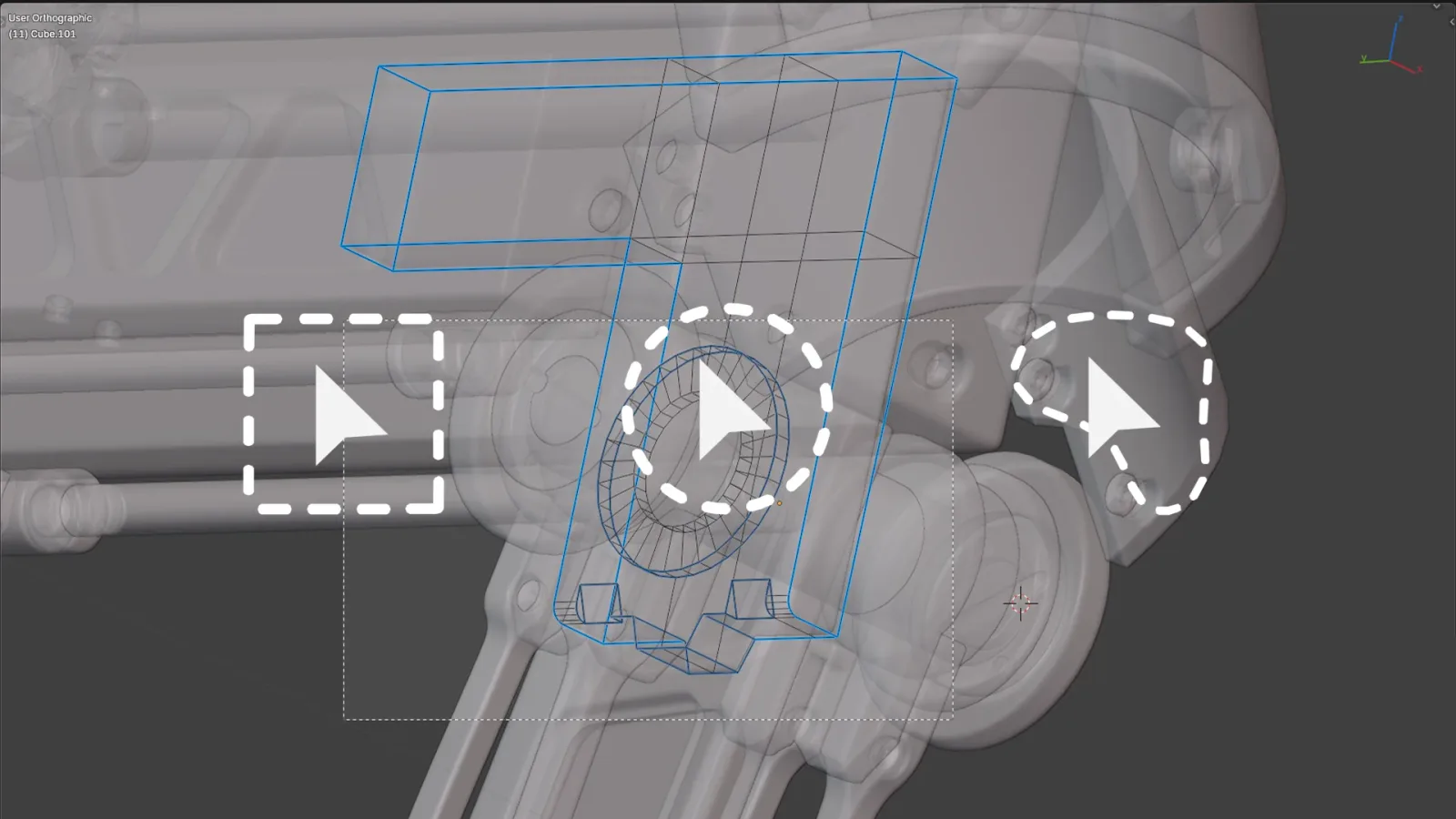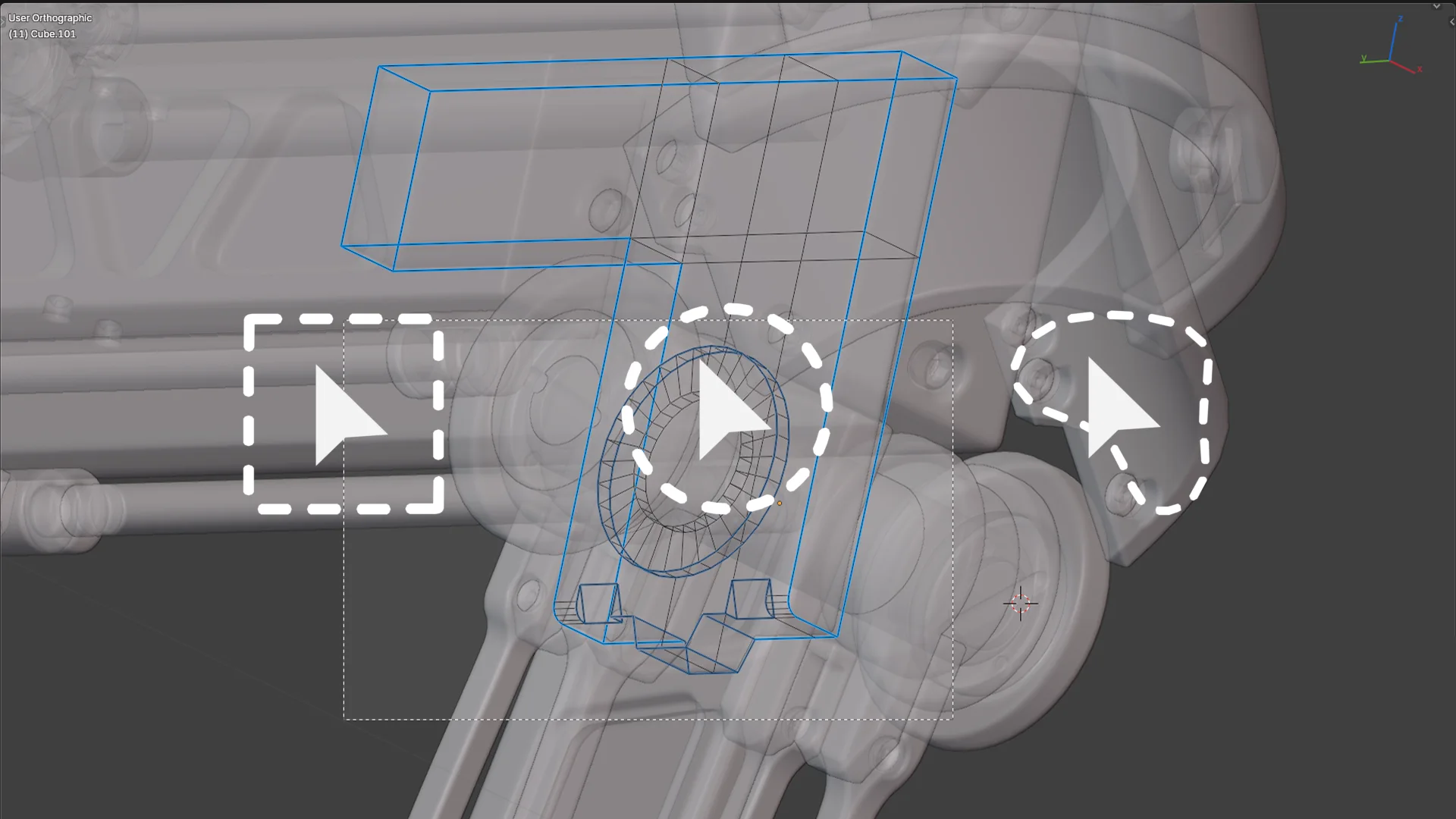
X-Ray Selection Tools adds box, circle, and lasso selection tools to Blender, with controls for selecting through geometry and defining what counts as inside a selection. You can use through-selection with X-Ray shading on or off, then adjust object and mesh behavior in the add-on preferences. It suits Blender users who often need to select parts hidden by the visible surface or objects that only partly cross a selection area.
Choose how the selection region behaves
In Object Mode, Origin selects objects whose origins fall within the selection region. Contain requires an object to be fully enclosed, while Overlap includes objects inside or crossing the region. Direction mode uses Overlap for left-to-right drags and Contain for right-to-left drags.
The object settings also control whether the tools show X-Ray shading. Selection through geometry can work with that shading enabled or disabled, so the viewport can stay in its usual display mode while you select objects behind visible geometry. The developer's object tool documentation explains these options.
Select mesh components through geometry
In Edit Mode, selection-through can reach vertices, edges, and faces behind the visible surface. By default, it selects edges whose vertices are inside the selection frame and faces whose center falls inside it. Optional Select All settings include every edge or face that touches the selection region, which is useful when a partial intersection should count.
The mesh preferences let box and lasso tools use separate settings for each drag direction. They also keep selection-through behavior distinct from whether X-Ray shading turns on automatically. See the mesh tool preferences for the available controls.
Adjust shortcuts and preferences
You can access the tools through Blender's toolbar or keyboard shortcuts. In the Advanced Keymap preferences, shortcut groups can be disabled to remove unused bindings from Blender's key configuration. Individual shortcuts can also override the global tool preferences, which lets a shortcut use different selection behavior from the toolbar tool. The keymap documentation describes those settings.
Consider the performance trade-off
More inclusive selection checks can take longer on complex geometry. The developer notes that object selection modes can be slower than Blender's default on objects with a lot of geometry, and Select All is slower on dense meshes. Use those options when their broader selection behavior helps, then return to the default settings for routine picks.
The Blender Extensions listing identifies version 4.10.2 as compatible with Blender 5.1.1 and newer. Check the extension listing for current version and compatibility details, since these can change with later releases.