Ziplab Pro is a Blender add-on for editing ZIP-based add-ons from Blender’s Text Editor. Import an archive to view its files and folders, edit the loaded files, then save changes to the original ZIP or write them to a new archive.
Edit a ZIP archive in Blender
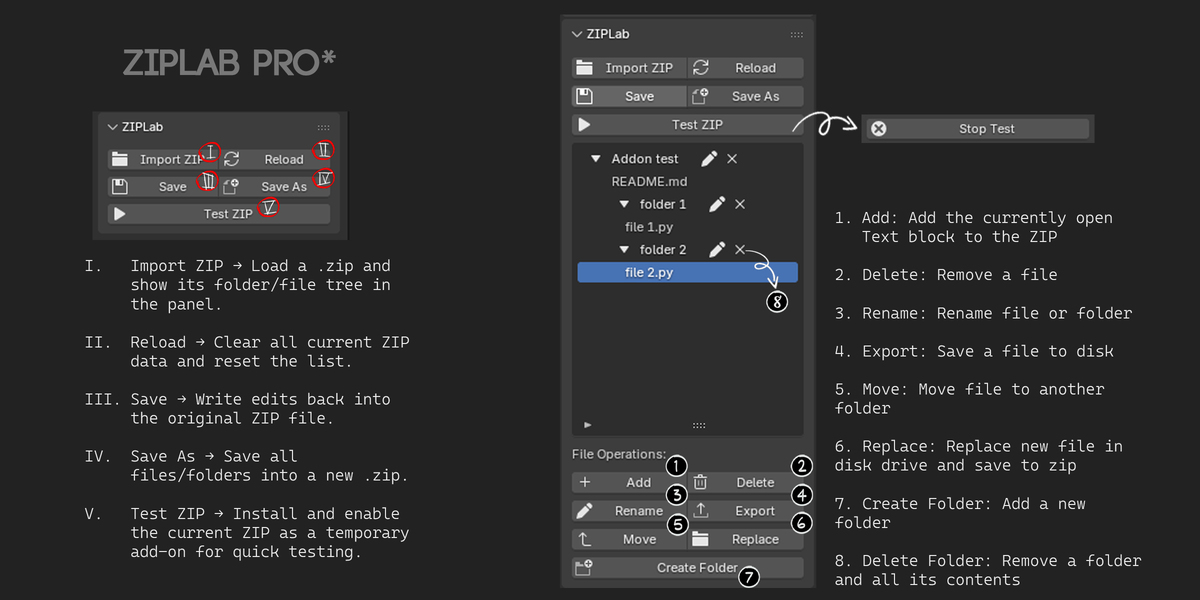
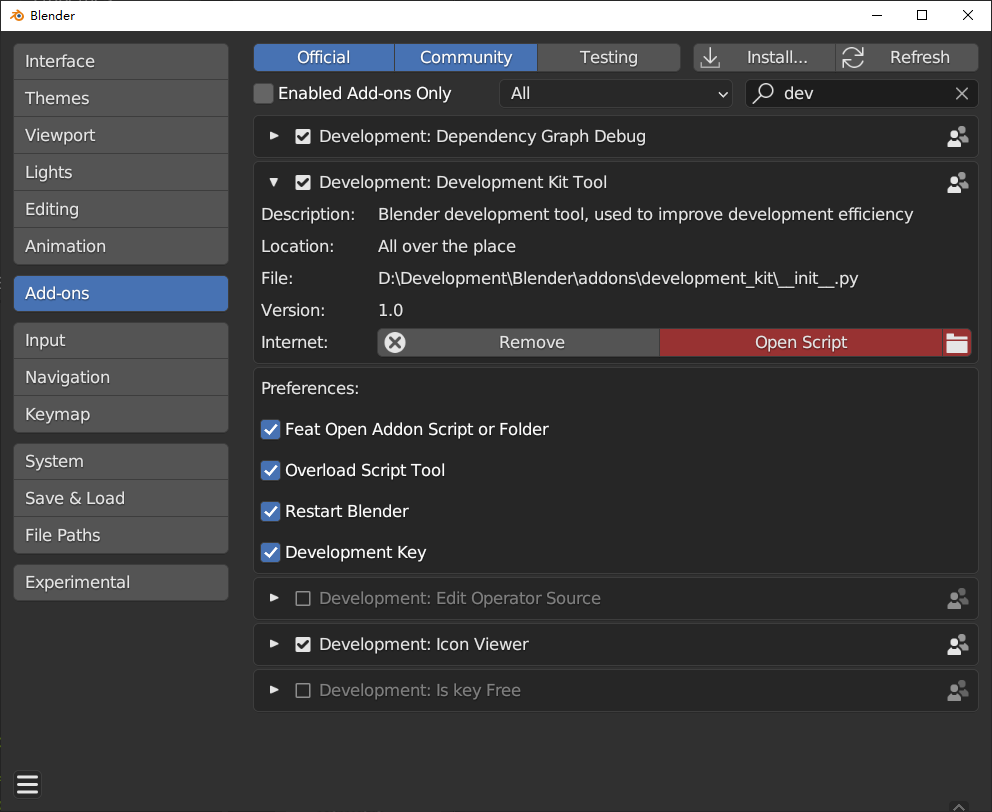
Install the add-on’s ZIP file through Blender’s preferences and enable Ziplab Pro in the add-on list. In Blender’s Text Editor, open the Text menu, choose ZIPLab, and select Import ZIP. The archive’s contents appear as a tree view in the panel, where you can work with individual files without first unpacking the archive.
After editing, choose Save to write changed files back into the original ZIP. The documentation says files with a dirty marker are updated. If Blender cannot find the original archive, it displays an error.
Save a separate copy or test the add-on
Save As writes the loaded files and folders to a ZIP at a new path and filename. This gives you a way to keep the original archive while preparing a modified copy.
To try an add-on, choose Test ZIP. Ziplab Pro creates a temporary copy in the system’s temporary folder, installs it as a Blender add-on, and enables it for testing. Choose Stop Test to disable and remove that temporary add-on. The Reload control clears the loaded ZIP data, removes its imported text blocks from Blender, and resets the panel, which is useful when switching archives.
Version, compatibility, and file formats
The product listing identifies version 1.2.2, Blender compatibility from versions 4.2 to 4.5, and a GPL license. Its version 1.2.2 notes add support for creating and editing .toml files. They also mention a new required add-on format intended to enable future capabilities in Blender and on Superhive, but do not name the format. Check the developer’s product listing for current version and compatibility details before installing.
Documentation
The Ziplab Pro documentation covers installation, importing, saving, and testing ZIP add-ons. The product is published by Hoa Vu.