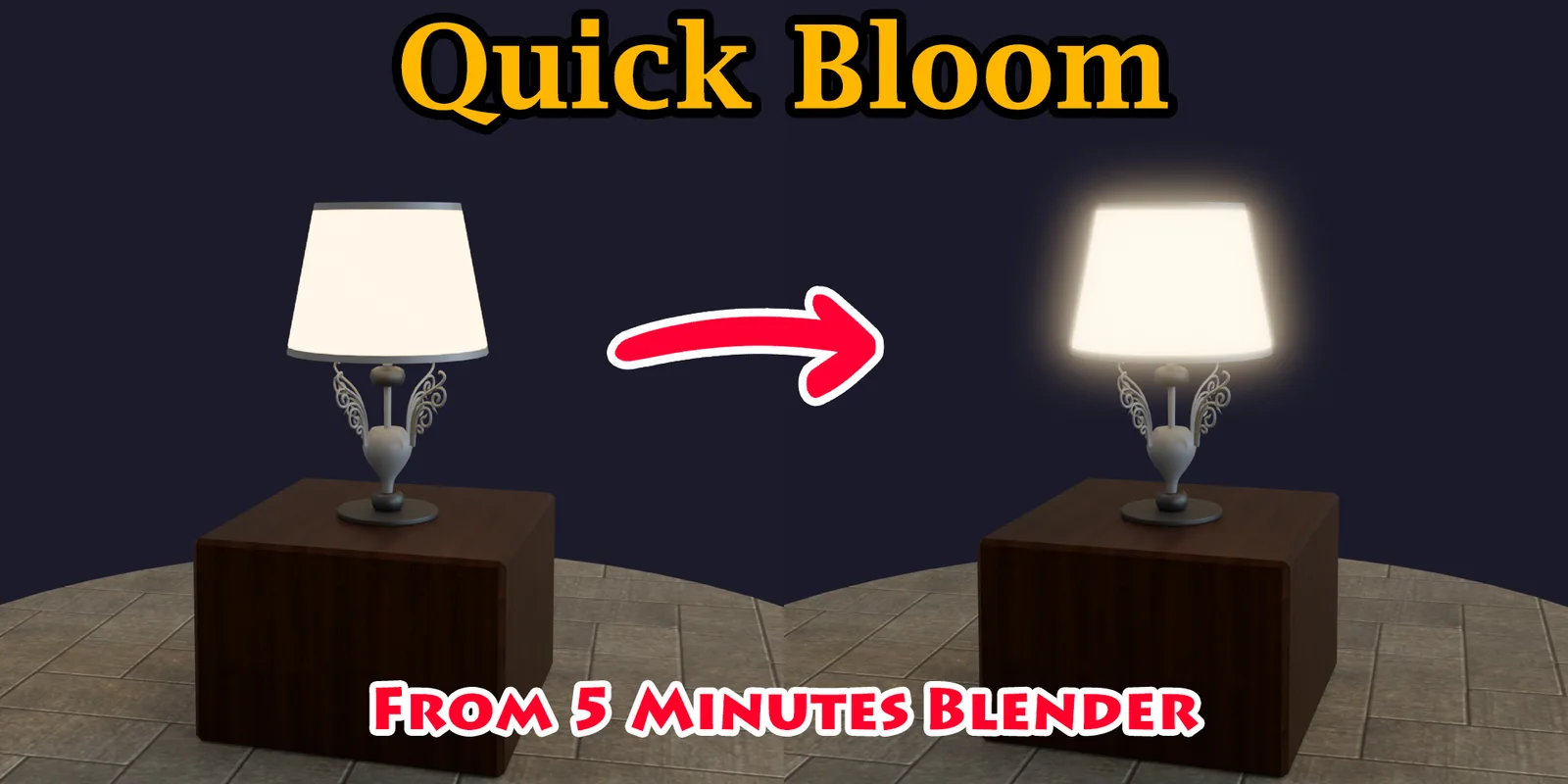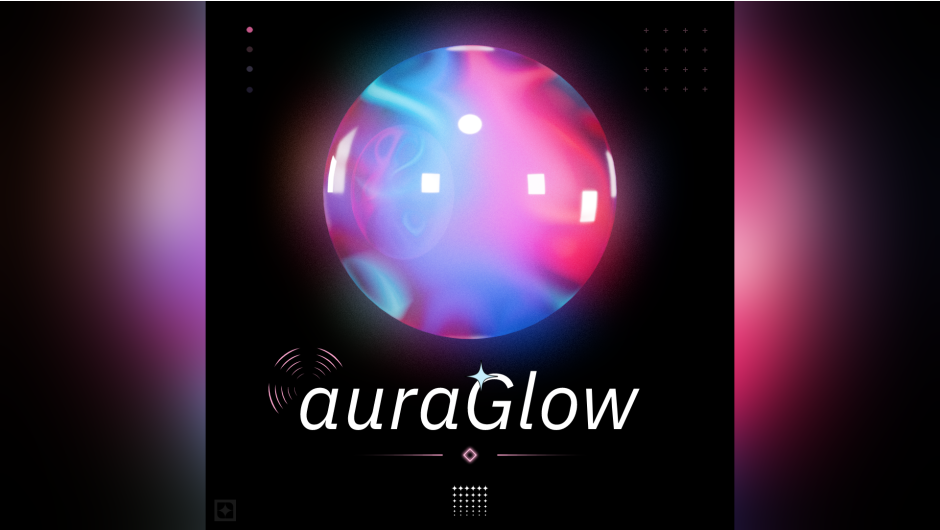
auraGlow is a multi-pass glow and bloom filter for Cavalry. It combines several blur passes to build a layered effect, with controls for selecting highlights, shaping the glow’s direction and color, adding grain, and isolating the glow for further compositing. It can be used on glowing titles and logos, interface elements, illustrations, or light streaks.
Choose what creates the glow
Highlight extraction determines which parts of the source feed the effect. Luminance responds to perceived brightness, RGB Max gives saturated colors more influence, and Alpha uses the source’s alpha channel as its signal. Threshold, Threshold Softness, Source Boost, and Highlight Bias help narrow the effect to bright areas or draw glow from dimmer inputs.
Radius and Intensity adjust the glow’s reach and strength. Highlight Rolloff helps control bright cores, while the multiple blur passes build a bright center with a broader body and a softer outer glow.
Shape direction and color
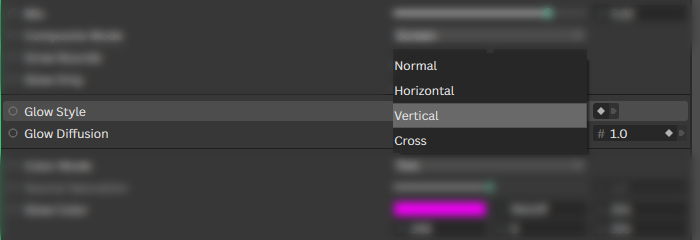
Choose Normal for a soft glow, or use Horizontal, Vertical, and Cross for directional streaks. Glow Diffusion blends those directional styles toward a softer, more natural bloom.
Preserve Source keeps the original colors in the glow; Tint applies a chosen color. Source Saturation, Tint Amount, and Chroma Spread provide further color control. Chroma Spread separates the RGB channels to create spectral edges, from subtle color fringing to a more pronounced effect.
Set the composite and output
auraGlow composites the source and glow internally. Its listing recommends leaving Cavalry’s native filter Blend Mode set to Replace in the usual setup. Within auraGlow, choose Screen, Add, Soft Add, Color Dodge, Overlay, or Linear Light to change how the source and glow combine.
Turn on Glow Only to output the generated glow by itself. That pass can be used with duplicated layers, mattes, custom compositing, or treatments and effects that should apply only to the glow.
Adjust grain and preview quality
Grain controls include amount, size, and animation speed. The four quality modes are Draft, Balanced, High, and Ultra. Draft and Balanced are intended for working, High is the default, and Ultra adds blur samples for large glows in final-quality work. Higher quality settings can increase the apparent glow radius, so check the result when switching modes.
Compatibility and product details
The product listing names Cavalry 2.7 and 2.8 as compatible versions and credits Maxson Richards as the author. Check the auraGlow listing on aescripts for current compatibility, licensing, and product information.