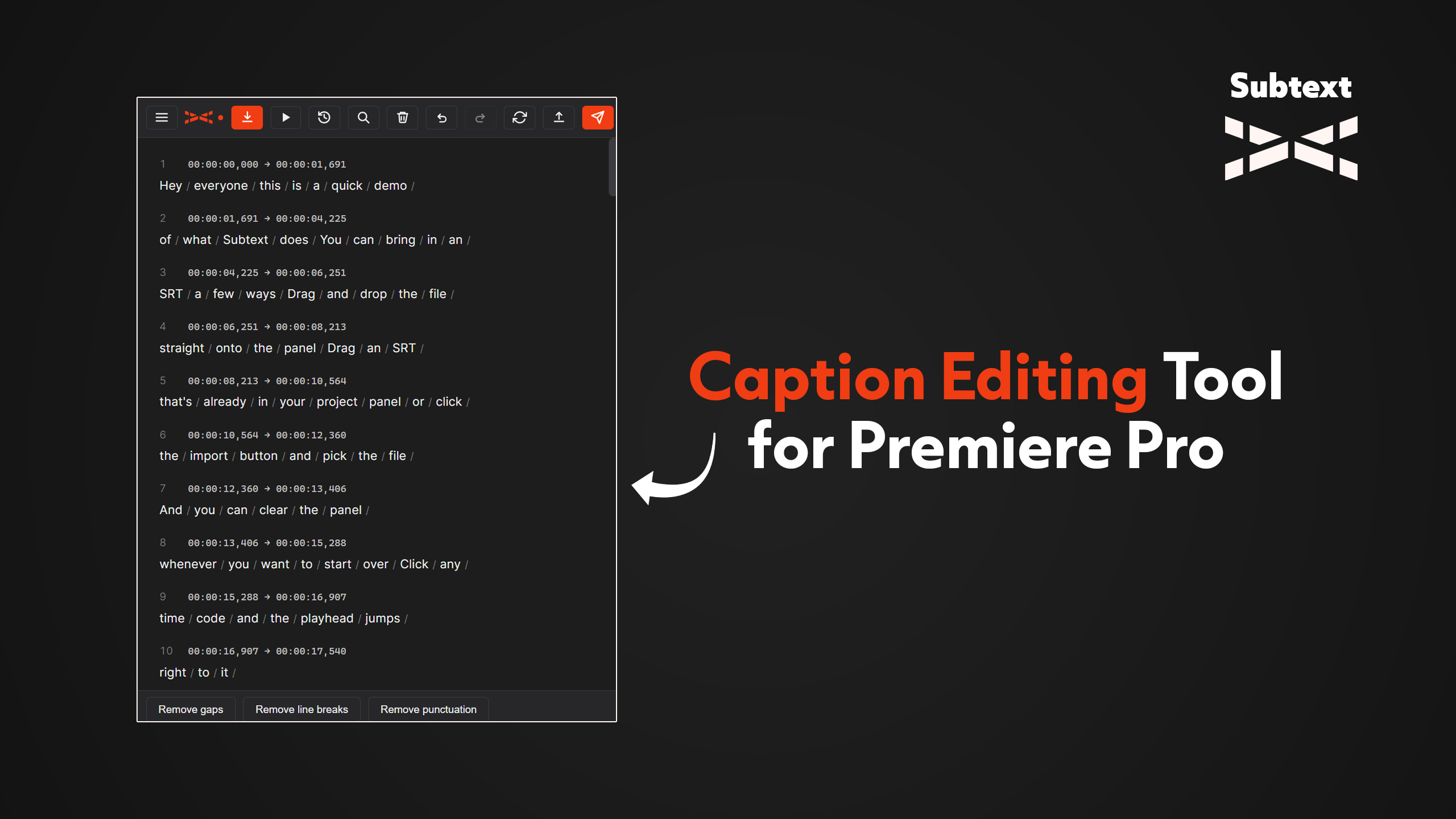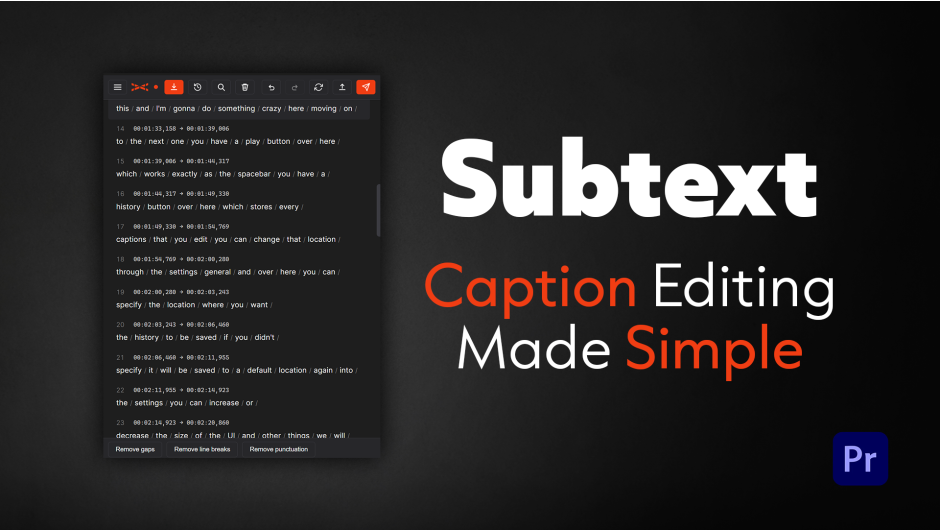
Subtext is a caption editing panel for Premiere Pro. It is designed for editors and subtitlers who already have a transcript or subtitle file and want to correct its wording and timing before adding captions to a timeline. The listed import formats are SRT, VTT, and CSV.
Edit captions from the text list
Double-click a word to change it. Click the marker between two words to split a caption, or the marker at the end of a line to merge it with the next one. You can also add or delete captions from the list. Selecting a caption moves Premiere Pro’s playhead to that point in the timeline. Sync mode highlights the caption under the playhead during playback, which helps when checking timing against the video.
Clean up and review a subtitle file
Subtext has file-wide controls to remove gaps, line breaks, or punctuation across captions. Find and replace searches the whole file, with match-case and whole-word options for targeted corrections such as fixing a name that appears with different spellings.
For work that needs another pass, mark captions for review, attach notes, and jump between flagged lines. Sessions save continuously and persist through a panel reload. Undo, redo, and history let you revisit earlier edits.
Place captions on the timeline or export SRT
When the captions are ready, one action puts them on a new caption track and saves a versioned SRT copy in a Subtext bin in the Project panel. You can also export an SRT file to a location on disk. The separate copy gives you a record of the subtitle file used for that timeline push.
Compatibility and interface settings
Subtext runs in Premiere Pro 2023 and later on Windows and macOS. The panel includes controls for its UI size and accent color, plus a light theme. Settings persist between sessions.
The product page lists version 1.1.0, released August 21, 2026, as a maintenance update with five fixes and no new features.