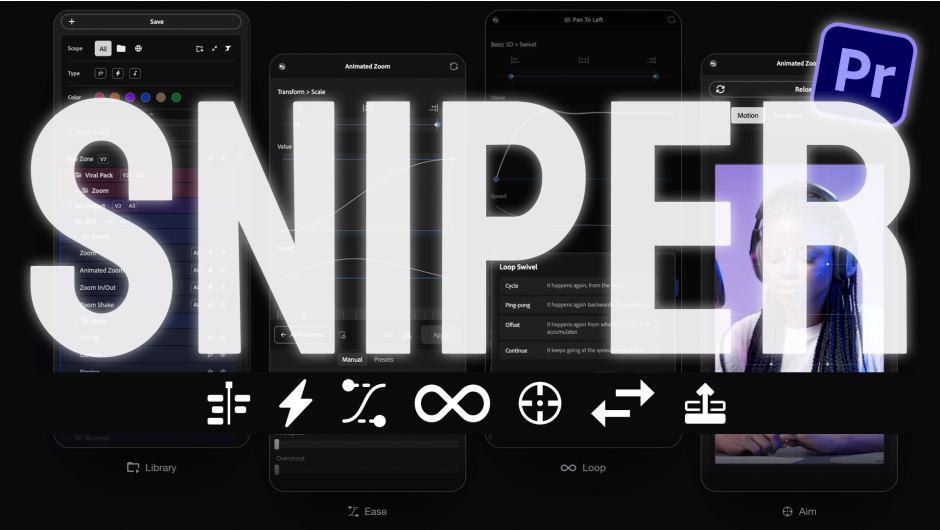
Sniper is a Premiere Pro panel for saving and reusing timeline work, shaping animation, and moving effects from clips to adjustment layers. Its tools include a preset library, keyframe easing, animation loops, anchor point placement, and preset pack import.
Save and reuse timeline work
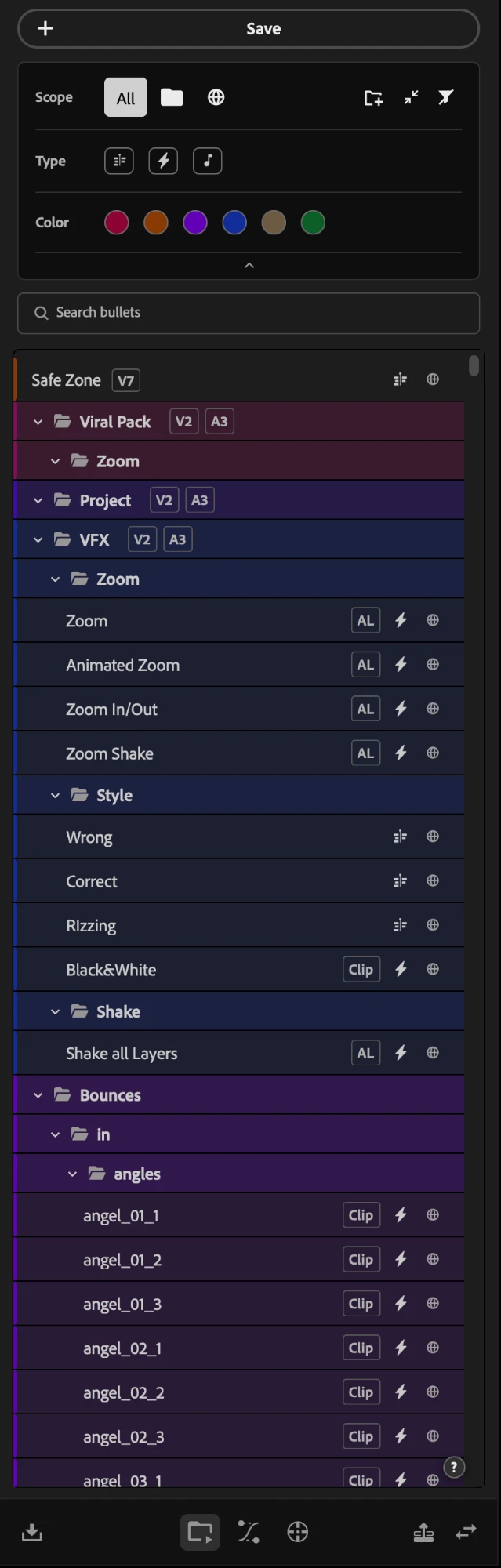
Sniper's library stores almost anything selected on the timeline, from an audio item to a layered edit. It organizes saved items as bullets, which can be sorted into folders and scoped to the current project or globally. For a global content bullet, Sniper stores its media in the folder you chose the first time you opened Sniper, so moving the project does not break the reference.
- Effect bullets save selected clip properties, effects, and keyframes, including the animation's original ease. You can choose which effects and properties to include.
- Content bullets save selected video, audio, or graphics from one or more tracks. Edit a saved content bullet in Premiere and its next firing carries your changes; copies already on the timeline stay unchanged.
- SFX bullets save a single audio item and provide a play button in the library.
Folders can pass their color and video or audio offsets to the items inside them. Search matches bullet and folder names; filters narrow the library by type, scope, and color, and Sniper saves the filter settings. A folder without nested levels offers a random button. Press it to place one of its items on the timeline; press again to replace it without losing the selected clip.
Apply presets and transitions to clips
Each bullet can be set to fire directly on a selected clip, on an adjustment layer spanning the clip, from the playhead to the clip's end, or as a transition at the intersection of selected clips. Sniper can fire onto several clips at once. If a bullet's transitions or effects would be lost if applied loose, Sniper nests it when you fire it; saving the bullet does not nest anything.
Reshape and repeat animation
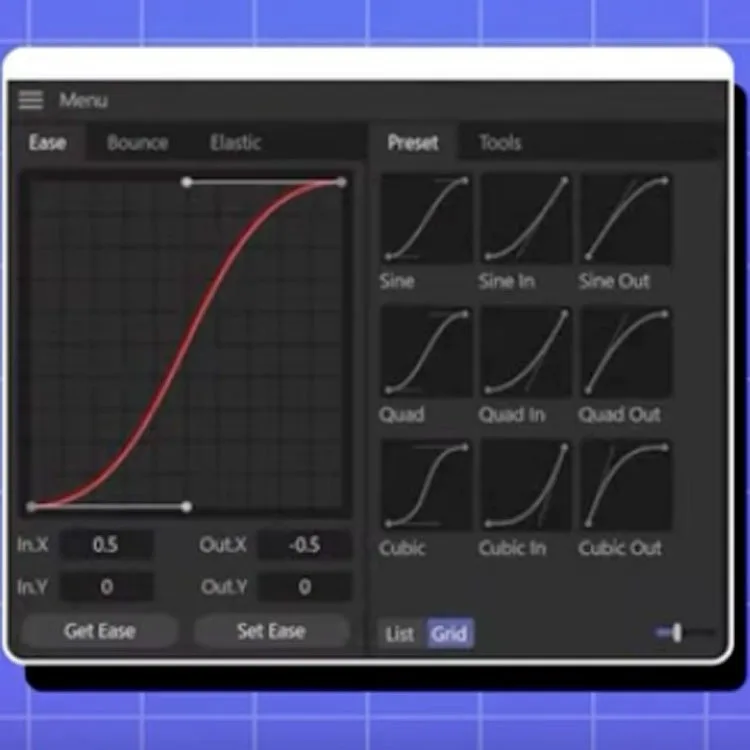
The Ease tool lists properties with keyframes and shows their Value and Speed curves. Bezier controls adjust ease in, ease out, anticipation, and overshoot. Separate Overshoot and Bounce curves offer controls for their movement. Changes update the graphs and preview as you work. On the ruler, you can move keyframes within or outside the clip, or drag an edge of the keyframe range to redistribute them proportionally over a longer or shorter animation; the clip's duration stays unchanged. You can also save a curve as a preset.
The Loop tool repeats animation to the end of the ruler. Cycle repeats the same movement, Ping-pong reverses it on each pass, Offset starts each repetition where the last stopped, so the movement keeps adding up. Continue does not repeat the animation; it carries on at its ending speed. Apply a loop to one property or to the whole clip.
Place anchor points and move effects
Aim lets you click a point on the screen to place a clip's anchor point while Sniper compensates for the position change. The destination can be the clip's Motion controls, a Transform effect, or a new adjustment layer. If Motion already has keyframes, Aim uses Transform and leaves that animation unchanged.
Sniper can also move Motion animation to a Transform effect on the same clip, or transfer a clip's effects to an adjustment layer above it. The transferred effects remain editable and keep their order. Each new layer matches the clip's duration; a clip without effects receives a layer with a zeroed Transform. If the source clip's Motion is animated, Sniper transfers that animation to a Transform effect on the new layer.
Import existing preset packs
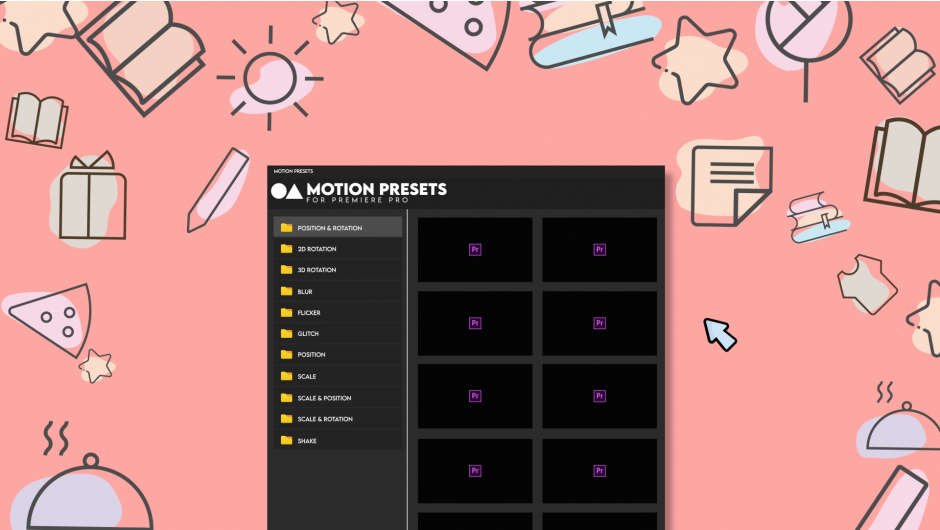
Import a Premiere Pro .prfpset file to bring its presets and folder structure into the library. Before adding anything, Sniper presents the presets in a table so you can choose which presets to import, which to treat as transitions, and which to apply on adjustment layers. Items that cannot be imported appear with a reason.