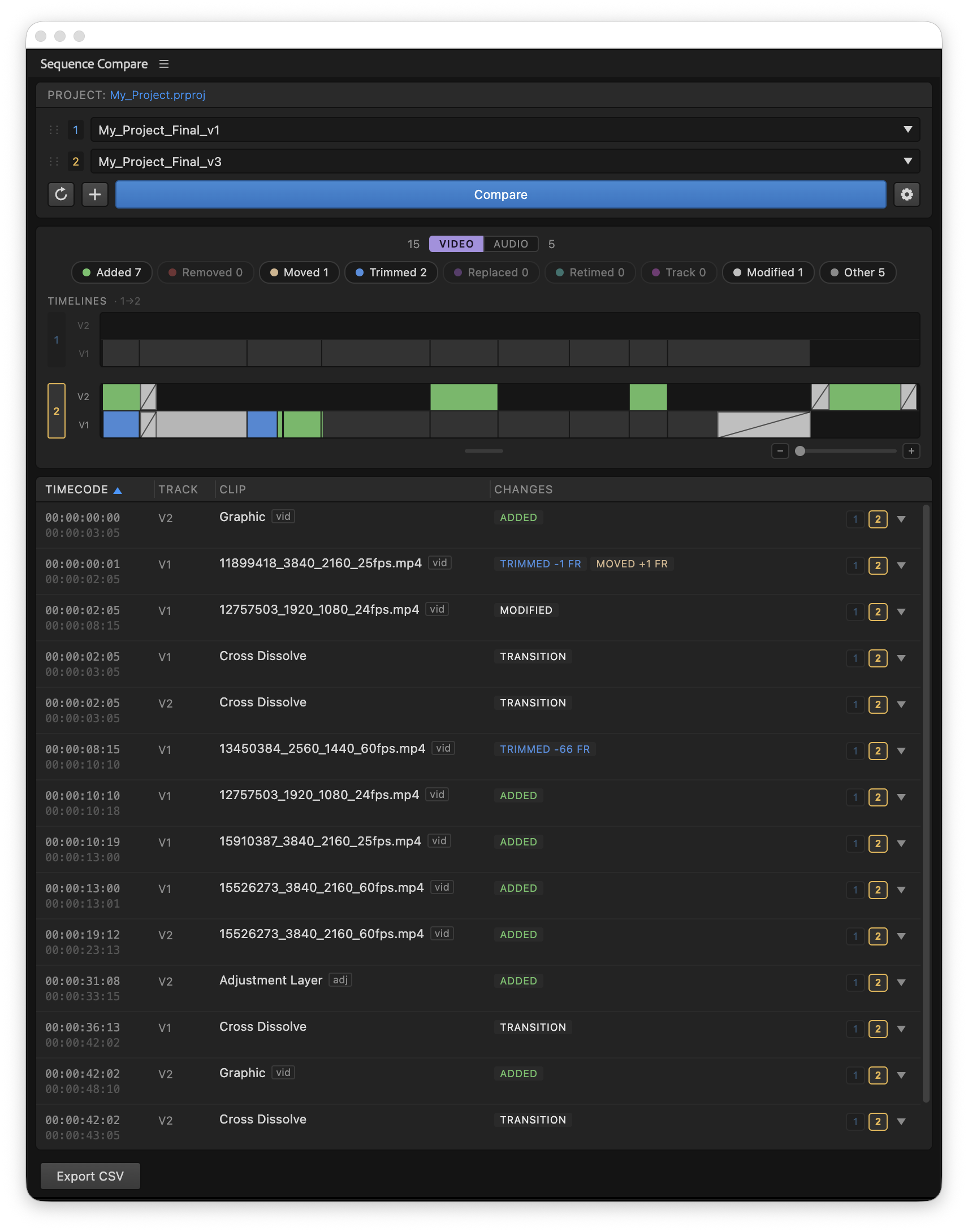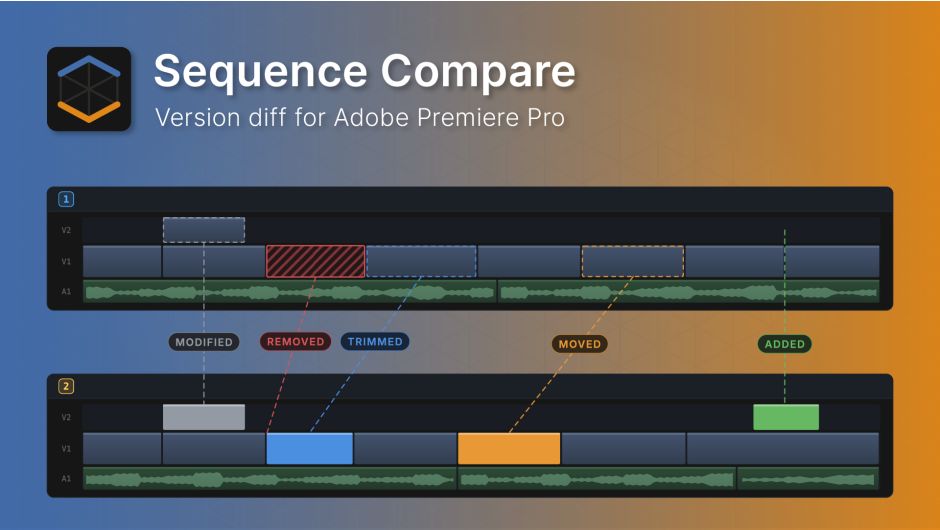
Sequence Compare is a version-diff panel for Adobe Premiere Pro. It examines the edit clip by clip and lists differences with timecodes, so you can review a new cut after an editor, assistant or client has changed it. Premiere Pro's Comparison View compares frames; Sequence Compare compares the timeline edits.
Compare sequences in Premiere Pro
The listing names Premiere Pro versions 2022 through 2027 as compatible. In a supported version, choose any two sequences in the open project. No naming convention or XML export is needed. Sequence Compare reads both timelines and matches clips through razor cuts, ripple edits and clips moved to another track.
- Select the two sequence versions.
- Run the comparison.
- Click a change row to move the playhead to that point and select the clip.
Work through the list to review the changes. Ripple, roll, slip and slide edits appear as the resulting trims and moves. A razor cut that leaves the edit unchanged produces no reported difference.
See what changed in the edit
Each row can show the timecode, track, clip name and change types for that clip. Added, removed, moved and replaced clips are distinguished. Move and trim changes include frame counts; in and out point changes are reported separately. Retiming is shown as a speed percentage, with reverse playback flagged, and a clip moved to another track is reported as a track change.
Sequence Compare also reports changes to effects and settings, including Motion, opacity, clip volume and pan, keyframes and title text. It can list transitions that were added, removed, changed in type or lengthened, as well as clips switched on or off, renamed clips, recut nested sequences and sequence settings such as frame size, frame rate, sample rate and start timecode. If a clip both moves and receives a new grade, both changes can appear on its row.
Neighboring clips with the same change can be grouped into one row, which keeps a ripple edit from filling the list with repeated entries. Sort results by timecode, track, clip or change type, open a row for the numbers behind a change, or export the full list as CSV for a report or handoff.
Review picture and sound separately
Switch between video and audio comparisons. Each has its own list and change count, so audio edits remain separate from picture changes. Audio results can include added, removed, moved, trimmed or retimed clips, along with changes to clip volume, pan, effects, fades and transitions.
Use the mini-map and compare revisions
The mini-map shows each timeline as a strip with one lane per track and clips colored by change. Click a clip to jump to it, or click a track number to select that track. Selecting a change outlines the clip in its current and previous positions. You can zoom and scroll the strips or make them taller for a busy timeline.
For a longer review, add up to five sequences. Sequence Compare creates a tab for each neighboring pair in the chain, such as version one to version two and version two to version three. This lets you inspect each round of revisions separately.
Choose which changes to inspect
Settings let you turn change categories on or off for a comparison. Turning off Modified skips reading effect stacks, which the product listing says can make comparison noticeably faster on a heavy timeline. You can also show or hide the mini-map, project name bar and CSV button, mark clip types with short tags, and choose whether to group neighboring clips with the same change.
The listing includes a free trial. Check the Sequence Compare listing for current trial and purchase details.