Align to Path is an After Effects script for attaching layers to motion paths drawn with masks. It can connect layers to one path or several, then control how they travel along those paths.
Attach layers to mask paths
- Select the layer or layers you want to move.
- Add the masks that will act as motion paths to the selection. Select each mask name, not its Mask Path property.
- Run the script.
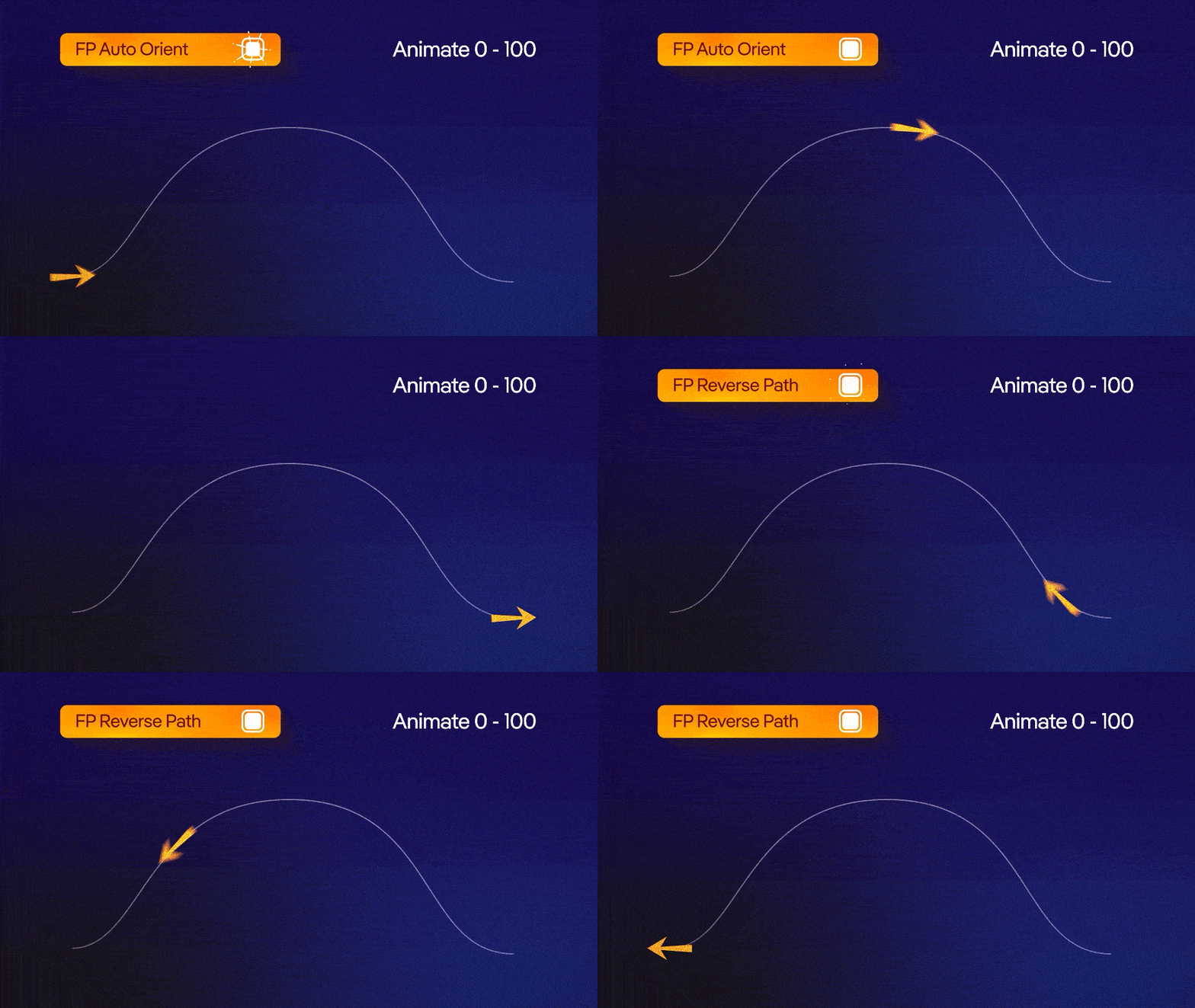
Keep Position Offset preserves a layer's current position. Auto-Orient to Path turns the layer as it follows a path; this option works after you create an initial keyframe on the Motion Path Completion slider. You can still animate the layer's rotation separately.
Control one path or several
Motion Path Completion animates through all connected paths sequentially. In this mode, the individual path sliders have no effect. For separate control, use one slider per path to set how much each path contributes. If all those sliders are at zero, you can keyframe the layer's position as usual.
When sequential completion is active, paths are followed in alphabetical order. The script also creates one null for each path, placed at the end of the composition and set to locked, hidden, and shy.
Path editing and limits
The mask path itself cannot be animated. To change a route, edit the original Mask Path, select the mask in Align to Path's interface, and click Update. Connected layers move to the revised positions, and existing keyframes remain in place. If the mask layer is scaled or rotated, those transforms are not reflected in the motion path.
Compatibility and licensing
The compatibility list names After Effects versions from 2024 back to CS4. It does not list later versions, so support for newer releases is not established there.
The product listing displays a Floating License Server requirement. aescripts' license guide says the server is required for Floating licenses and not for Single User licenses. Check which license type is offered or selected for Align to Path before ordering.