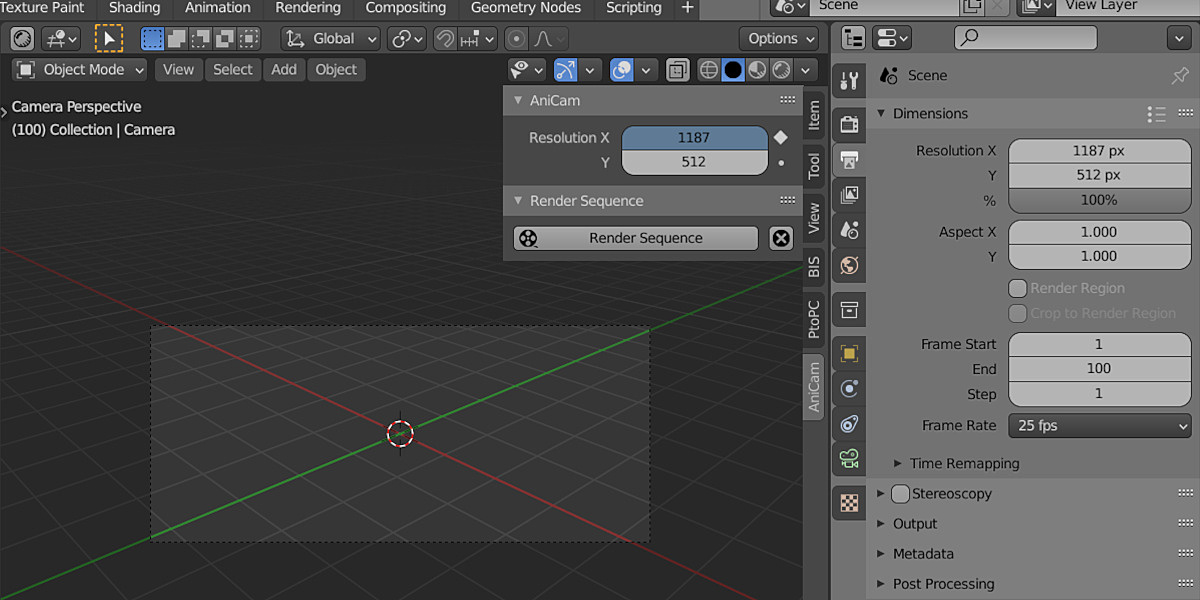
Anicam is a Blender add-on for animating camera and render output resolution. Its AniCam panel adds resolution fields to the 3D Viewport, where they stay synchronized with Blender’s Output Properties dimensions.
Keyframe render resolution
Blender’s standard resolution fields cannot be animated. In AniCam, hover over a resolution field and press i to insert a keyframe. The resulting animation curve appears in the Graph Editor and Nonlinear Animation windows, so you can set different output sizes at points along the timeline.
Change resolution with timeline markers
You can also assign a render resolution to a timeline marker in the AniCam panel. The resolution changes when the timeline cursor crosses that marker, which lets you set output sizes at selected points without keyframing the fields.
Blender’s default animation render, started with Ctrl+F12, does not support changing camera resolution during the render. Use AniCam’s Render Sequence button to render a frame sequence with animated resolution. The product listing notes that in Blender 3.x the render result does not appear in the viewport area when using this option, due to viewport and rendering synchronization issues.
Compatibility and installation
Superhive’s product listing identifies add-on version 1.2.1, GPL licensing, and Blender 2.83, 2.93, and 3.3. Its documentation page instead names 3.0; a 2021 AniCam page lists Blender 2.83, 2.93, and 3.0 through 3.4 for version 1.2.1. Check your Blender version against that dated list before installing.
To install, download the add-on ZIP archive. In Blender, open Preferences, choose Add-ons, select Install, and choose the archive. The panel is in the 3D Viewport’s N panel under the AniCam tab.