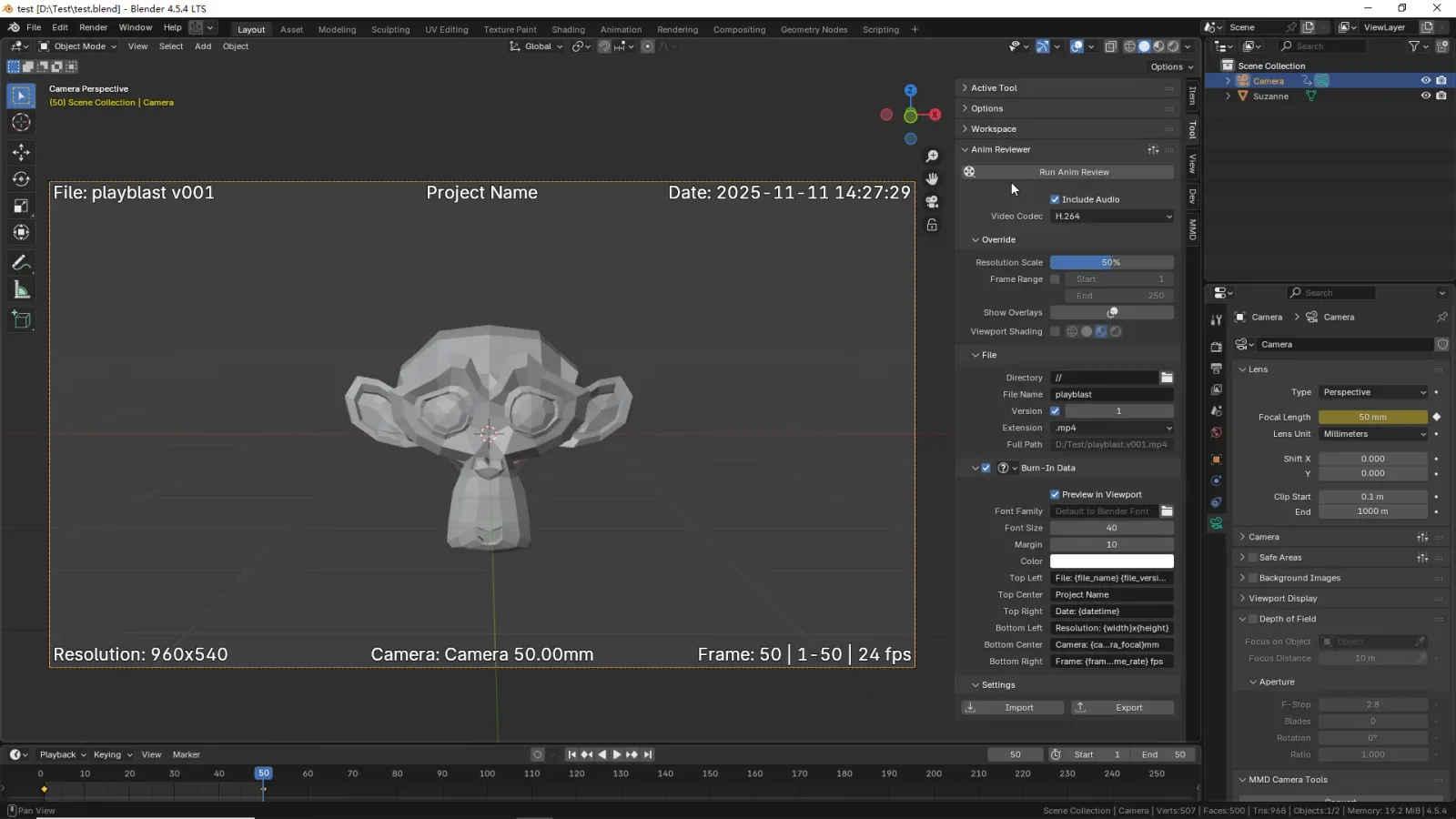
Anim Reviewer extends Blender’s native playblast workflow for animation review. From the 3D Viewport’s N-panel, you can generate a preview video of the current scene with an active camera. The Blender Extensions listing links to the maintainer’s project documentation.
Make a playblast for review
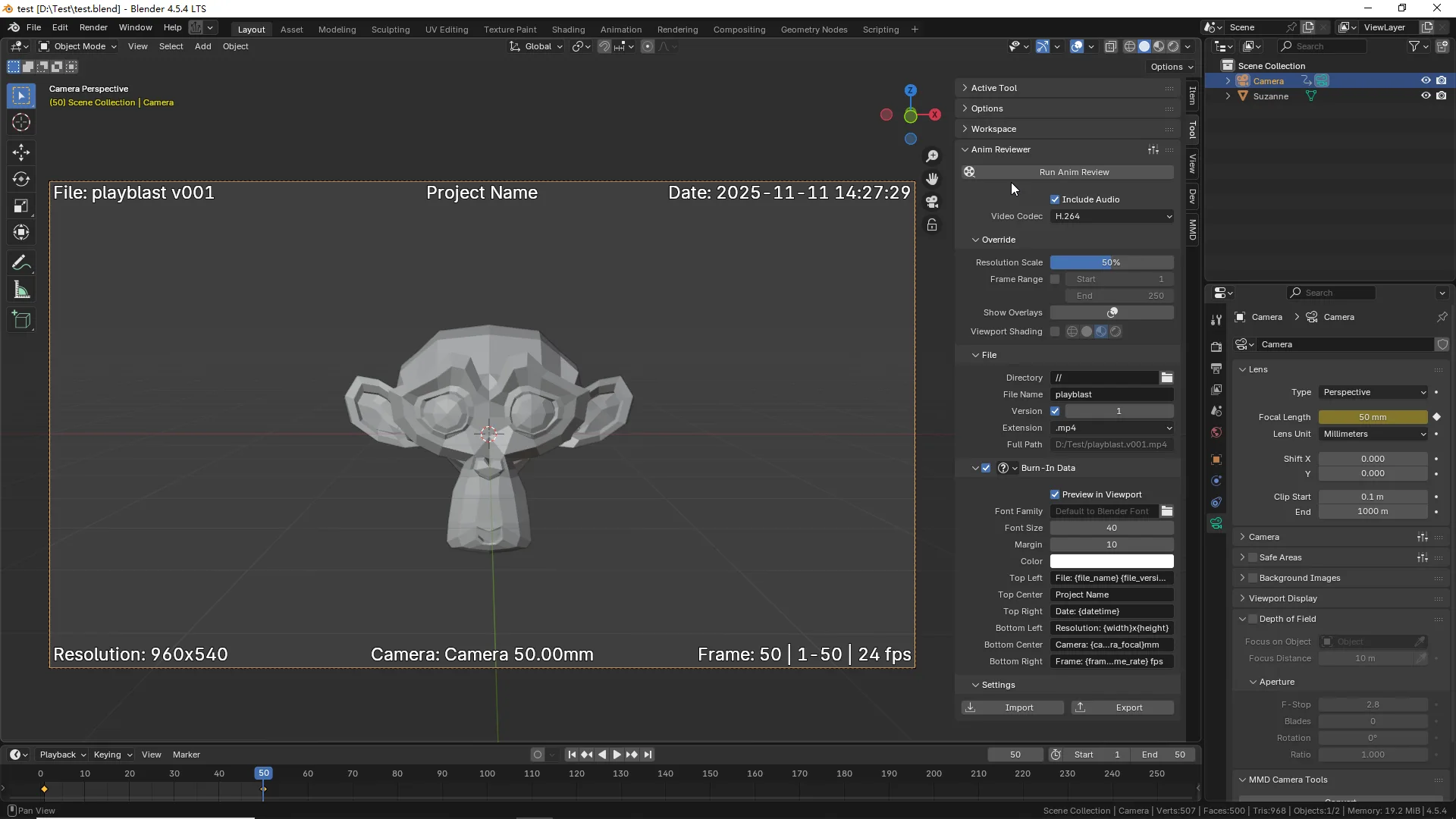
Open the Anim Reviewer panel and choose Run Anim Review to create a preview. Playblast settings let you adjust the resolution, frame range, and output location for that review pass. These overrides apply to the playblast without changing the corresponding scene settings, so a review copy can use different output choices from the scene’s regular setup.
The listed output options include H.264, H.265, MPEG-4, and AV1, with audio available alongside the video. This gives animators a way to prepare a review clip from the current scene without first using the full render mode.
Add information to the video
Burn-in overlays can show scene details, timestamps, and frame numbers. Choose among six positions along the top or bottom of the frame, at the left, center, or right. Fonts, colors, text size, and margins are configurable. Presets and importable or exportable settings files make it possible to reuse an overlay setup or share it with a team. Overlay text also supports line breaks using \N.
The maintainer’s response on the Extensions page notes that version 1.1.3 added the {blender_name} and {blender_path} metadata options.
Requirements and a render limitation
Anim Reviewer requires FFmpeg for video processing and compositing. The product information points Windows users to UniGetUI as an installation option. Set up FFmpeg before making a playblast if video processing fails.
The Rendered Combined view follows Blender’s native viewport shading controls. The maintainer says full render mode cannot be playblasted; use a regular render when you need the scene’s fully rendered output.