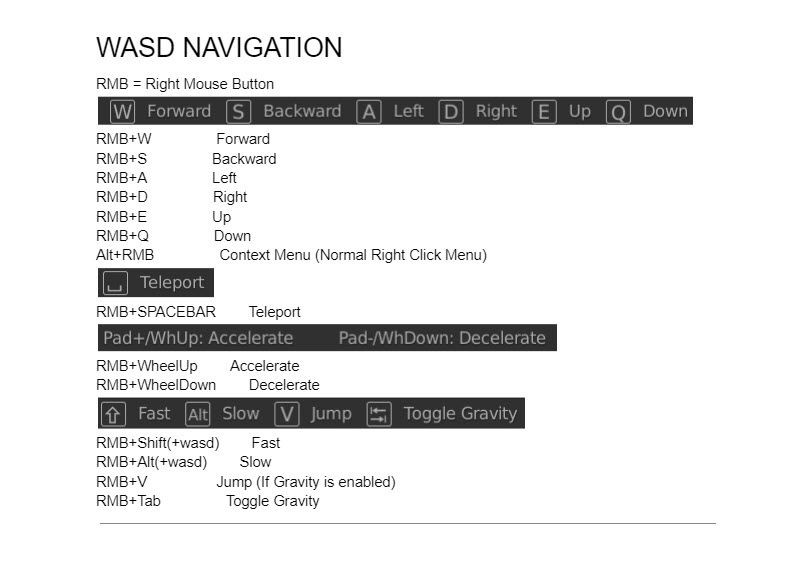
Ap Navigation changes Blender’s viewport navigation to use the right mouse button with WASD for forward, backward, left, and right movement. It is intended for people who switch between Blender and Unreal or Unity and want familiar movement controls in Blender.
WASD movement and keymaps
The included keymaps share WASD navigation but differ in other Blender shortcuts. The documentation describes a Blender-oriented option that keeps the usual Blender transform keys, and a game-engine-style option that remaps actions such as grab, rotate, and scale to W, E, and R with the gizmo. Both options include a shortcut list so you can compare them before choosing.
The documentation lists Q and R for moving down and up in both keymaps, then says Q is disabled in the game-engine-style keymap. Check that keymap’s shortcut notes before relying on Q. Read the AP Navigation keymap documentation.
Install a keymap
- Download and unzip the keymap file you want to use.
- In Blender, open Edit > Preferences > Keymap.
- Use the import button at the top of the keymap preferences and select the unzipped .py file.
The documentation lists installation steps and changed shortcuts for each keymap. See AP Navigation on Superhive.
Compatibility and limitations
The product listing names Blender 2.8, 2.81, 2.82, 2.83, and 2.9. The developer says the keymaps have not been tested on Linux or macOS, so check current compatibility before relying on them in those environments. The listing identifies the license as GPL; the catalog lists the download as free. Confirm current listing and license details on the product page.
AP Navigation is a focused option for Blender users who want game-engine-style viewport movement. Its included keymaps may also change other shortcuts, so review the documentation and choose the variant that fits your existing Blender habits.