Keep a modeling or sculpting target in view
Astroview is a Blender viewport navigation add-on listed under AFX LAB. Its modal operator jumps to focus points during 3D modeling or sculpting. Astroview supports instant target-point changes, smooth orbiting and navigation. When the working area slips out of view, Astroview lets you restore focus without repeated panning. The auto-zoom keeps the target in view while you orbit.
How target-point navigation works
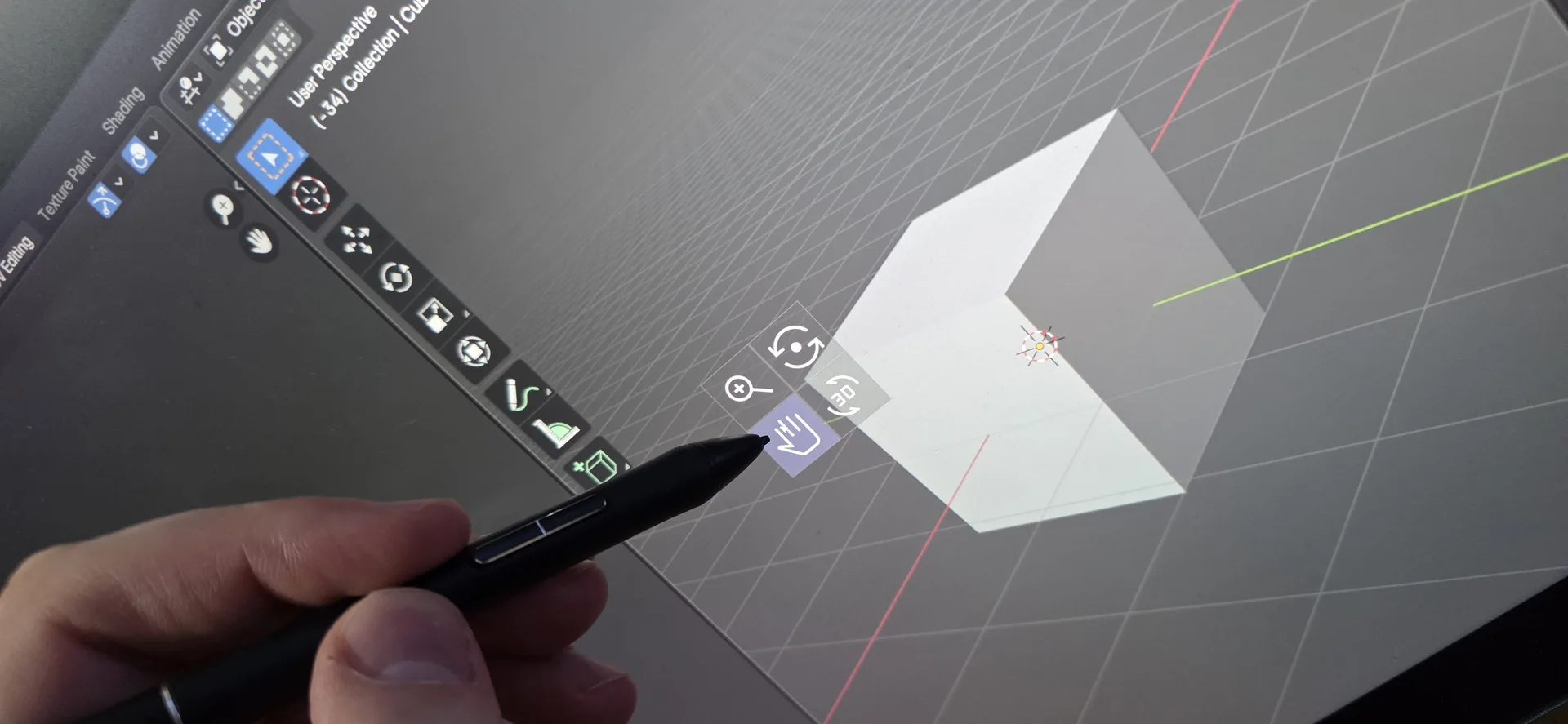
Astroview locks the viewport to a custom target point. Start it from the top viewport header; the modal operator sets up the view around a custom target point. You can change the target while the operator is active, then orbit with auto-zoom keeping that target in view. In the product FAQ, the creator says Center View to Cursor and Orbit Around Selection can still require panning to focus on the working point, while Astroview locks the view to its target.
Install and use Astroview
Install the add-on from its ZIP file and enable it in Blender Preferences. Then start Astroview from the top viewport header. The modal operator sets up the view lock around a custom target. Its controls are:
- Press Space to change the target point.
- Press Esc to exit the modal operator.
Modes, compatibility, and feature scope
The product FAQ says Astroview works in any mode. Edit Mode has a specific sequence: start Astroview in Object Mode, then switch to Edit Mode. The creator describes this as the available workaround for using the add-on in Edit Mode. If most of your work happens there, this is useful to know before adding Astroview to a regular workflow.
AnyPlugins lists version 1.1. Superhive lists Blender 2.9 and 2.91 in its version details and GPL as the license. The supplied compatibility details do not confirm later Blender releases. Check the product listing for a current compatibility statement before installing on a newer version.
Superhive lists storing and managing view points as an upcoming feature; whether saving them was included in version 1.1 is unconfirmed. The documented workflow centers on switching the active target and keeping the view locked to it.