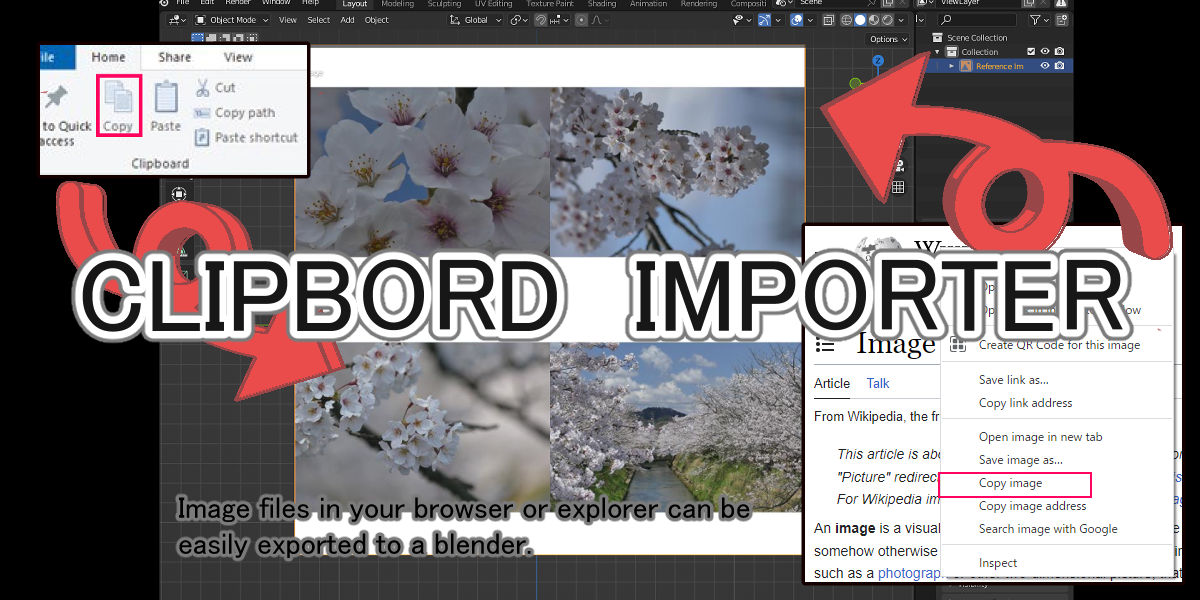
Auto Image Importer is a Blender add-on by Soyoyo for importing images copied to the clipboard. It can bring in images copied from web pages, screenshots, local files, and other apps, reducing the steps involved in gathering visual references. It runs on Windows and Mac OS, not Linux. The product listing gives Blender compatibility as 3.6 through 5.0 and recommends Blender 4.x or later. The documentation warns that Blender 3.x may crash; save the Blender file before enabling the listener and copying images.
What it imports
When you copy an image from a web page, the add-on reads the raw image data and converts it to PNG during import. The original format can be .jfif, .webp, .jpg, or another browser image format. For images copied from the local file system, it reads file URLs from the clipboard and currently supports .png, .jpg, and .jpeg.
It can also import screenshots and image data copied from other applications, such as Photoshop, when those applications place the image on the clipboard. The clipboard listener must be on for these imports.
Installation and setup
In Blender 4.1 and earlier, install the add-on from Preferences under Add-ons, then enable it. In Blender 4.2 and later, use Install from Disk or drag the add-on ZIP file into Blender and confirm. Before copying images, install any missing dependencies: Pillow on Windows, or Pillow and pyobjc on Mac OS. The developer says pyobjc must be installed manually and its location set in the add-on preferences. Choose an image storage directory and turn on the clipboard listener before copying images.
Version and workflow notes
Turn the listener off when you finish collecting images to avoid unwanted imports, and do not use it while rendering or running other heavy background tasks.
To import images as mesh planes in Blender 4.1 and earlier, enable Blender's built-in Import Images as Planes add-on first. Blender 4.2 and later needs no extra setup for this.
See the product listing for its stated compatibility and platform details, and the developer documentation for installation and dependency instructions.