Auto Lip-Sync animates a mouth from a voice recording in After Effects. A step-by-step wizard guides setup without requiring a keyframe for each mouth movement, and Auto Lip-Sync works with any language. It suits character animation and talking objects.
Adjust the mouth and interior
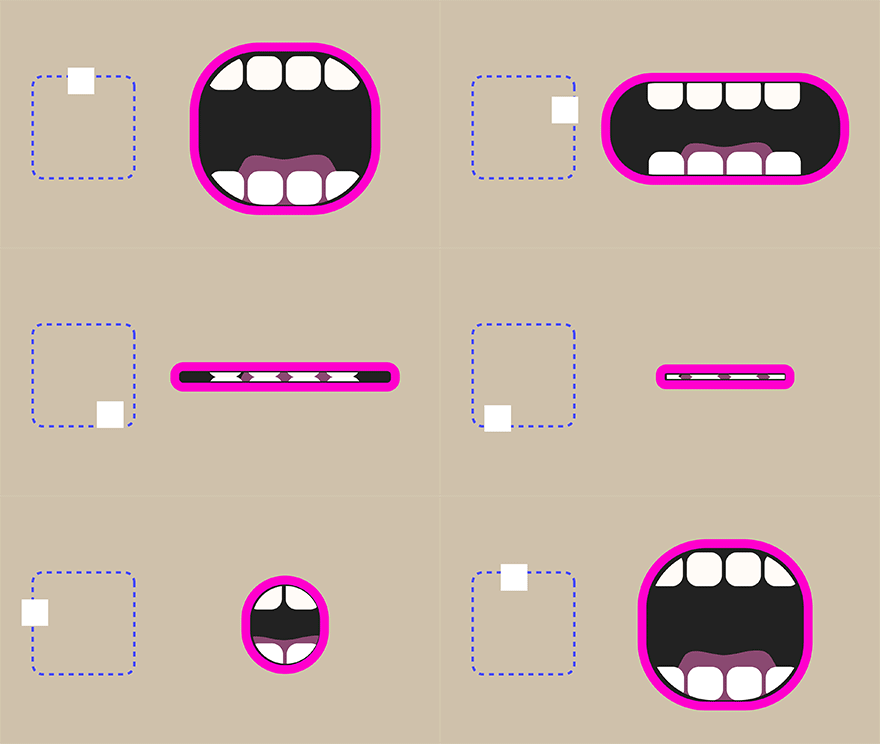
After the automatic animation is set up, sliders let you adjust how wide the mouth opens and how it deforms. You can change the open and closed mouth shapes, then add markers where the mouth should take more of an O-shape. Teeth and tongue animation is optional and easy to adjust.
Apply it to a moving subject
For a face that moves through a scene, the documented workflow is to track it with Mocha, create a stabilized precomp using MochaImport+, and apply Auto Lip-Sync inside that precomp. A moving car is another documented talking-object example. If the movement is too heavy to track, the FAQ identifies an alternative approach in chapter three of the Talking Chipmunk tutorial.
Keep the processed layer small
Large, high-resolution layers can slow rendering. Use a layer close to the resolution needed in the final result, and limit the processed layer to the face area around the mouth where practical. If you need to retain a larger source, place a scaled-down version in a precomp and apply the effect there.
Compatibility and license
The product listing marks After Effects versions from 2026 back through CS4 as compatible. Its EULA grants use of one copy on one computer at a time; additional copies or users require an appropriate license.