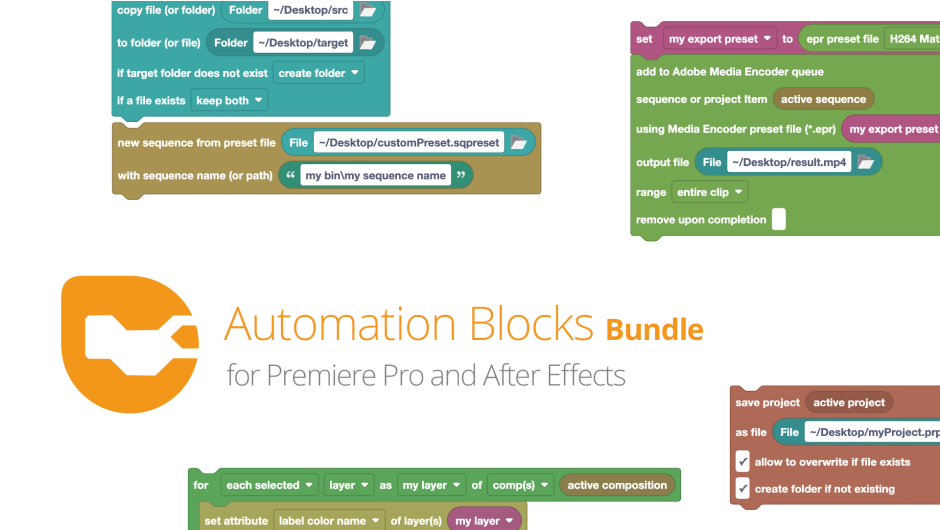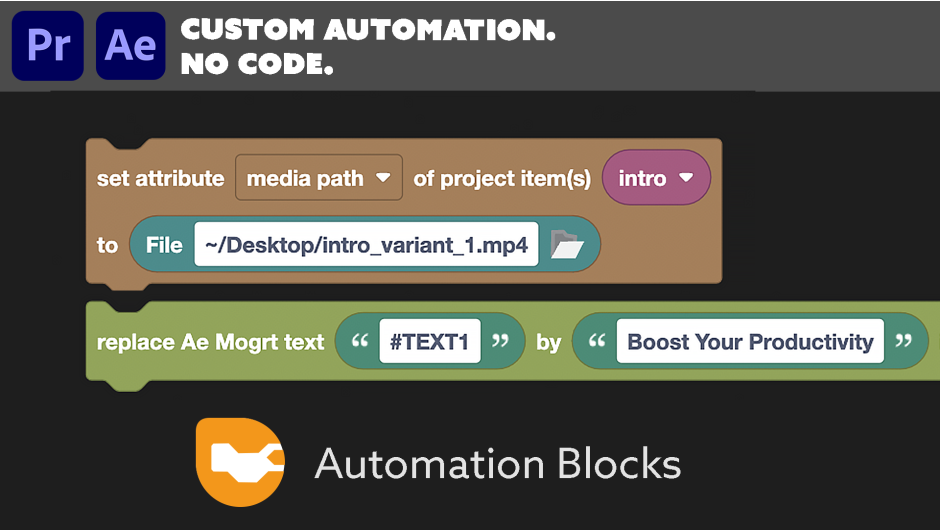
Automation Blocks for Premiere Pro combines more than 50 ready-made tools with a visual block editor for customizing tools and building scripts. It suits editors who repeat project setup, template updates, footage organization, marker work or clip animation. Block-based workflows do not require writing code, though custom scripts still need blocks and parameters chosen for the task.
Where it fits into an editing workflow
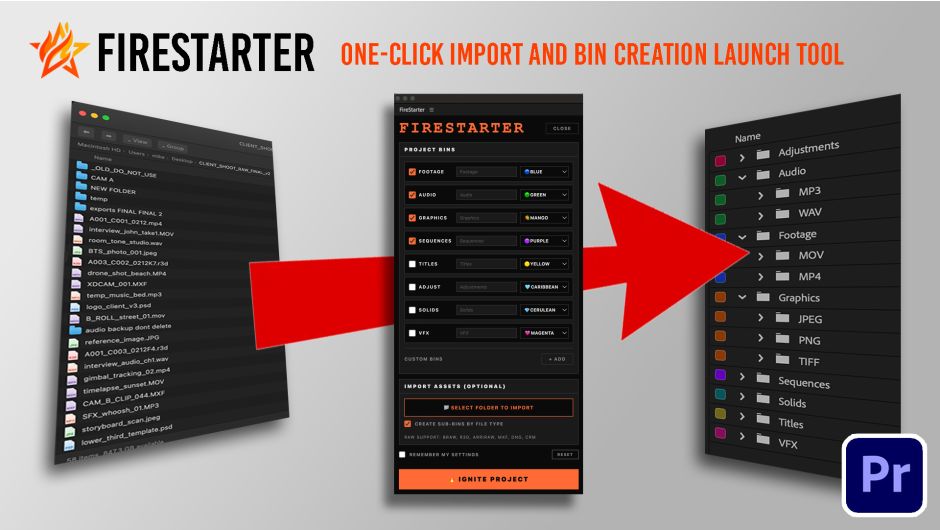
For project setup, a folder template can contain a Premiere Pro project, bins and other files. Placeholders can be replaced with the project name in file, folder and project item names. Separate import tools bring in footage and subfolders, recreate that structure in the project and create a sequence. The Sync Folder block can check the target bin and skip footage that is already there.
For repeated graphics updates, a spreadsheet can map old text to replacement text in Motion Graphics Templates. Other spreadsheet workflows can batch-update clip content and properties such as text, colors and position. These tools are useful when a template needs the same kinds of edits across multiple versions.
Timeline tools can apply in and out animations or scale bumps to selected clips, with animation settings available in the Inputs panel. Marker tools can copy markers between a sequence and the clips within it, export sequence markers as YouTube chapter text, and move marker data through spreadsheets or SRT files.
Building and reusing scripts
Open the panel from Window > Extensions > Automation Blocks. Drag blocks from the library into the script panel, configure them, then run the script and review its status or errors in the console. Saved scripts use XML files in the user library, so you can reuse or adapt them. The Premiere Pro first-steps tutorial demonstrates folder syncing, sequence creation and user inputs; the Getting Started guide covers the available tools and blocks.
Compatibility and licensing
The product page lists Premiere Pro 2023, 2024, 2025 and 2026, and offers a free trial. The vendor EULA allows one copy on one computer at a time; additional users or copies require appropriate licenses. The EULA also restricts transferring a license and modifying the product's files.