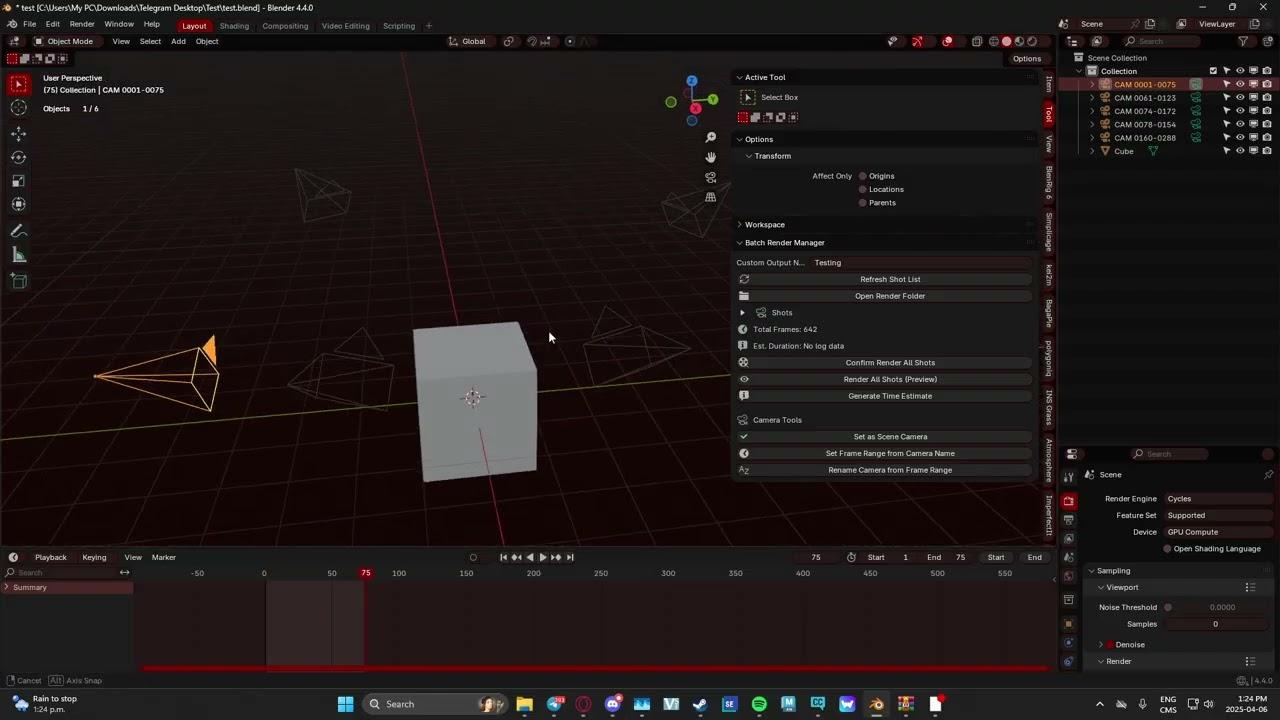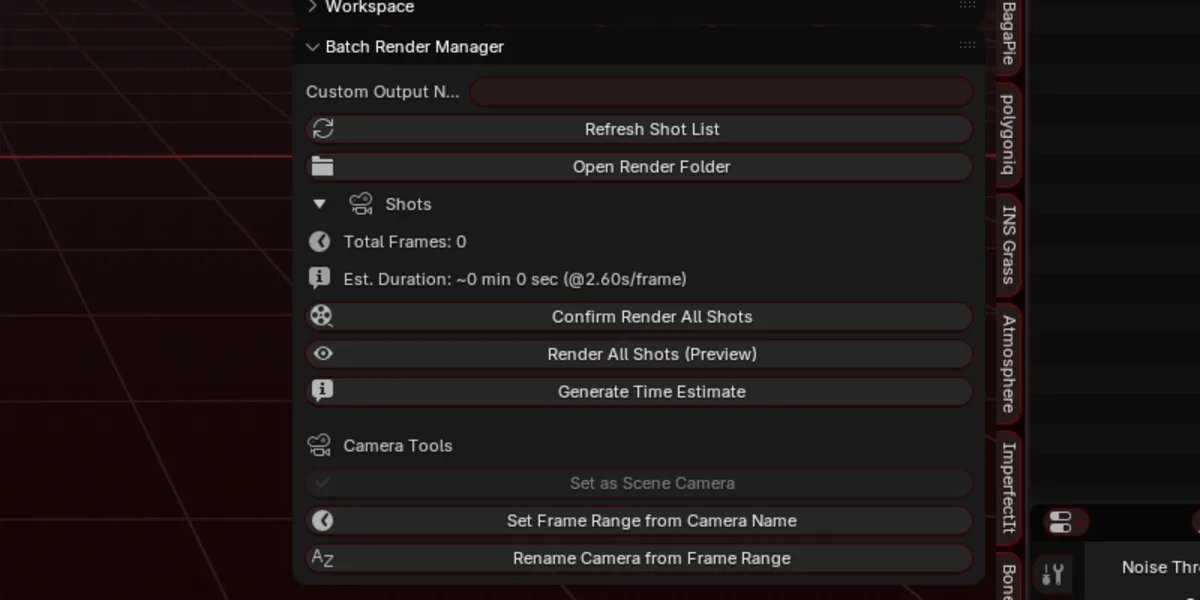
Batch Render Manager (BRM) is a Blender add-on by N00dle & D00dle for rendering multiple camera shots. It reads frame ranges from camera names such as CAM 0005-0095, then builds a shot list so you can manage the ranges and render queue without setting each scene camera by hand.
How BRM organizes shots
The add-on looks for cameras whose names end with two groups of numbers and uses those numbers as the camera's frame range. Refresh Shot List rebuilds the list after camera names change. Preview Camera sets a listed camera as the scene camera. The camera tools can also set the timeline range from a camera name or rename the scene camera to match the current timeline range.
Choose which shots to render
When no priority option is checked, BRM processes the shot list in alphabetical order. The per-shot controls let you change that behavior: Only this renders checked cameras, Skip this excludes checked cameras, and Start here begins at a chosen shot before continuing. Cancel After stops the batch after the selected shot finishes. The frame count also follows the shot priorities.
Preview, estimate and save renders
Render All Shots (Final) uses the current rendering engine. Render All Shots (Preview) uses Blender's Workbench engine. The batch runs in the background, and Blender becomes unresponsive while rendering is underway.
BRM can estimate render time from sampled frames. You can configure the sampling mode, estimation engine and resolution scale, then choose automatic estimates when starting a render or run an estimate manually from the prompt. A log in a Render folder beside the project file records shot lists and median render times; a setting controls whether sampled frames are logged. The estimate also follows shot priorities. Set the render output folder and name; BRM saves each shot in its own folder to prevent overlapping shots from overwriting one another.
Install and check compatibility
The Superhive product listing identifies Blender 4.4 to 4.5. Check the current listing to confirm compatibility with your installed release. The installation notes describe installing the add-on ZIP from Blender's Preferences under Add-ons, using Install from disk.