Beat Marker Pro analyzes music for beats, downbeats and song sections, then places markers on a Premiere Pro sequence or clip. Editors can use the markers to align cuts with a beat or jump to sections such as a verse, chorus, bridge, drop or breakdown. The panel also includes tools for click-track generation, stem separation and loop creation.
The developer’s help guide describes installation through Adobe Creative Cloud Marketplace and a manual ZXP option. After installation, open the panel from Window > Extensions > Beat Marker Pro. The product is listed on Adobe Exchange.
Choose an analysis tier for the edit
The tiers differ in how they analyze audio and what information they return:
- Local uses browser-based Web Audio API onset detection. It works offline and is suited to quick previews or basic beat-grid editing. The help guide lists an analysis time of about five seconds.
- Server sends the track to the EM-Beat Engine for beat detection and harmonic analysis. The guide lists roughly 30 to 60 seconds and recommends it when beat precision and section detection matter.
- Premium adds Gemini-based semantic analysis for information such as key, mood, chord progression and editorial notes. The guide lists a Google Gemini API key requirement and an approximate analysis time of two to three minutes.
- Super Premium adds deeper multimodal analysis, including section descriptions and production notes. The guide also lists a two-to-three-minute analysis time. Its tier selector shows the current estimated cost before analysis.
Server, Premium and Super Premium require an internet connection. The developer’s guide says work can continue offline after analysis finishes. Premium and Super Premium require a Gemini API key, which the guide says is stored locally.
Review results and create markers
After analysis, the waveform displays beats, colored section blocks and key moments such as drops or buildups. The Sections tab shows detected sections and confidence levels; selecting a section jumps to it in the waveform. In the Markers tab, choose a preset, preview the marker count and create markers on the sequence or selected clip. Presets include a beat grid and section-aware markers; peak-confidence markers are available on Premium and Super Premium. You can also adjust colors or select beats and regions in the waveform.
Beat Snap can align clip boundaries with nearby detected beats. The Sync clips to beat workflow can place and resize selected clips between chosen marker types, such as choruses or drops. These controls help when the edit needs more than markers as visual guides.
Audio tools beyond the beat grid
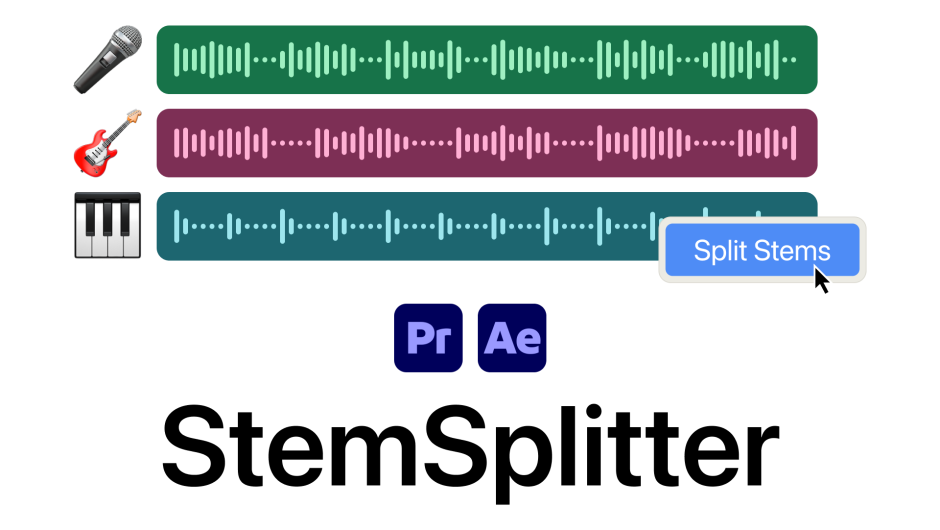
The Stems tab can separate audio into parts such as vocals, drums, bass, guitar and piano, then import the resulting tracks into Premiere Pro. The Loops tab can detect a chorus for a loop or use manually selected bounds; preview the loop before importing it. The Click Track tab creates a click track synced to detected beats, with downbeat-accented, every-beat, match-markers and steady-grid modes.
Analysis results can be exported as JSON or bundled with stems and, optionally, source audio. This is useful for archiving a paid analysis or moving its results to another machine. API keys remain per machine, according to the developer’s guide.
Check beat timing before a critical cut
The developer’s help guide estimates about 85% accuracy for Local on rhythmic music and 95% or higher for Server. It also warns that live recordings, syncopated rhythms and audio quality issues can reduce accuracy, so preview important markers before relying on them. Markers created by the panel are standard Premiere Pro markers that can be moved, renamed, recolored or deleted in Premiere. Changes made there do not sync back to the panel.