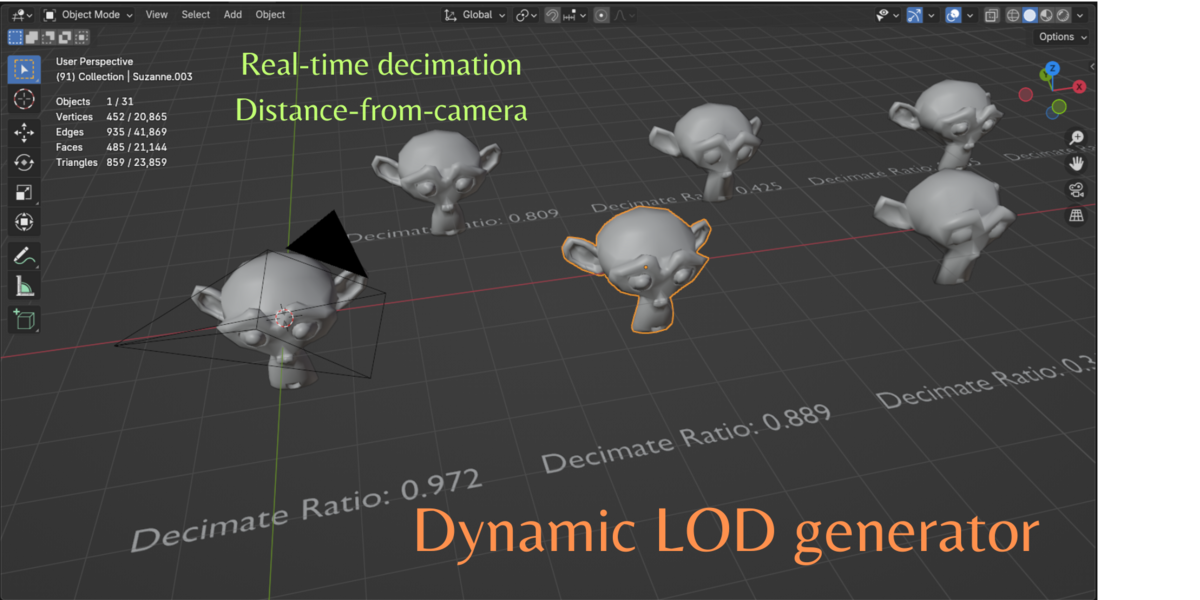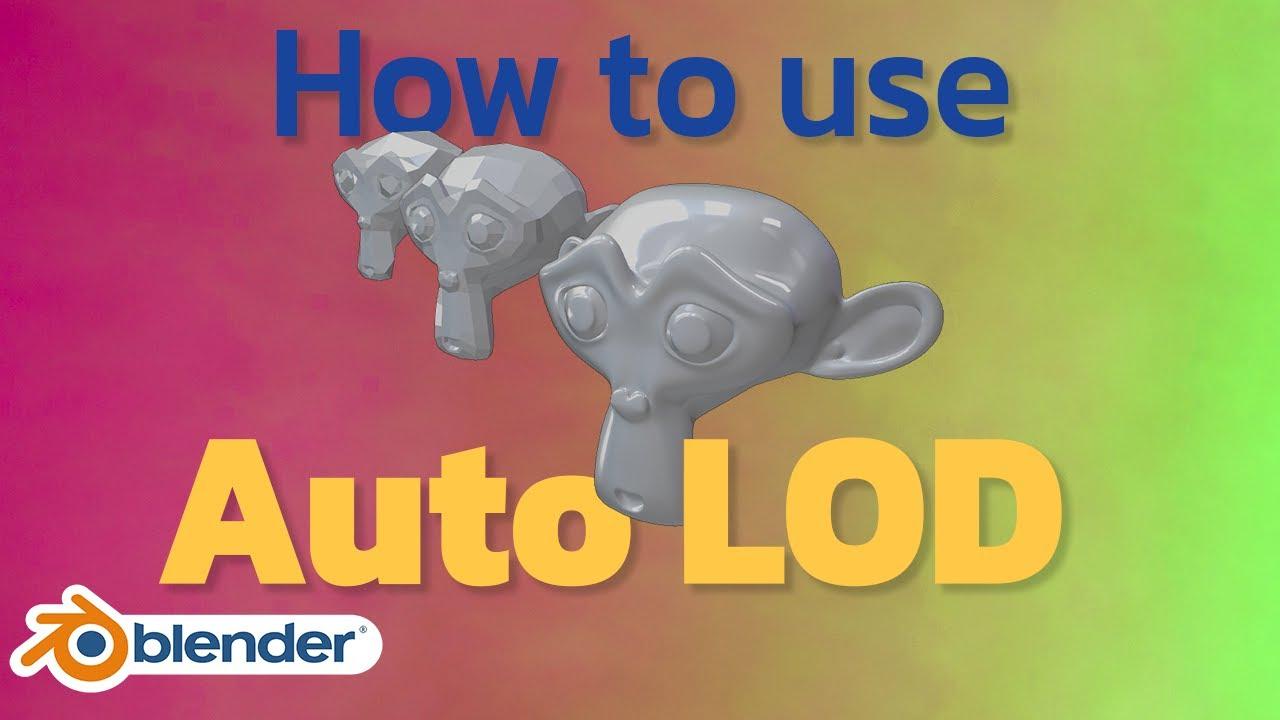
Blender Auto Lod applies decimate modifiers across a scene and sets each object’s level of detail according to its distance from a main object you choose. Nearby objects stay closer to their original geometry while farther objects receive more decimation. The add-on is intended to reduce render time and file memory; actual results depend on the scene and settings.
Set the center and decimation range
Choose the main object as the center of the LOD setup. In the product documentation, the Max decimate setting controls the reduction limit: a lower value produces more decimation. Set the LOD range with the minimum distance where decimation starts and the maximum distance where an object receives the maximum distance ratio. The documentation suggests measuring these distances in top view or with Blender’s measuring tool.
Adjust updates for large scenes
The Steps setting controls how often decimate values update as the main object moves. Lower values produce more frequent updates; higher values update less often. The product listing notes that calculations can take time in very large scenes and recommends raising Steps to reduce how often they run. The add-on also provides one-click removal of the decimate modifiers.
Compatibility and license
The product documentation explains the controls in more detail. The Superhive listing marks Blender Auto Lod as GPL licensed and lists Blender versions 2.8 through 3.1. That is the compatibility range shown in the retrieved listing; check the current listing before using the add-on with a later Blender release.