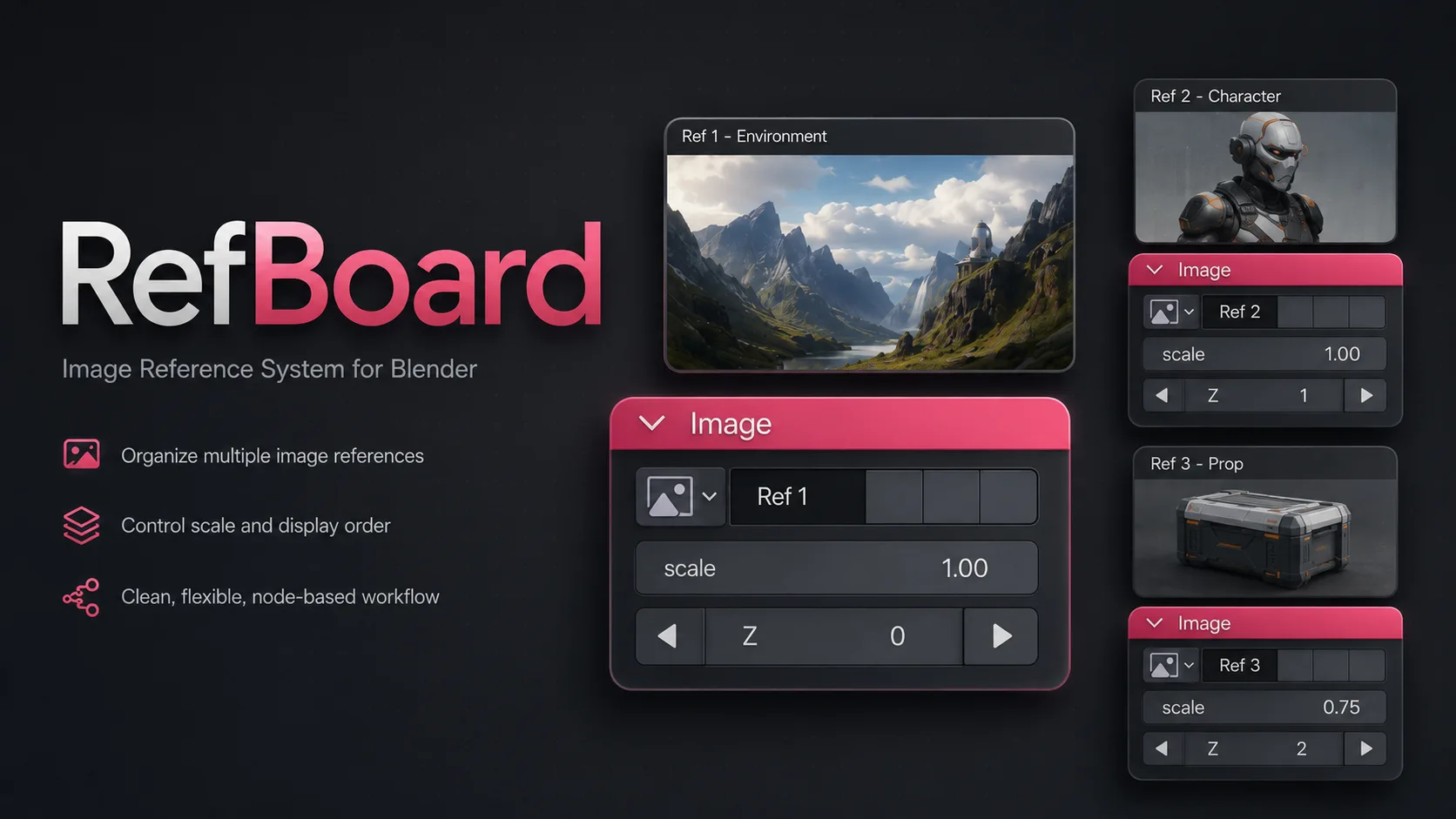
Board Ref 1.1 is a Blender add-on for keeping image references and notes beside your work in the 3D Viewport. The product listing identifies Blender 5.0 through 5.2 as compatible and marks the add-on as Blender Extension Compatible.
Keep reference sets on separate boards
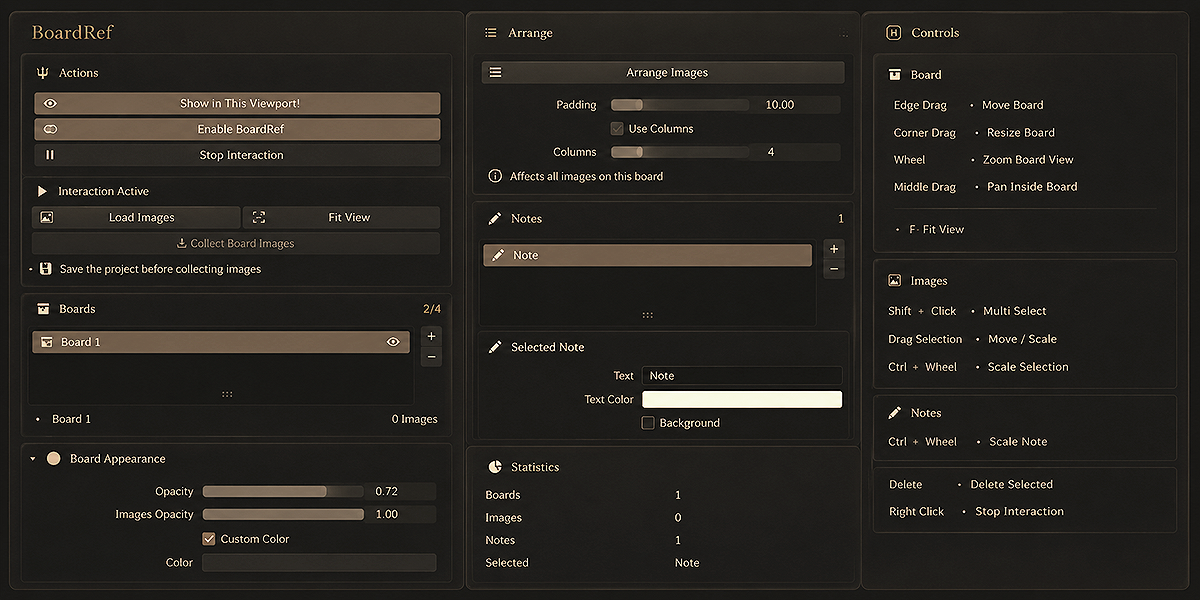
Create up to four independent boards for subjects such as concepts, materials, characters, or environments. Each board keeps its own images, notes, appearance, layout settings, visibility, and position. You can switch boards or hide one without deleting its contents. The Show in This Viewport control selects which 3D Viewport displays Board Ref, avoiding duplicate overlays when a workspace has multiple viewports.
Arrange images and add notes
Load image files onto a board, then move and scale them, zoom or pan within the board, and adjust board opacity and image opacity separately. Notes can be edited with different text colors and an optional solid background. Fit View frames the active board's contents.
Arrange uses adjustable Padding and optional Columns. When images are selected, Arrange affects only that selection. With no images selected, it applies to every image on the active board. Once the layout is ready, Stop Interaction leaves the board visible without intercepting viewport controls.
Save the board with your Blender project
When you reopen a saved Blend project, Board Ref restores the boards, image positions and sizes, notes, appearance, arrangement settings, active board, and visibility. Interaction starts locked after loading. Image files remain external and are not packed into the Blend file, so moving or deleting the original files can break their links.
To make references portable, save the Blender project first, then use Collect Board Images. Board Ref copies the images used by the boards into a BoardRef_Images folder beside the Blend file and updates the project to use relative paths. The original image files are left in place. The Board Ref documentation covers installation, board controls, saving, and image files.
Install and start Board Ref
- In Blender, open Edit > Preferences > Add-ons, choose Install from Disk, and select the downloaded Board Ref ZIP file.
- Open a 3D Viewport, press
N, and openTargam-Tools > BoardRef. - Choose the viewport with Show in This Viewport, enable Board Ref, and press Start Interaction.
- Load images, arrange the board, and add notes. Press Stop Interaction when you want to lock the layout while keeping it visible.