Carve EQ is Kilohearts' 31-band graphic equalizer for shaping a track or mix against a spectrum reference. Its third-octave bands can be edited one at a time or shaped together, with a spectrum display to help you see the changes. The Carve EQ manual explains its editing and matching tools.
Edit bands, sculpt the curve, or draw it by hand
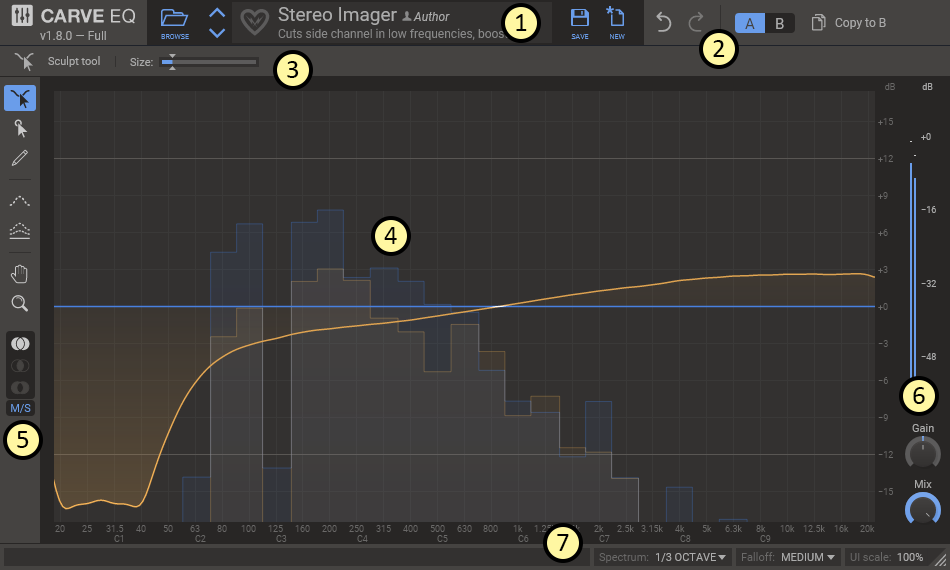
The Select tool exposes markers for all 31 bands. Drag individual markers, select several to move them together, or right-click a band marker to enter its gain with the keyboard. Hold Shift while dragging for finer adjustment. The Sculpt tool adjusts a wider area of the curve, with its affected range set by a slider or the mouse wheel. The Pencil tool lets you draw a response curve by hand.
Carve EQ also has an A/B selector for comparing two EQ setups. Its spectrum analyzer displays the processed audio, and the overall Gain control can compensate for level changes from equalization. The Mix control scales the band gains toward a flat response as it moves to zero.
Compare and match reference spectra
The Reference tool can display a live sidechain spectrum, a bundled factory profile, a saved user profile, or a profile created from a WAV file. You can also record the current main or sidechain input as a profile for later use. During mixing, the overlay can help you spot frequency ranges where two tracks may clash.
For automatic matching, record the relevant passage from your input, choose a target profile, then adjust the generated curve with Detail and Amount. Detail controls how narrowly the match follows peaks: higher settings pick out narrower peaks, while lower settings use broader changes. Amount blends the matched curve with a flat 0 dB curve. Invert reverses the match so the input curve carves space for the target. The Match tool replaces the EQ curve that was already set, though you can edit the generated curve afterward. Carve EQ remembers the recorded input profile, so record it again if the source changes.
Stereo editing and host use
Choose Left/Right mode to EQ the left and right channels separately, or Mid/Side mode to edit mono and stereo content separately. The edit selector can target both channels or just left, right, mid, or side. Carve EQ can also run as a Snapin inside Snap Heap, Multipass, or Phase Plant. Snapin mode shows a curve preview and Offset, Gain, and Mix controls; the pen icon opens the full editing interface.
Compatibility and purchase options
Kilohearts lists support for DAWs that load VST2, VST3, AAX, or Audio Unit plugins. Its minimum recommended system requirements specify an x86 64-bit processor with SSE3, with Apple M processors supported on macOS. CPU use increases with many Kilohearts plugin instances or many Snapins in one patch, and meeting the minimum does not guarantee flawless performance in every use case. The system requirements list no licensing hardware for Kilohearts plugins; versions installed through Slate Digital installers use iLok and require a valid Slate Digital license, via a USB dongle or iLok Cloud. Kilohearts does not support operating system versions their manufacturers no longer support; it recommends trying a free trial before buying if your OS is outdated.
Carve EQ is available as an individual paid product, and Kilohearts includes it in its subscription for all plugins and content banks. The shop says full licenses for premium products include lifetime updates. Check the Carve EQ product page for current trial and purchase details.