Clip Tools adds utilities to Blender's Movie Clip Editor for setting clip timing, managing tracking data, repairing marker gaps, and setting up tracking-related scene objects. The Blender Extensions listing identifies version 1.3.1 and Blender 4.2.0 as its minimum. Its tools are grouped across the editor's tracking, solve, geometry, plane tracking and mask workflows. See the Blender Extensions listing for the current release details.
Set clip timing and solver constraints
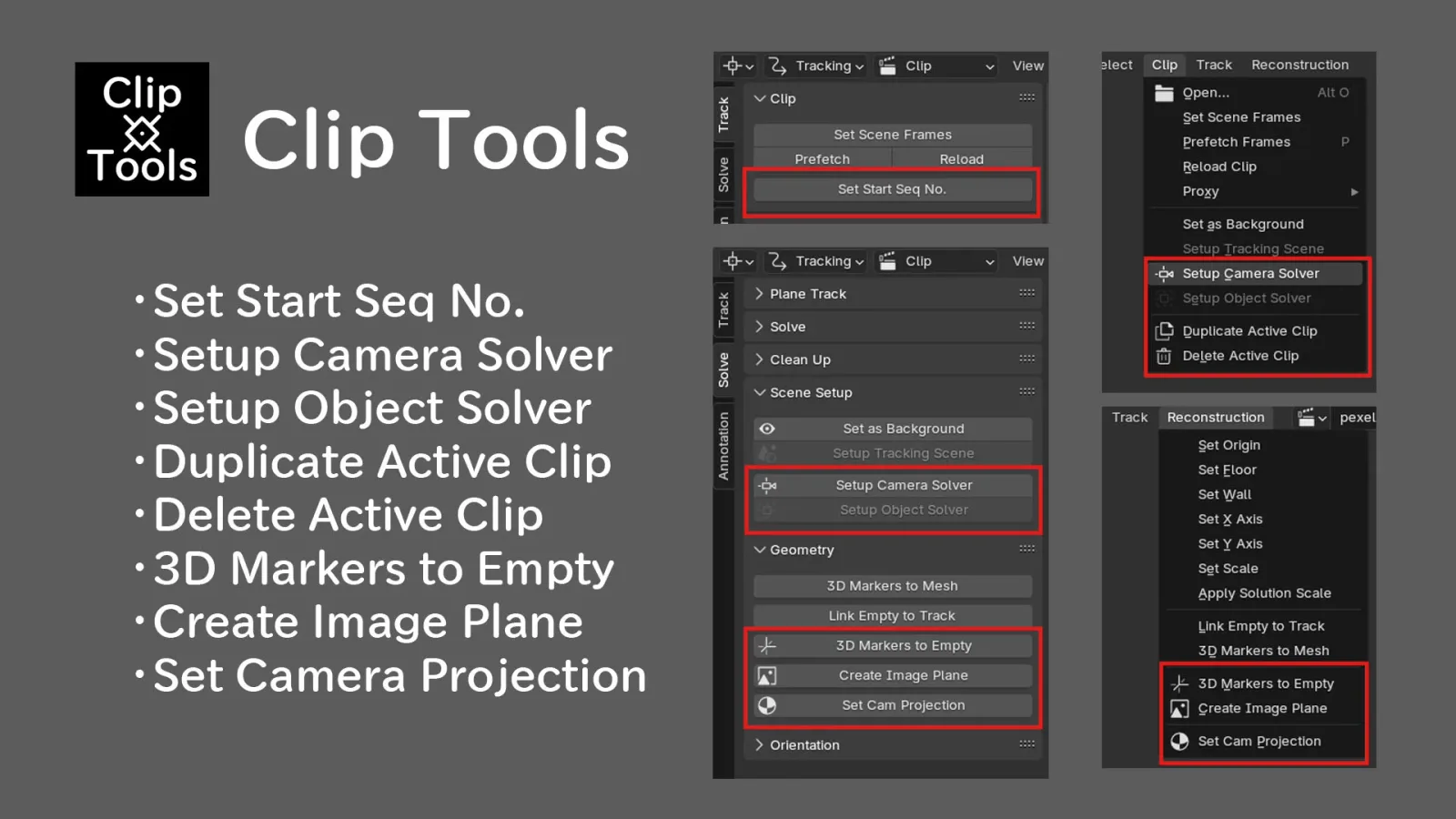
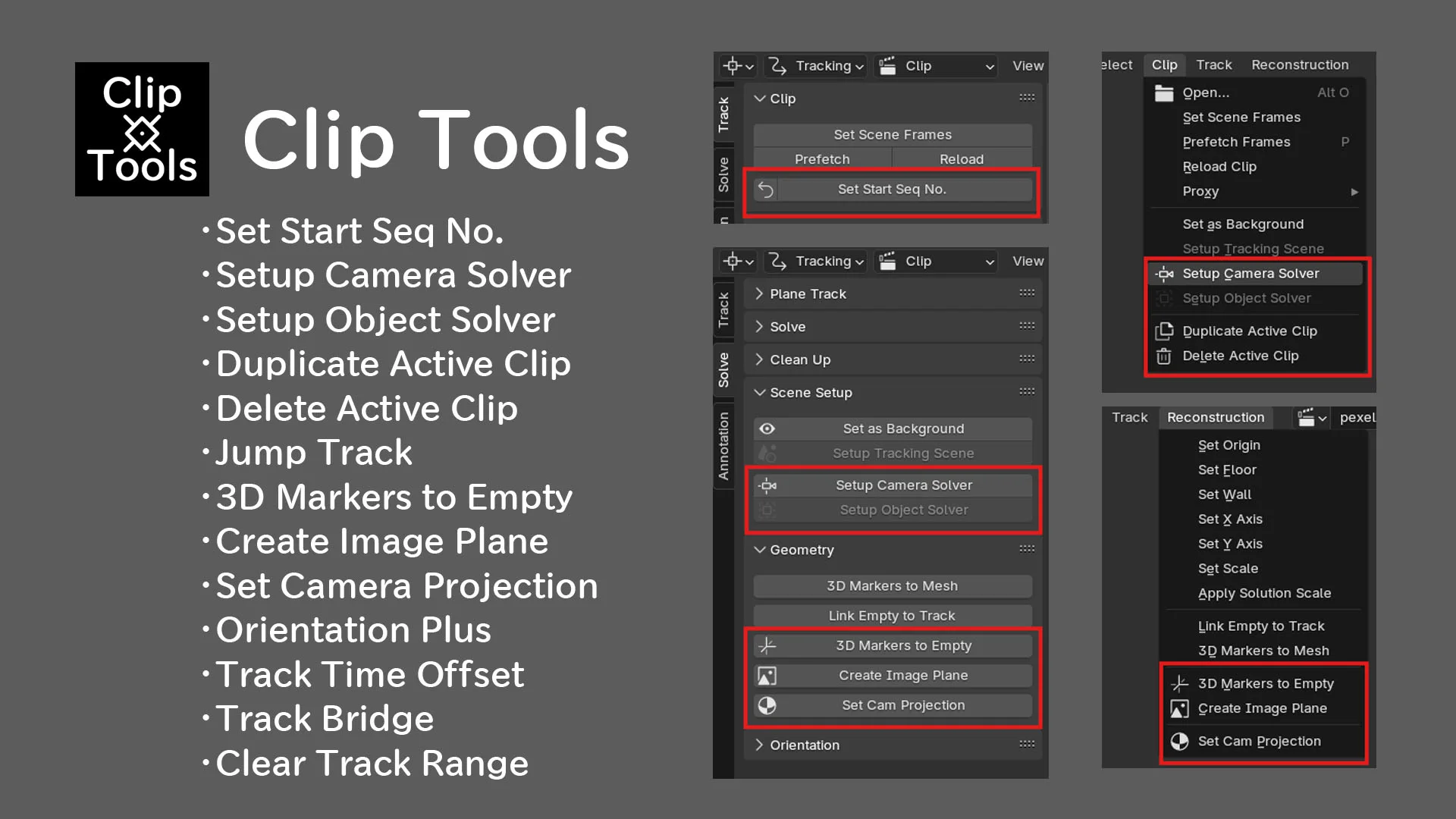
Set Start Seq No. reads a frame number from the original filename of an image sequence, such as clip_1001.jpg, and uses it as the clip's start frame. It also updates the scene frame range, and Blender's duplicate clip naming does not affect the number it reads. A reset control beside the button sets the clip start frame to 1 and updates the scene range.
Movie files follow a different path: the tool runs Blender's Set Scene Frames operation and moves to the start frame. It does not read a frame number from the movie filename or change the clip start frame. If an image-sequence filename has no detected number, it runs Set Scene Frames without changing the clip start frame.
Setup Camera Solver adds and configures a Camera Solver Constraint on the active scene camera. This gives you a solver setup without the extra objects Blender's Setup Tracking Scene normally creates. Setup Object Solver creates an Empty named ObjectTrack and adds an Object Solver Constraint that uses the active Tracking Object. A Tracking Object must already be added to the Movie Clip for this command to be available.
Manage and navigate tracking data
Duplicate Active Clip copies the active Movie Clip data block, including its tracking data. This lets you keep a separate copy for another tracking task or parameter test. You can enable Fake User to help prevent Blender from deleting the duplicate when it has no users. Delete Active Clip removes the active Movie Clip from the data block, so check which clip is active before using it.
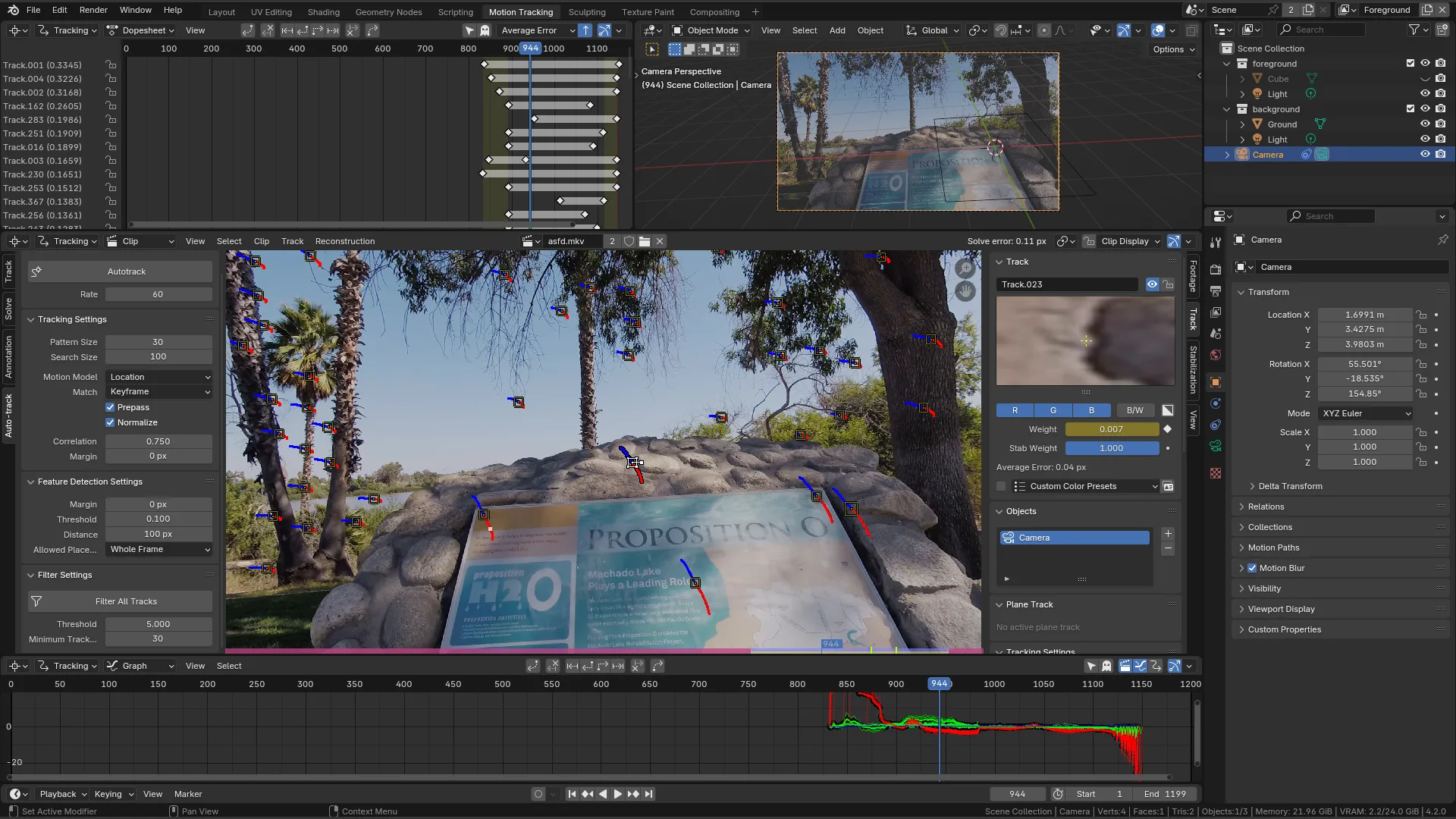
Track Jump moves between keyed markers on the selected point or plane track. Its inner controls go to the previous or next keyed marker; its outer controls move through the start and end of each enabled tracking range, including separated ranges. The controls also appear in the Graph and Dope Sheet headers. Blender's button context menu lets you assign custom shortcuts; the add-on assigns no defaults.
Track Time Offset shifts marker keys forward or backward. Click Get Trackers to cache the current keys, then set a positive offset to move keys later or a negative offset to move them earlier. Applying an offset clears the camera solve and creates marker keys on every captured frame. If the cache is lost, markers shifted before frame 1 cannot be restored and may be removed.
Clear Track Range turns selected tracking markers off within a specified frame range. It affects selected point tracks in the active Tracking Object, including object tracks.
Work with planes and tracking gaps
Plane Track creates a plane track from exactly four enabled point markers at the current frame. They must form a convex quadrilateral, and the tool uses their actual corner positions rather than a bounding box. You can navigate, insert, update or delete plane keys, then refresh the plane motion after editing its source point tracks. That refresh preserves the keyed plane shapes. Creating a plane or inserting a key turns Auto Keyframe on. With Auto Keyframe off, editing the plane resets existing keys, following Blender's standard behavior.
Track Bridge interpolates marker positions across an OFF or missing tracking gap. Place the timeline cursor near the gap and the tool processes the nearest one. The optional Join setting also bridges across short enabled marker islands. Available methods are Linear, Ease Linear, Trend Hermite, Natural Cubic and Akima. Tangent is available for Trend Hermite and Akima. Preview the proposed path in Clip View before applying it; disable Stabilized View, and disable Undistorted View when lens distortion is present. The bridge changes marker positions only. It copies other marker settings, including the pattern and search area, from the preceding marker. Interpolation is approximate, so check the result against the footage and camera solve: a bridged path can negatively affect the solve depending on tracking quality and the shot.
Bring tracking into the scene
3D Markers to Empty converts 3D tracking markers into Empty objects and creates a parent Empty named Trackpoint. The selected tracking point is parented to it. You can adjust the Empty display size from the parent, with drivers linking the size to the child objects.
Create Image Plane links the active Movie Clip to the active camera and creates an image plane in the 3D View. It supports image sequences and movie files, as well as start-frame offset and camera sensor shift. For Blender 4.4 and later, driver-based setups may become unstable or show visual glitches during playback because of changes to driver and dependency-graph evaluation. Set Camera Projection applies a Camera Projection Shader to the selected mesh using the active clip and camera, with the same offset and sensor-shift options. The projected texture does not display in Solid View; use Material Preview or Rendered mode.
Orientation Plus aligns a solved clip's contact plane using selected reconstructed trackers while preserving the camera orientation as much as possible. Choose a floor or wall direction under Target Surface. Position Mode can move the tracker center to a coordinate or keep the camera's world X/Y position and move the tracker plane vertically. Coordinates can come from the world origin, the 3D cursor or manual XYZ values. With multiple trackers, Track Center can use the average or median. One tracker supports position and direction correction, two constrain the angle correction, and three or more fit a plane.
Animate mask shapes
The Mask Animation controls add previous-key, next-key and clear-all-key actions to mask workflows. Key navigation shares its operators and custom shortcuts with Track Jump. These operations affect editable mask layers containing selected points; each shape key stores the whole layer rather than individual points.
Compatibility and installation
The Blender Extensions page lists Clip Tools 1.3.1 for Blender 4.2.0 and newer. Blender's Install from Disk instructions explain how to add an extension from a downloaded file. The version history lists release changes, and the developer's GitHub repository is the project source.