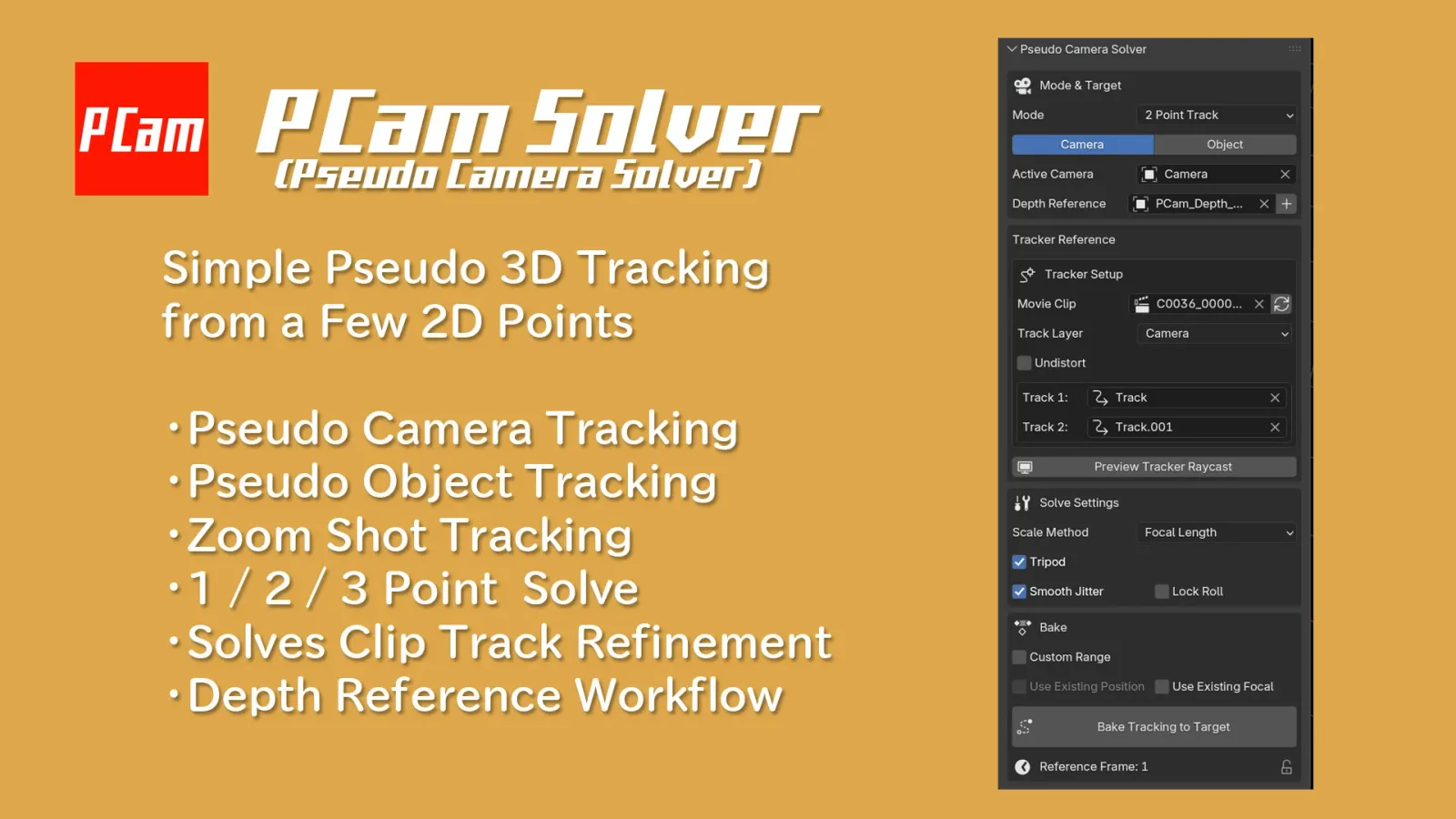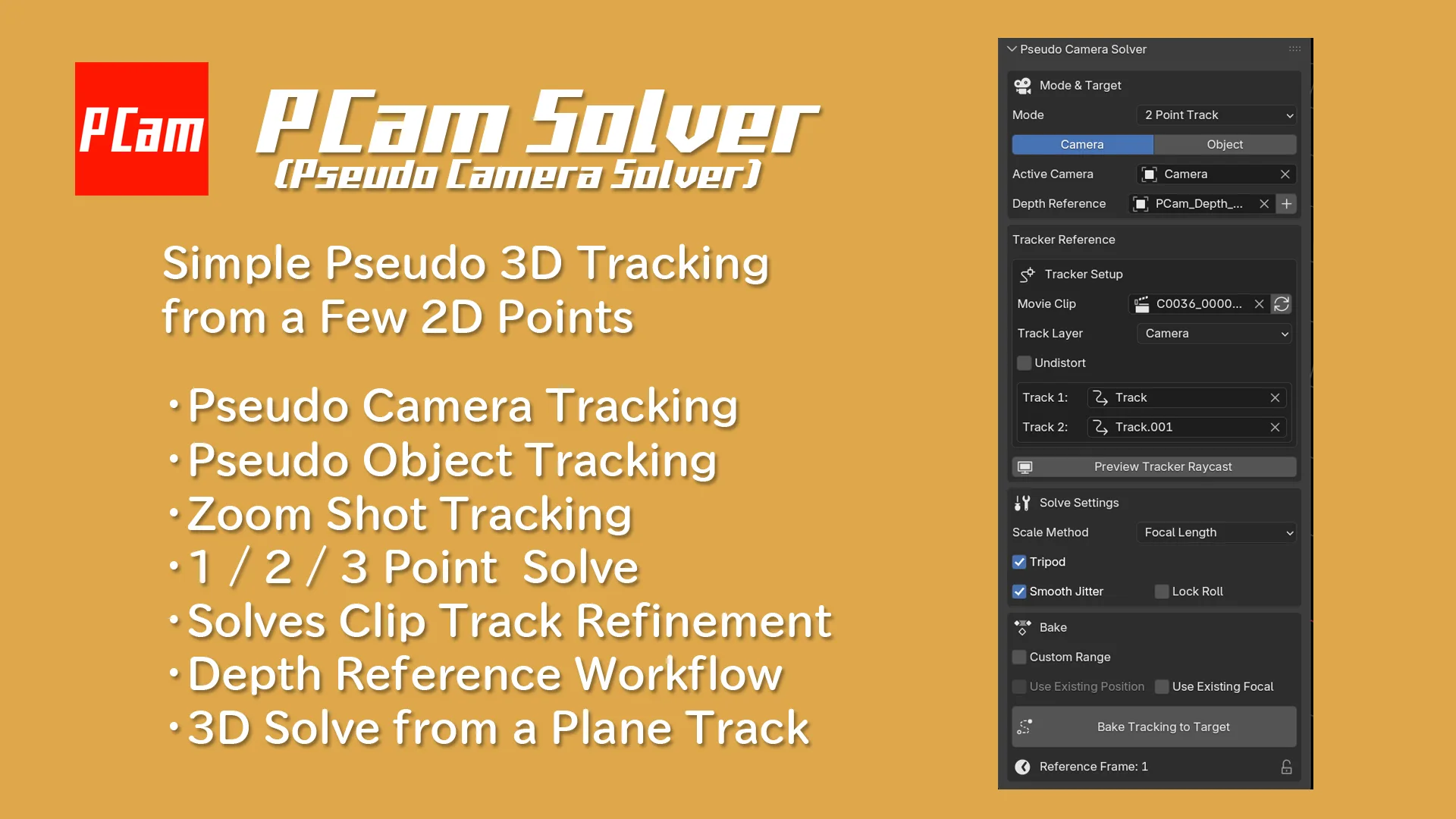
PCamSolver 1.1.1 is a Blender add-on for turning 2D movie clip tracks into camera or object animation. It uses a pseudo 3D solve for shots where a full camera solve is unnecessary or difficult, such as a close-up with few reliable trackers or a flat surface with little depth information. It supports Blender 4.2 and later and is published under the GNU GPL v3 or later.
Choose a solve mode
- 1, 2, or 3 Point: Use a small number of tracks for camera or object motion. One-point mode can handle pan, tilt, or simple tripod motion. Two-point mode adds scale and roll estimation, while three-point mode provides a more stable pseudo 3D solve.
- Clip Track: Use multiple movie clip tracks, with optional smoothing and rotation refinement. Tracks can appear or disappear during the shot when enough overlap remains to continue the solve. Its 3D Solve option fits camera or object motion when the Reference Frame has at least four Depth Reference hits and each frame has at least four usable tracks. Frames without enough information hold the previous solved relative pose, and the add-on reports those ranges.
- Plane Track: Use the four corners of a Blender Plane Track to solve camera or object motion against a four-corner Depth Reference plane for a flat surface, such as a screen or wall. Plane Setup lets you align and size the reference plane. For camera targets, choose 3D Position to solve position and rotation using the existing lens animation, or Focal Length to solve rotation and lens animation relative to the reference frame.
How depth and focal length are handled
In supported two-point, three-point, and Clip Track camera modes, apparent scale changes can be interpreted as movement along the camera's depth axis with Z-Depth, or as lens animation with Focal Length. PCamSolver cannot separate both effects at once, so it is not a direct solution for a dolly zoom.
A Depth Reference gives tracker rays a spatial surface to intersect and helps determine how much 2D motion becomes 3D movement. Some rotation-only and tripod-style modes do not need one. For Plane Track alignment, Auto Lens can estimate focal length when both plane dimensions are known; this is a single-frame estimate, not full lens calibration.
Prepare and review a solve
- Set the camera focal length and sensor settings to match the footage as closely as possible. Roughly align the camera on the reference frame before baking.
- Select the movie clip, track layer, and required tracks or plane track. Choose a camera or object target, then set a Depth Reference when the selected mode needs one.
- Keep selected point tracks valid across the bake range. If trackers enter or leave the shot, use Clip Track or solve shorter sections with Custom Range.
- For Plane Track, align the reference plane on the intended frame. In Dimensions mode, use dimensions that match the tracked plane's aspect ratio to avoid a reprojection mismatch.
- Bake the tracking to the target, then inspect the animation in the Viewport and Graph Editor. Smooth or edit curves as needed.
PCamSolver is intended for practical camera and object motion when available tracks do not support a reliable full reconstruction. For shots with enough feature points, large camera movement, or strong parallax that needs true 3D reconstruction, Blender's standard camera solver is the better fit. See the Blender Extensions listing for the current release and download details, and the project repository for source material.