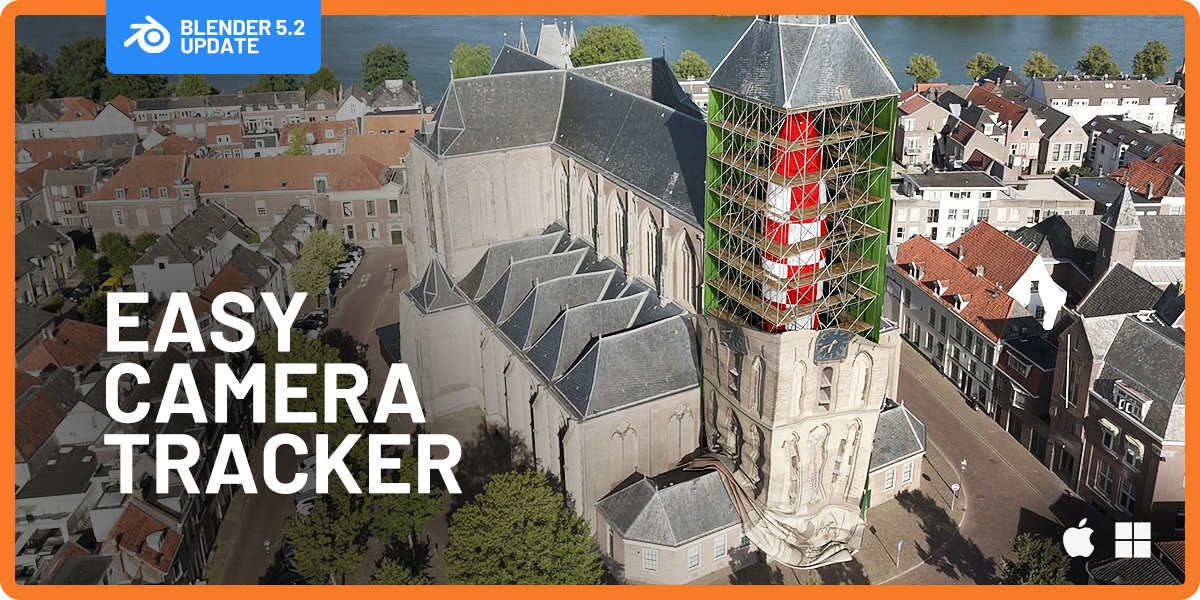
Easy Camera Tracker is a Blender add-on for matchmoving: it estimates camera movement from footage so you can place 3D elements into a shot. It runs the solve in the background and can build an animated camera, an image sequence, a point cloud and render settings based on the video. The product listing covers its features and system requirements; the documentation explains the tracking workflow.
Choose a tracking approach
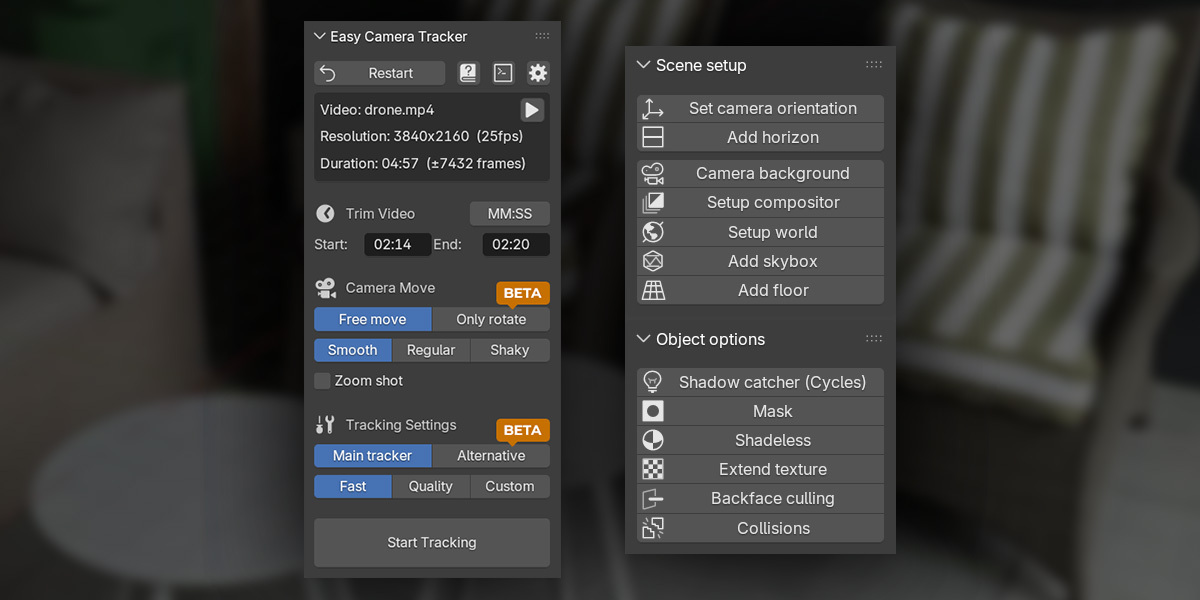
The main tracker uses Colmap, an open-source structure-from-motion program, to solve camera movement and build a 3D point cloud. Easy Camera Tracker converts video into frames for that process, using FFmpeg and FFprobe to read and prepare the footage. An alternative mode uses Blender’s internal motion tracker. The documentation describes it as faster and simpler, and recommends it for shots where the camera only rotates.
Tracking settings let you trade processing time for detail. Fast mode uses lower resolution, frame rate and feature counts, and saves tracking frames as JPG files. Quality mode uses the original resolution and frame rate with more feature matches; the documentation estimates it can take two to ten times as long as Fast, depending on the footage. Custom mode lets you set values such as tracking resolution, frame rate, file type, feature count and matching overlap. Smooth, Regular and Shaky footage settings help tune Fast mode for different camera movement. The Zoom shot option recalculates focal length each frame when the camera zooms.
Prepare footage that can be solved
Moving-camera shots with visible detail and parallax give the main tracker information about depth. Parallax is the relative movement between nearby and distant features as the camera moves. A clear sky or bare scene may not provide enough features to match between frames. For a rotation-only shot, select the alternative tracker.
Motion blur, shallow depth of field, reflective or transparent surfaces, and moving objects can make tracking harder. Automatic masking can detect selected object types, such as people or cars, and mask them to improve the track. The mask is a tracking aid, not a compositing result. If a solve fails or the point cloud does not stay aligned with the footage, the documentation suggests checking for insufficient stationary features, parallax, blur or depth of field, then trying different settings.
What the add-on creates
After a successful solve, the add-on creates an animated camera and sets an image sequence as its background. It also creates a point cloud to guide scene reconstruction and sets render resolution, frame rate and color profile to match the video. You can orient the scene by selecting points on the floor in the point cloud, then generate a floor with the video projected onto it.
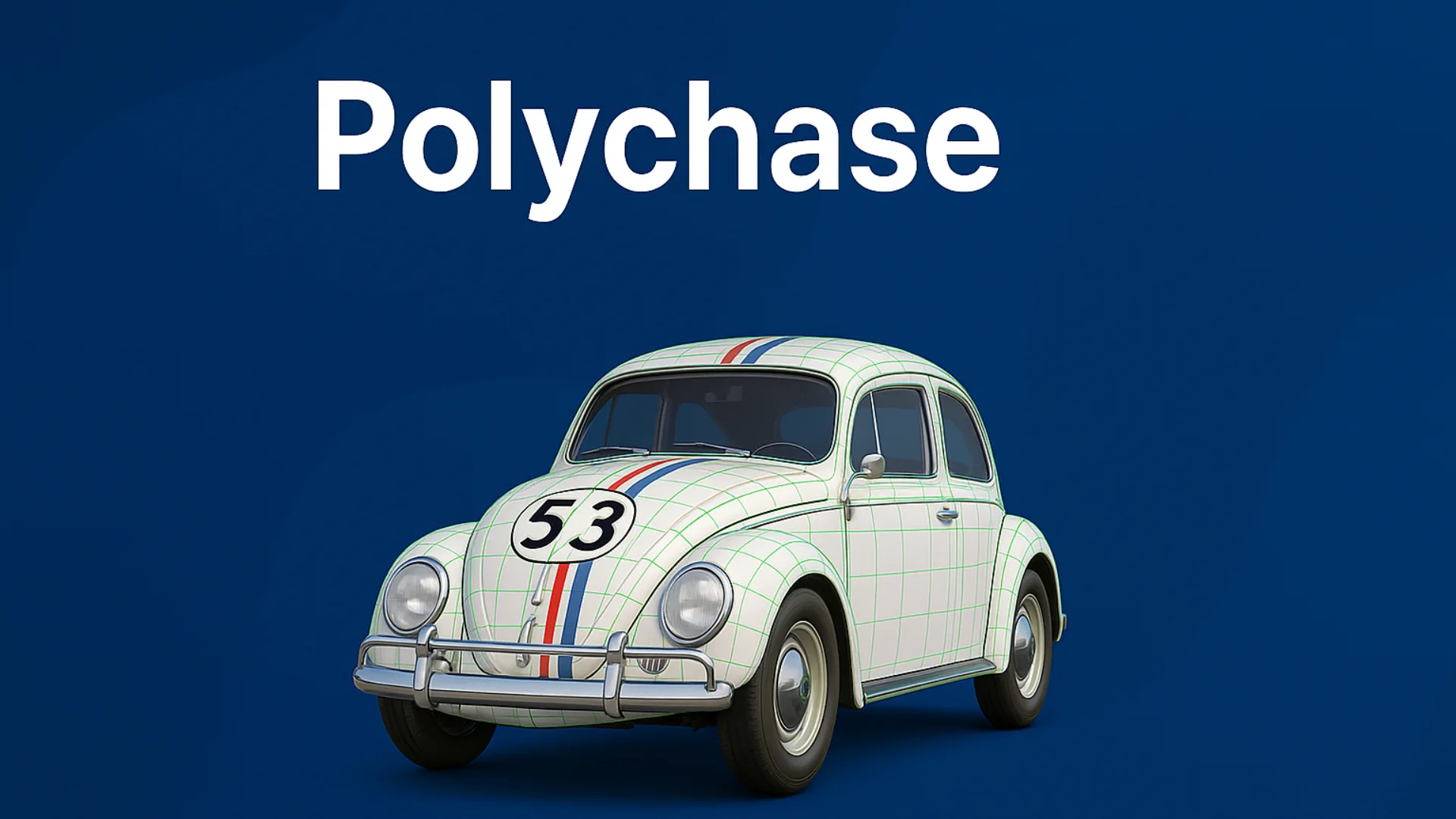
Object tracking is available through an implementation of the Polychase add-on, either after a camera solve or without a moving camera. Easy Camera Tracker can also export undistorted footage for compositing; the original lens distortion can be reapplied later.
Check compatibility and storage
The product listing names Blender 4.5 through 5.2, and the system requirements list Windows 10 or 11 and macOS 13 or later on Apple Silicon processors. Intel Macs are not supported. A fast CPU and ample RAM help with tracking. An Nvidia GPU can speed up tracking; creating the optional dense point cloud requires an Nvidia GPU and is a Windows-only feature.
To install, drag the downloaded ZIP file into Blender’s 3D viewport. On Mac, the documentation says to visit the add-on preferences to complete setup. Tracking data is stored in a folder beside the source video. Unless you choose to keep the tracking folders, temporary files are removed after a successful scene setup. Tracking can keep Blender usable while it runs, though the computer may feel less responsive while the solve is working.